Keep the recording, the bit and your own judgment in the same conversation. This guide walks through saving a show, checking Red’s review and choosing what comes back to the writing.
Guide checked against Beta 342Real iPad captures from Beta 341
01 / SAVE THE CONTEXT
Start with the show.
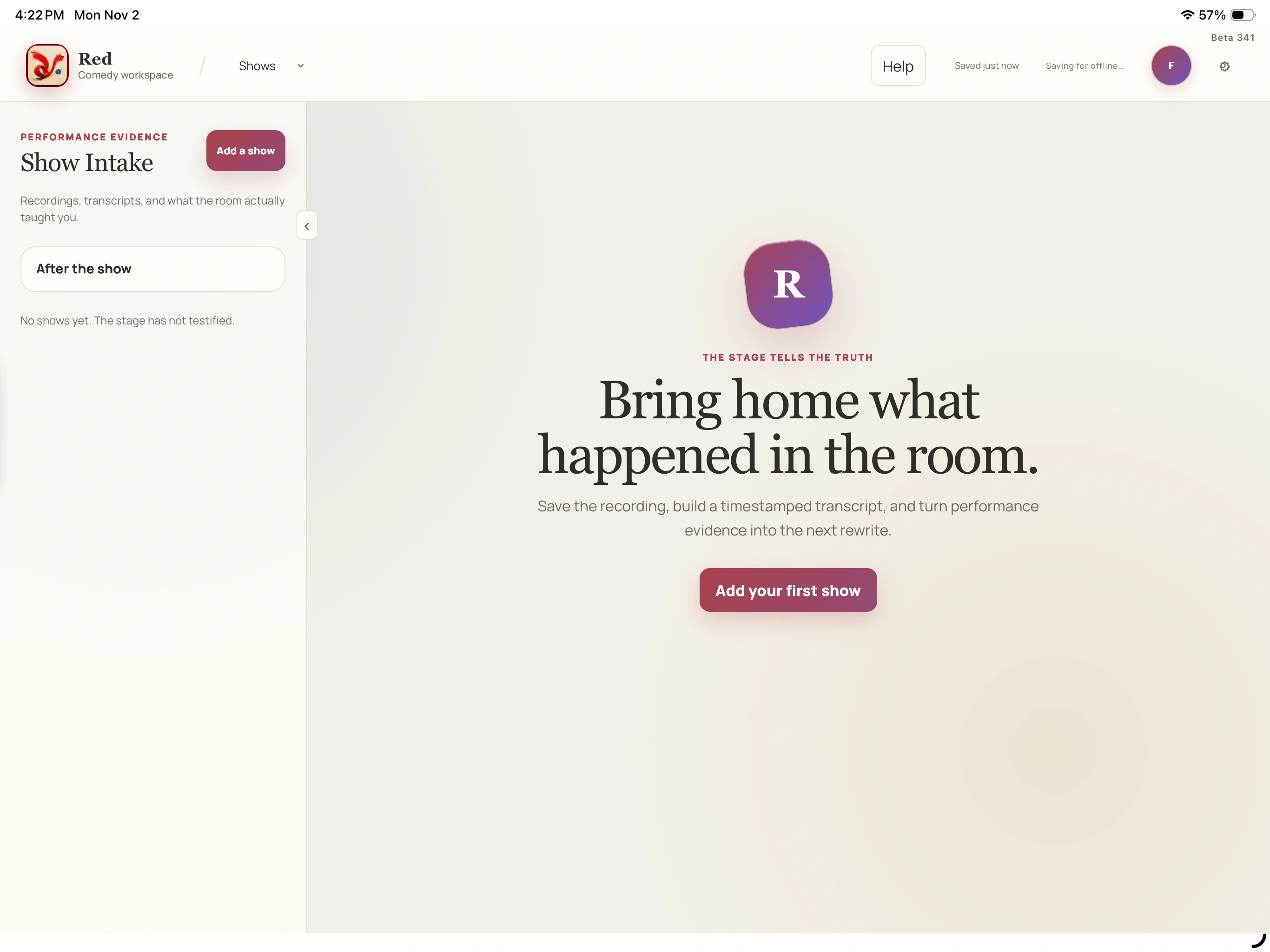
A show can hold your notes before you have a recording. A planned set describes what you intended to perform; it does not prove what happened on stage.
Open Shows, then Add a show. Enter a Show name. Date, venue & set holds the optional details and Planned set; Not linked yet is allowed.
02
Keep your observations
Open Notes (optional), add what is fresh from the room and choose Save show. On the saved show, Your notes & planned set brings that context back.
03
Link a note deliberately
Choose Type or write a show note. In the Post-show notebook, choose Which bit? or Whole show / no specific bit. Add a Moment or Takeaway, type or write, then Save to show.
04
Read the save state
Saved on this device still needs to sync. Keep for later or Keep on this device leaves an unfinished device draft; it is different from a confirmed account save.
A closer look Hover, focus or tap a control name.
You can save the show and your observations before adding audio. A recording is not required to begin.
This is the intended run, not evidence that every listed bit was performed.
Choose a real Library link when the note belongs to a bit. A cue without a material link stays show-only.
Read every control tip
Add a show
You can save the show and your observations before adding audio. A recording is not required to begin.
Planned set
This is the intended run, not evidence that every listed bit was performed.
Which bit?
Choose a real Library link when the note belongs to a bit. A cue without a material link stays show-only.
When you want the details
Find the note again
Open Your notes & planned set on the saved show. General observations and notes grouped by bit have separate places. Linked saved notes can also appear under Show feedback in Writing Room. Opening one does not alter the draft.
Keep an unfinished note
Keep on this device saves a local draft for the same device. Return to it and finish saving when ready. Keep the device copy until Red confirms the account save.
↳ Try a small task
Use a short piece of sample material and follow the save messages.
Save a named show without audio.
Add one general note and one deliberately linked bit note.
Reopen both and check the save status.
02 / ADD THE AUDIO
One performance. The files in the right order.
Bring one recording or the camera and audio segments from a single performance. Red prepares the combined audio; your device originals stay unchanged.
01
Choose the files
Open a saved show → Add recording (later Recording options) → Choose the show recording. Choose the segments from that performance.
02
Check the order
Under One show, in this order, use Move earlier / Move later or Remove. Sort by filename restores filename order. Newly added files begin in natural filename order; listen and check that it is the order you want.
03
Choose storage or transcription
Save privately, transcribe later → Save audio privately stores the combined audio without starting cloud transcription or the complete AI review. Build a speaker-aware transcript is a separate choice with permission to send the recording to OpenAI.
04
Wait for the receipt
Keep this Red window open until storage is confirmed. Recording upload reopens progress and Cancel upload. Wait for Your recording is saved before relying on the result.
A closer look Hover, focus or tap a control name.
Stores the prepared audio without starting transcription or a full review. It does not keep the camera video as a playable show video.
This opens a separate sharing choice. Permission to transcribe is not permission for the complete review.
Audio preparation, transfer and verified storage are different stages. Keep your originals until final confirmation.
Read every control tip
Save privately
Stores the prepared audio without starting transcription or a full review. It does not keep the camera video as a playable show video.
Also review the complete show
This opens a separate sharing choice. Permission to transcribe is not permission for the complete review.
Your recording is saved
Audio preparation, transfer and verified storage are different stages. Keep your originals until final confirmation.
When you want the details
Current recording limits
The segmented importer accepts 1–50 supported nonempty files, up to 4 GiB each and 100 GiB of combined input. Combined audio may be up to four hours. Common audio and camera formats are accepted, but a file extension does not guarantee that every codec will decode. Read the actual error.
The prepared combined audio has a separate 750 MiB storage guard. The input allowance is not a promise of permanent 100 GiB recording storage. Ordinary writing-file imports use different limits.
If an upload pauses or is cancelled
Follow the actual progress and retry message. Confirmed temporary parts may be reused while the import finishes; changing the order or selection deliberately changes the prepared import.
Cancel upload attempts to discard temporary import parts. Device originals and saved show notes remain. If cleanup cannot be confirmed, Red says so; a stopped progress bar is not proof of a completed save or cancellation.
Transcription time and a quick listen
Give the recording a quick listen before submitting it. Audible performer and audience audio helps, though no recording guarantees perfect results.
If transcription time is insufficient, the recording remains saved. Use Plan & usage or Check time again. Do not start another upload merely to dismiss an allowance or processing warning.
↳ Try a small task
Use a short piece of sample material and follow the save messages.
Try short approved segments from one performance.
Change and recheck their order.
Distinguish private storage, transcription and complete-review permissions.
03 / REVIEW WITH RED
Let the review finish its work.
The complete review can check the saved audio, transcript and Library material together. It can also use a limited selection of your confirmed history and enabled preferences when you authorize that review.
01
Start from the saved show
In Clips, choose Review this show with Red. An archived recording first offers Build transcript first.
02
Read the sharing choice
What will Red review? explains the audio, transcript, Library and saved context involved. Choose Allow this review when ready. This permission is separate from transcription and is not remembered for another review.
03
Follow the status
Red may be checking words against audio, listening for response, finding bits, checking complete boundaries or preparing useful next steps. A ready transcript does not mean all of those stages have finished.
04
Continue with care
If paused, Continue show review reads the latest status and resumes unfinished work where safe. Review this show again requests a fresh review; it is not a view or refresh button.
A closer look Hover, focus or tap a control name.
Check the latest saved status before retrying. A lost response may not mean the original work failed.
Read which audio and stages were checked, and what still needs attention. Ready can still include uncertainty or withheld results.
Starts a fresh authorized review of a completed show. Opening saved results does not.
Read every control tip
Continue show review
Check the latest saved status before retrying. A lost response may not mean the original work failed.
Review coverage
Read which audio and stages were checked, and what still needs attention. Ready can still include uncertainty or withheld results.
Review this show again
Starts a fresh authorized review of a completed show. Opening saved results does not.
When you want the details
What progress means
Counts and percentages describe completed steps or audio sections. They are not an estimate of remaining time or a measured claim about speed or accuracy.
A partial result is not proof that every section completed. No suggestions is not proof that the show needs no work.
Where allowance information lives
Check the sharing dialog and Plan & usage for your account’s available review options and allowance. Private-beta accounts can have different access. General writing, transcription and complete show review are separate choices.
↳ Try a small task
Use a short piece of sample material and follow the save messages.
Identify transcript-ready, working, paused and completed states.
Open Review coverage before relying on the findings.
Use saved status rather than blindly submitting a second review.
04 / CLIPS
Know the bit. Hear the whole passage.
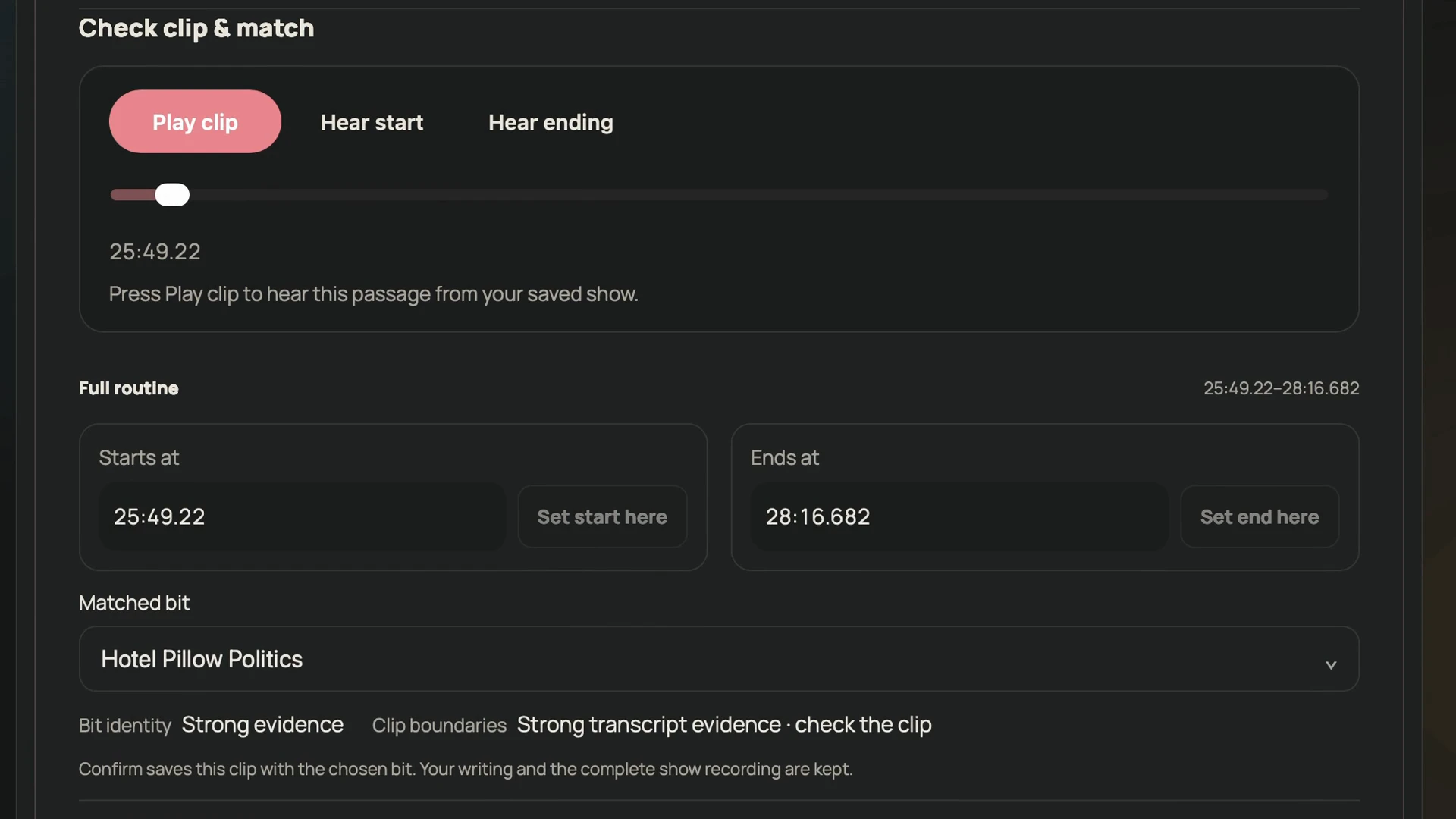
A bit’s identity and its boundaries are separate judgments. A clip is a non-destructive range in the saved recording, not a cut that removes audio.
The screenshot is an earlier recorded example with a fictional title. Follow the controls and status shown in your current show.
01
Listen to both edges
Expand a bit. Use Play clip, Hear start and Hear ending. Include enough setup, final tags and room response to understand the passage.
02
Check the bit
Use Matched bit and Search your bits… to choose the right Library material if the suggestion is wrong. A similar title alone is not proof of a match.
03
Adjust the range
Enter Starts at and Ends at, or seek and choose Set start here / Set end here. The end must follow the start and stay within the recording.
04
Confirm or dismiss
Confirm clip & bit saves the association and playback range. Dismiss match rejects the suggestion without deleting the recording or written bit. Reset proposed times restores the proposal’s original range without saving.
A closer look Hover, focus or tap a control name.
Listen beyond a single word or laugh. A processing boundary, pause or draft ending may not be the end of the performed bit.
Confirms this range and Library association. It keeps the complete recording and original writing.
Earlier matches & passages to check preserves older or incomplete material without presenting every passage as a verified complete clip.
Read every control tip
Hear start / Hear ending
Listen beyond a single word or laugh. A processing boundary, pause or draft ending may not be the end of the performed bit.
Confirm clip & bit
Confirms this range and Library association. It keeps the complete recording and original writing.
Earlier matches
Earlier matches & passages to check preserves older or incomplete material without presenting every passage as a verified complete clip.
When you want the details
Complete clips and separate appearances
Clips contains complete verified candidates or your current confirmations. A later callback can be its own occurrence rather than another complete performance of the whole routine.
A confirmed item says Clip & bit confirmed and can still be checked or corrected.
Playback is a way to check
Some previews continue through the response to a quiet moment when supported. That helper is not a reliable semantic end-of-bit detector. Pause manually when useful. If playback fails, reopen and retry before assuming the source recording is gone.
↳ Try a small task
Use a short piece of sample material and follow the save messages.
Check the proposed bit and both boundaries by listening.
Make one deliberate correction and reopen the saved result.
Dismiss an unsuitable match without removing the source audio.
05 / USEFUL MOMENTS
A useful moment starts as a possibility.
Something different from the written draft is not automatically an ad-lib or a new joke. Listen first, then tell Red what that passage actually was.
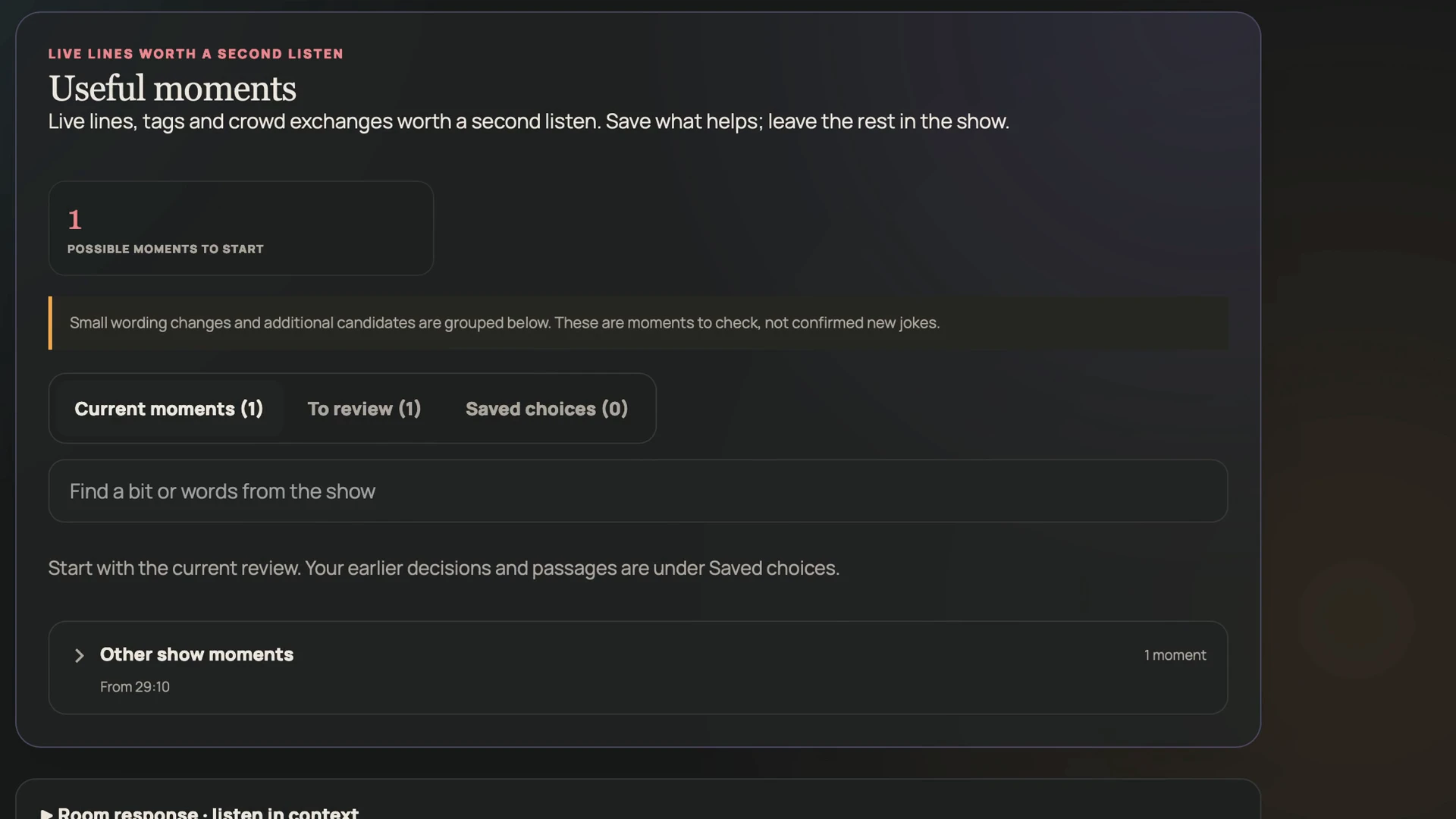
The recorded example retains its original candidate counts and earlier-review context. It does not show a completed save.
01
Find a candidate
Current moments shows this review’s candidates. To review narrows the pending decisions. Search with Find a bit or words from the show.
02
Answer the origin question
After Listen in context, answer Was this part of your usual bit? Choose Yes, it’s part of the bit, It was spontaneous, It was crowd work or Not sure. The answer adds context; it does not insert text into a draft.
03
Choose where it belongs
Save… offers Save with bit, Save as new idea or Keep in this show. Save with bit parks the live line with a chosen bit; Save as new idea creates separate writing in Inbox. Skip sets the suggestion aside.
04
Return to decisions
Saved choices groups the things you kept, skipped, answered or confirmed. Only categories with saved items appear. Wording variations and More possible moments keep smaller differences within reach.
A closer look Hover, focus or tap a control name.
Parks the line with a deliberately chosen Library bit. It does not replace that bit’s main draft.
An honest uncertainty is useful context. Red should not turn a wording difference into a confident claim about its origin.
Earlier decisions remain accessible. Rebuilding a review does not automatically recheck or re-approve them.
Read every control tip
Save with bit
Parks the line with a deliberately chosen Library bit. It does not replace that bit’s main draft.
Not sure
An honest uncertainty is useful context. Red should not turn a wording difference into a confident claim about its origin.
Saved choices
Earlier decisions remain accessible. Rebuilding a review does not automatically recheck or re-approve them.
When you want the details
Choose a destination
Save as new idea makes a separate Inbox piece. Keep in this show keeps show-only context. Skip does not cut audio or delete a bit.
Create new bit opens an editable draft popup. Check the words and title, then explicitly Save to Library. A proposed match is not that decision.
Keep the right kind of evidence
Saved choices can include New bits, Writing updated, Saved with a bit, New ideas, Show only, Try again, Skipped & dismissed, Answers saved and Confirmed. These describe different outcomes.
Your origin answer applies to that source passage. It does not automatically classify a similar line in the next show.
↳ Try a small task
Use a short piece of sample material and follow the save messages.
Listen before choosing an origin answer.
Compare parking a quote with making a new Inbox idea.
Reopen your choice under the appropriate saved category.
06 / THE DRAFT POPUP
Put the live words where you want them.
A passage can become writing through an explicit edit. Your draft and Your words from the show stay side by side while you choose the words and placement.
01
Open the writing choice
Create new bit starts a new editable piece. For a usual part of an existing bit, Add transcript to bit lets you choose its Library destination and review a new version.
02
Place the words
Select or tap source words, then tap a gap; drag them between paragraphs; or place a paragraph cursor and choose Insert here.
03
Shape the draft
Move paragraphs with the grip or arrow buttons. Enter creates a paragraph; Shift+Enter keeps a line break within one. Undo reverses an editing step.
04
Save deliberately
Save a new version retains the previous saved version of an existing bit. A new piece uses Save to Library and goes to Inbox. Cancel or Back with changes asks about discarding them.
A closer look Hover, focus or tap a control name.
When a passage is already present, find it instead of inserting a second copy.
This is the explicit writing update. Answering an origin question or saving a show note is not the same action.
Read the discard choice when edits are pending. Until confirmation, do not assume the edited writing is saved.
Read every control tip
Find in draft
When a passage is already present, find it instead of inserting a second copy.
Save a new version
This is the explicit writing update. Answering an origin question or saving a show note is not the same action.
Cancel / Back
Read the discard choice when edits are pending. Until confirmation, do not assume the edited writing is saved.
When you want the details
When a save is uncertain
Read the actual result and retry guidance. A failed or lost response does not justify creating another new bit automatically. Preserve the pending words until the outcome is clear.
What stays intact
The previous saved version of an existing bit is retained when a new version is confirmed. Saving a clip or origin answer alone does not replace that writing. The complete show recording remains separate.
↳ Try a small task
Use a short piece of sample material and follow the save messages.
Insert a short approved passage at a chosen gap.
Use Undo and check the placement again.
Confirm the correct title and destination before saving.
07 / NEXT-SET NOTES
Leave with something specific to try.
A useful note gives you a next test and the evidence behind it. It is an experiment for your act, not a verdict that a line worked or failed.
The screenshot is an earlier listen-in-context example; the current guide uses Beta 342’s Next-set notes workflow.
01
Read the scope
Open Next-set notes and What this review can tell you. Check the short overview and any limits.
02
Hear the evidence
Read the observation and proposed test. Choose Listen in context when a source range is offered.
03
Keep or set aside
Save for later records the review decision. Not useful sets the suggestion aside. Neither rewrites a draft or adds a set cue.
04
Work on the bit
For an accepted note linked to a bit, Work on this opens the related writing workflow. You still choose every edit.
A closer look Hover, focus or tap a control name.
Hear the setup and response around the passage. Playback does not start another AI review.
Keeps a note for review. It does not silently change the act or next set.
A saved earlier decision is not newly verified just because another AI pass has finished.
Read every control tip
Listen in context
Hear the setup and response around the passage. Playback does not start another AI review.
Save for later
Keeps a note for review. It does not silently change the act or next set.
Earlier review
A saved earlier decision is not newly verified just because another AI pass has finished.
When you want the details
A shortlist, not a quota
The review can withhold unsupported suggestions. There is no promised number of notes and no guarantee that every recording yields a useful finding.
Bring your judgment
Consider the room, performance and recording quality. Choose the test that fits your act, and leave a line alone when that is the better decision.
↳ Try a small task
Use a short piece of sample material and follow the save messages.
Listen to one note’s source.
Save or dismiss it deliberately.
Reopen the decision and check that the draft is unchanged.
08 / AUDIENCE RESPONSE
Use the numbers to find the sound.
The saved audio can provide estimates of laughter, applause and replies. A transcript alone is not evidence of laughter, and a number is not a comedy score.
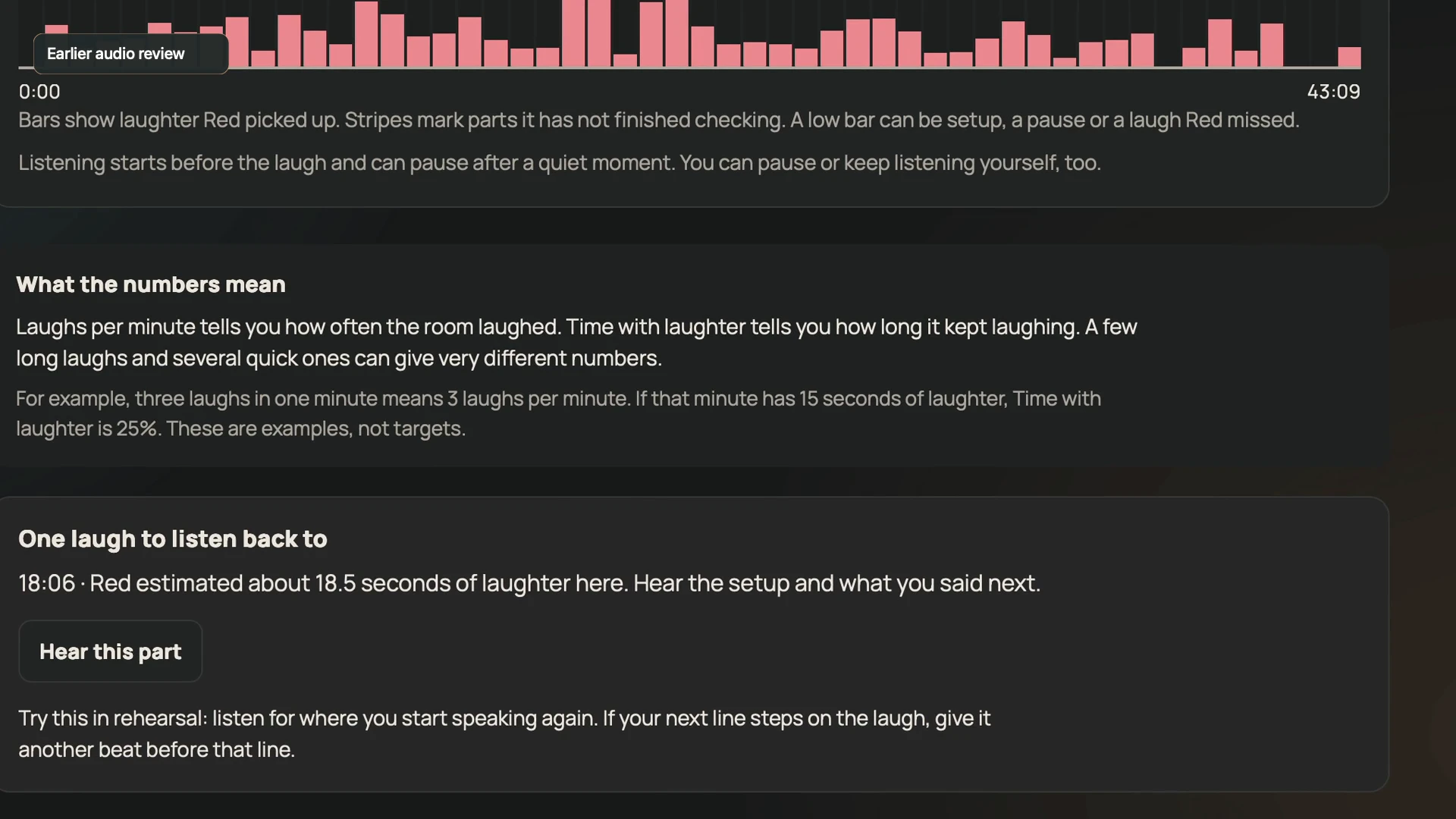
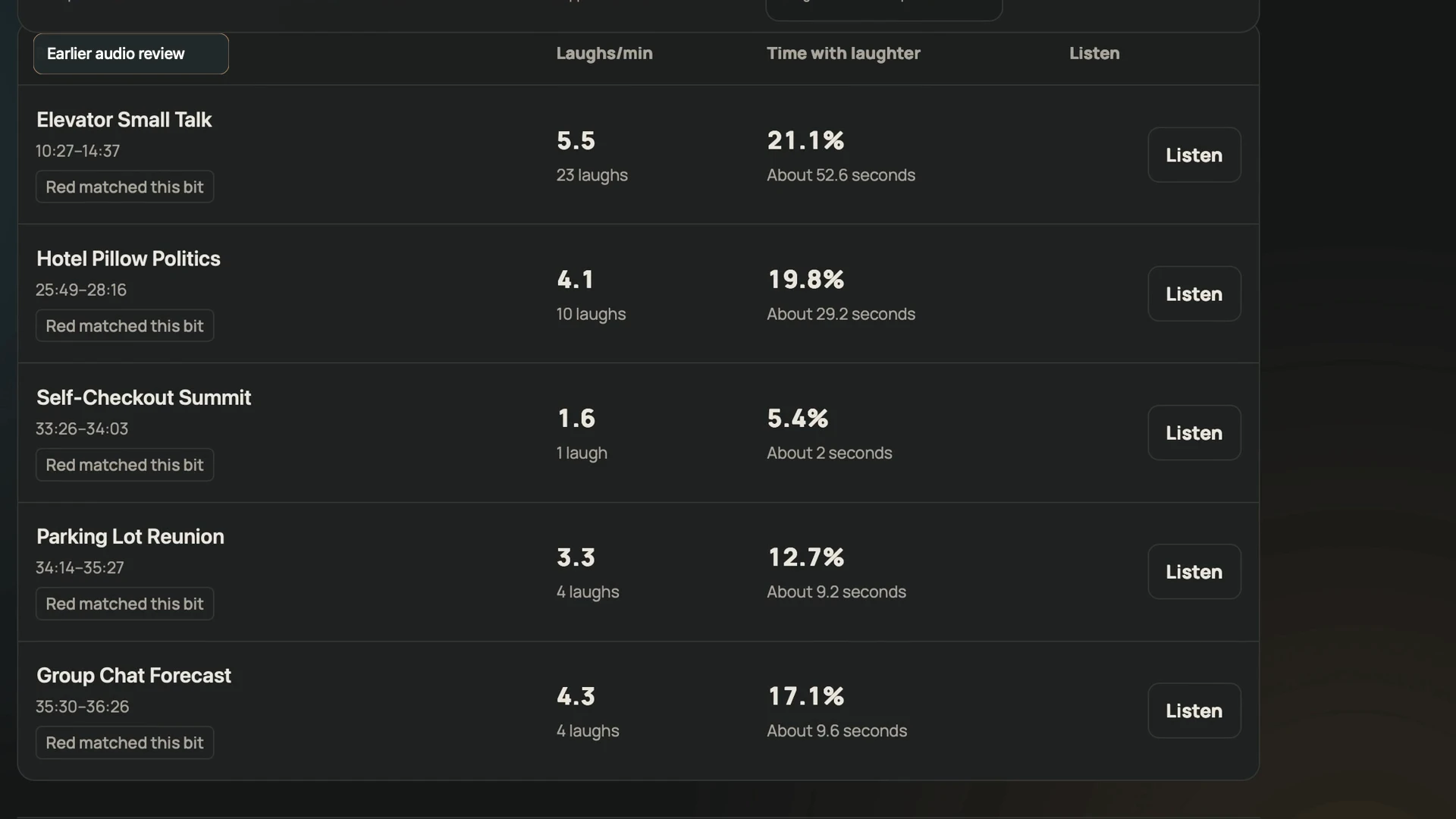
This earlier example visibly says Earlier audio review. Its figures are not presented as the current review’s results or a cross-show comparison.
01
Read the coverage
Open Audience response. Check which audio was reviewed and any unchecked or incomplete sections before reading the numbers.
02
Understand the measures
Laughs per minute groups laugh bursts per minute of checked audio. Time with laughter estimates the share containing laughter. Applause is kept separate.
03
Choose a place to listen
In Where the laughs came, choose a playable bar for its lead-in and response. Stripes mark unchecked sections. One laugh to listen back to offers Hear this part.
04
Return to a bit
Bit by bit lists complete matched or confirmed ranges with Listen. Red matched this bit and You confirmed this describe different evidence.
A closer look Hover, focus or tap a control name.
It may be setup, a pause or a missed laugh. It does not explain why the room was quieter.
Grouped bursts per minute of checked audio, not a required target or grade.
Keep older local estimates separate from the current audio review. Read the provenance on the screen.
Read every control tip
A low bar
It may be setup, a pause or a missed laugh. It does not explain why the room was quieter.
Laughs per minute
Grouped bursts per minute of checked audio, not a required target or grade.
Earlier audio review
Keep older local estimates separate from the current audio review. Read the provenance on the screen.
When you want the details
How Red counts it
Overlapping laughs and bursts beginning within half a second are grouped. Pauses between bursts do not count as laughter. The bit table uses reviewed audio within each clip boundary.
A taller bar means more of that checked interval was marked with laughter. It does not identify which exact line caused the sound.
Listen in context
Useful moments also has Room response · listen in context. Listen, Hear this part and Play clip open playback; Done listening stops the context player.
Recording quality and microphone position can change estimates between shows. Compare the recordings yourself before attributing a difference to the writing.
↳ Try a small task
Use a short piece of sample material and follow the save messages.
Play a chart bar and a bit row.
Read the count explanation and coverage warning.
Check a number against the actual audio.
09 / TRANSCRIPT
Read the words. Check the uncertain ones.
Use a readable script and the timed source together. Audio-checked wording can still contain mistakes; speaker roles are estimates, not identities.
01
Choose a reading view
Open Transcript. Script is for reading flow; Timestamps keeps the original timed segments. A Script time link returns to the corresponding segments.
02
Compare when offered
Compare transcription switches Audio-checked transcript and Original transcript. Original wording is retained.
03
Listen where it matters
Check these words against the audio marks uncertain alignment. Expand supported response annotations and use Listen in context.
04
Make writing explicitly
Create bit opens the new-bit popup. Check the words, give the piece a title and Save to Library. Viewing a transcript does not save or publish it as material.
A closer look Hover, focus or tap a control name.
The original wording is retained for comparison. New audio checking is not a promise of perfect words or newly measured word timestamps.
Roles help navigation. They do not establish who a person is.
Opens a writing decision. You still edit, name and confirm the piece.
Read every control tip
Original transcript
The original wording is retained for comparison. New audio checking is not a promise of perfect words or newly measured word timestamps.
Speaker labels
Roles help navigation. They do not establish who a person is.
Create bit
Opens a writing decision. You still edit, name and confirm the piece.
When you want the details
Annotations and earlier evidence
Audience annotations from an earlier review can remain while a newer review is running or needs attention. The screen identifies their provenance; do not treat all visible annotations as fresh findings.
Timed reading
Original segment times remain. Read and hear enough surrounding material before correcting wording or deciding whether a line belongs in a bit.
↳ Try a small task
Use a short piece of sample material and follow the save messages.
Follow one Script time link.
Compare original and checked wording when available.
Listen to one uncertain passage.
10 / BACK TO YOUR MATERIAL
Keep the history behind the bit.
Your confirmed clips and the answers you give Red can add context to a later authorized review of your act. The Library also keeps a route back to the saved show evidence.
01
Open the bit’s history
Library → Bit details → Performances. Recording archive lists linked recordings and clips; Play clip returns to the recorded range.
02
Inspect the source
Show analysis brings together Findings, Room signals, Suggestions and Your linked notes. Open in show, Open original show note or Open show review returns to the evidence.
03
Keep confirmed and possible apart
A possible match, a planned-run link and a confirmed complete clip are different. A recording attached only as a resource has no show review just because it can be played.
04
Add context carefully
Confirmed earlier clips, your explicit answers and enabled confirmed profile preferences can inform a later review. Current writing and current verified evidence take precedence when they conflict.
A closer look Hover, focus or tap a control name.
Read-only access to saved evidence. Opening it does not change writing, approve a match or start AI processing.
Bounded private context from your own confirmed sources, not retraining the underlying model or sharing your material with other accounts.
Describes that earlier source. It does not decide the origin of today’s similar line automatically.
Read every control tip
Performances
Read-only access to saved evidence. Opening it does not change writing, approve a match or start AI processing.
Your confirmed history
Bounded private context from your own confirmed sources, not retraining the underlying model or sharing your material with other accounts.
A prior answer
Describes that earlier source. It does not decide the origin of today’s similar line automatically.
When you want the details
What “knows your act” means
Think of the tradition of road partners watching each other’s sets and comparing notes. Red can bring your saved writing and confirmed context into the next authorized review; you supply the judgment and the decisions.
This is limited application context. It does not promise exhaustive memory, perfect identification or measured automatic improvement. Deleted or changed sources can invalidate earlier examples.
Go back far enough
Load older recordings and Load older shows retrieve more linked evidence when offered. Keep the distinction between a recording resource, a possible association and a confirmed range.
↳ Try a small task
Use a short piece of sample material and follow the save messages.
Find a bit’s deliberately confirmed clip.
Open its original show evidence.
Verify that viewing history leaves the draft unchanged.
Nothing quite matches that yet.
Try a shorter control name, or clear the search to see every chapter.
HELP US MAKE THE NEXT PASS BETTER
Where did you get stuck?
Tell us the screen, your device, what you expected and the message you saw. Keep private writing out of the example.
 Red