Someone who knows the act. Who watches the set. Who takes the notes.
Comics have long done that for each other. Red brings that spirit to your own show review: your saved material beside what you performed, specific passages to revisit and ideas for the next time on stage. Your confirmed clips and the answers you give Red can add context to a later authorized review.
The recording gives you the moment. The draft gives it context. You decide what to keep.
Your old notes have earned their place. Export them from the app you use, upload a supported file, then review what Red found before saving it to your Library.
A few ways in
Evernote
ENEX export
Apple Notes, Google Docs or Word
Export a document, such as PDF or DOCX
Google Keep
Takeout JSON
Joplin
JEX export
Notion, Obsidian and other tools
Supported Markdown, HTML or ZIP exports
Formats & import limits
Text and notes: TXT, Markdown (MD), HTML, CSV, TSV, ENEX and supported JSON exports from Google Keep, Simplenote and decrypted Standard Notes. Archives: ZIP and JEX. Documents: PDF, Word (DOC/DOCX) and RTF; scanned text can be read from PNG, JPEG and TIFF images.
These are file imports. Red does not connect to or keep your original notes app in sync. Export options vary by app. Review the preview: complex layouts, handwriting and scanned pages may need cleanup; formatting and attachments may not carry across. Encrypted exports must be decrypted first. Up to 60 MB per import file; archive limits apply.
01 / CATCH IT
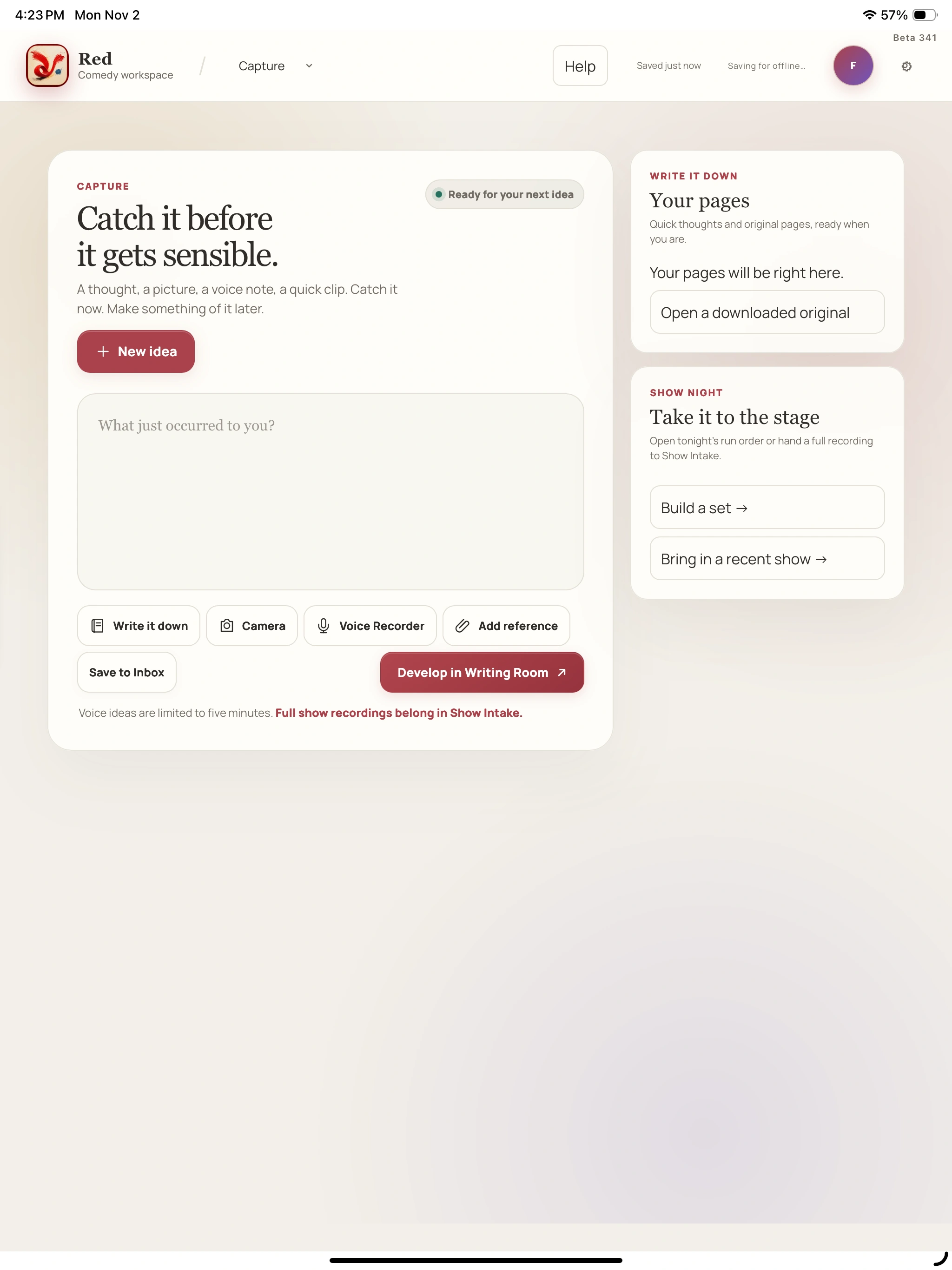
A good line can arrive at a bad time.
Type the thought, record a voice note or add a photo. Save it to Inbox, then open it in Writing Room when you can give it some attention.
Capture voice notes don’t require AI. The recorder supports up to five minutes; attachment limits apply. Prepare the device online before relying on offline capture.
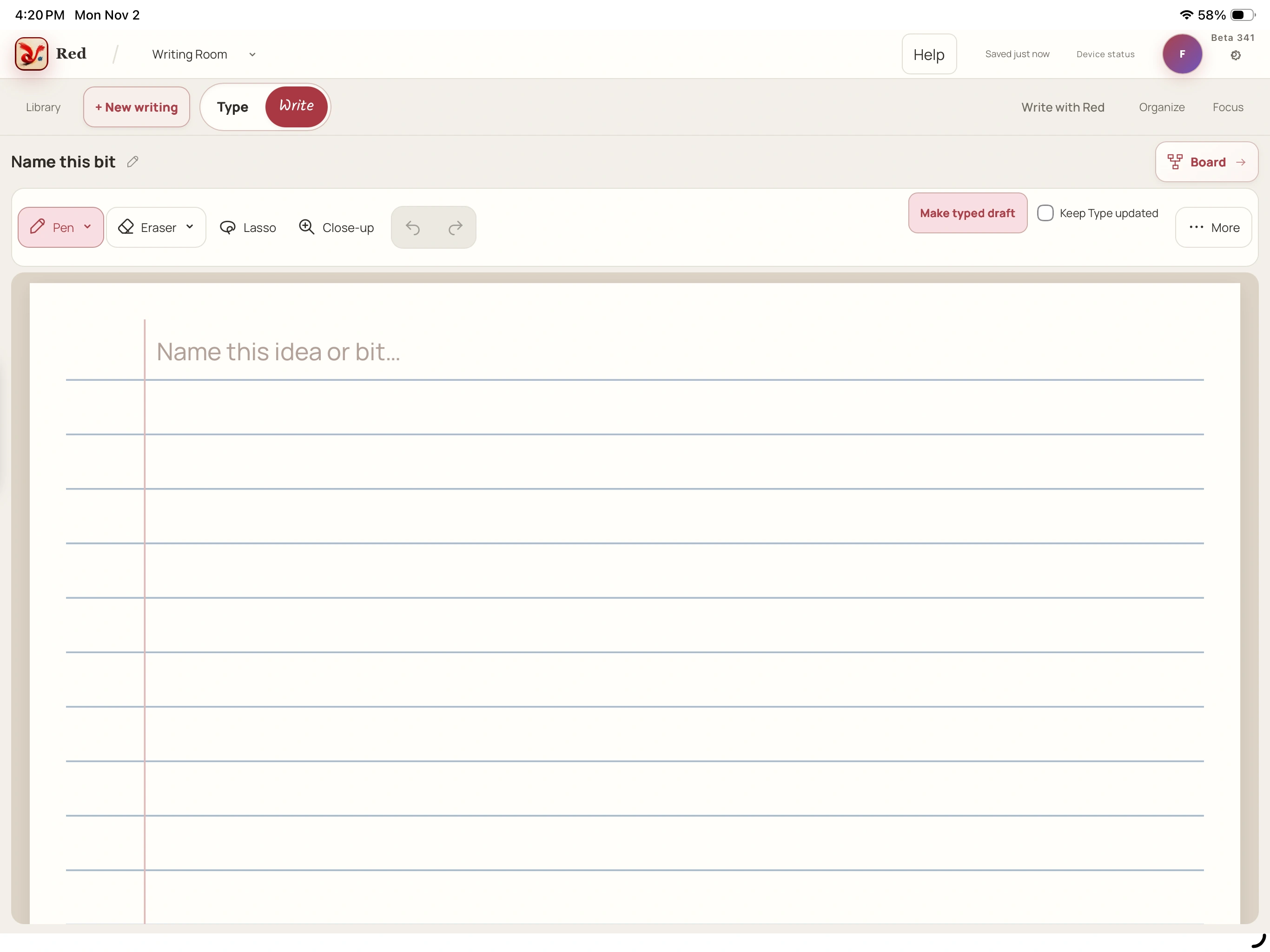
Your original handwriting and a typed draft have their own place. Read the words, check uncertain ones and keep developing the bit.
Watch the handwriting demonstration
In the installed iPad app, Keep Type updated reads your handwriting on-device after quiet pauses while the app is open. Review uncertain words. In a browser, Make typed draft needs a connection.
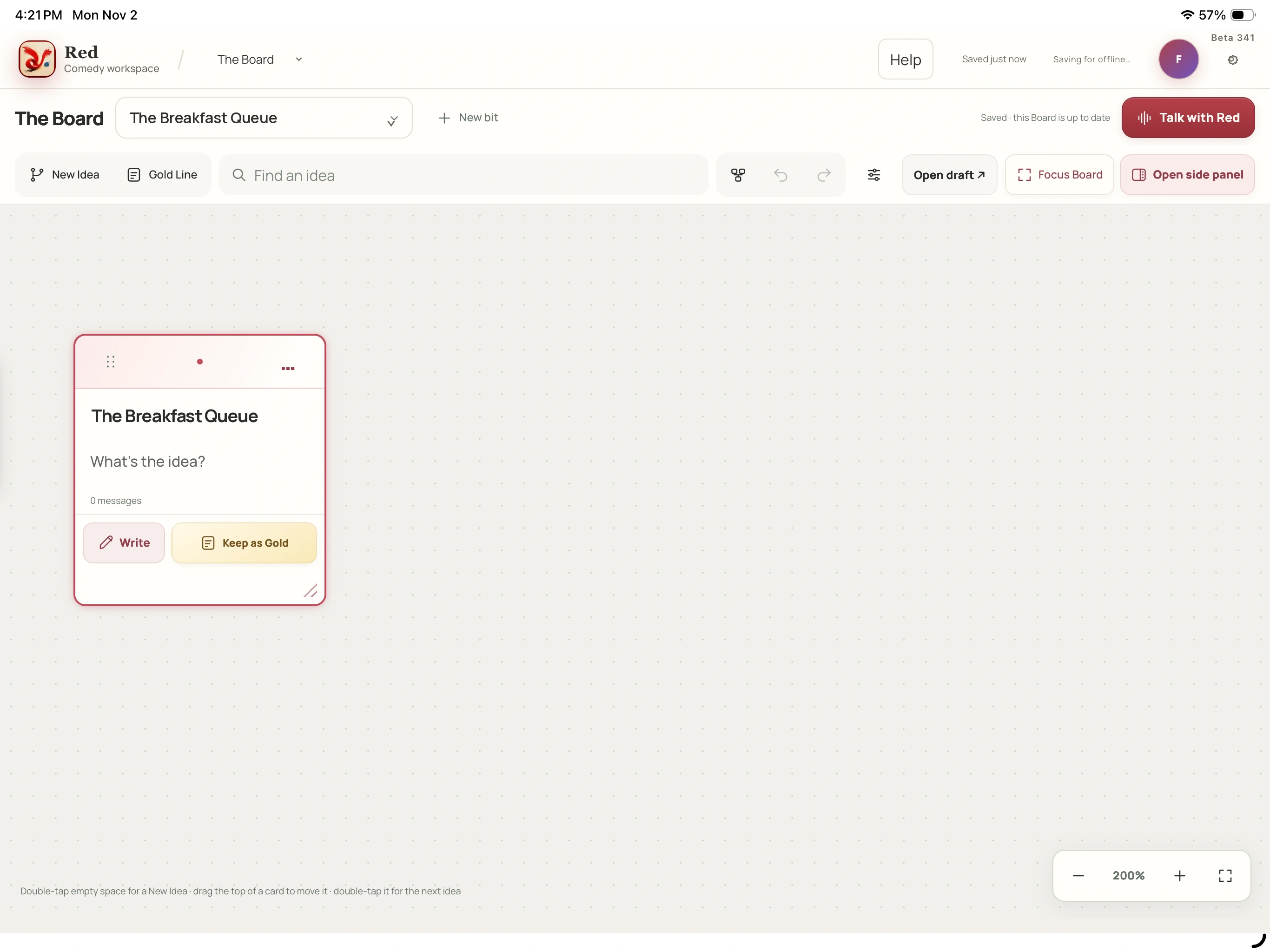
Give the idea shape on the Board.
Create cards, choose roles and colors, connect related ideas and keep chosen lines as Gold. Use it with or without AI.
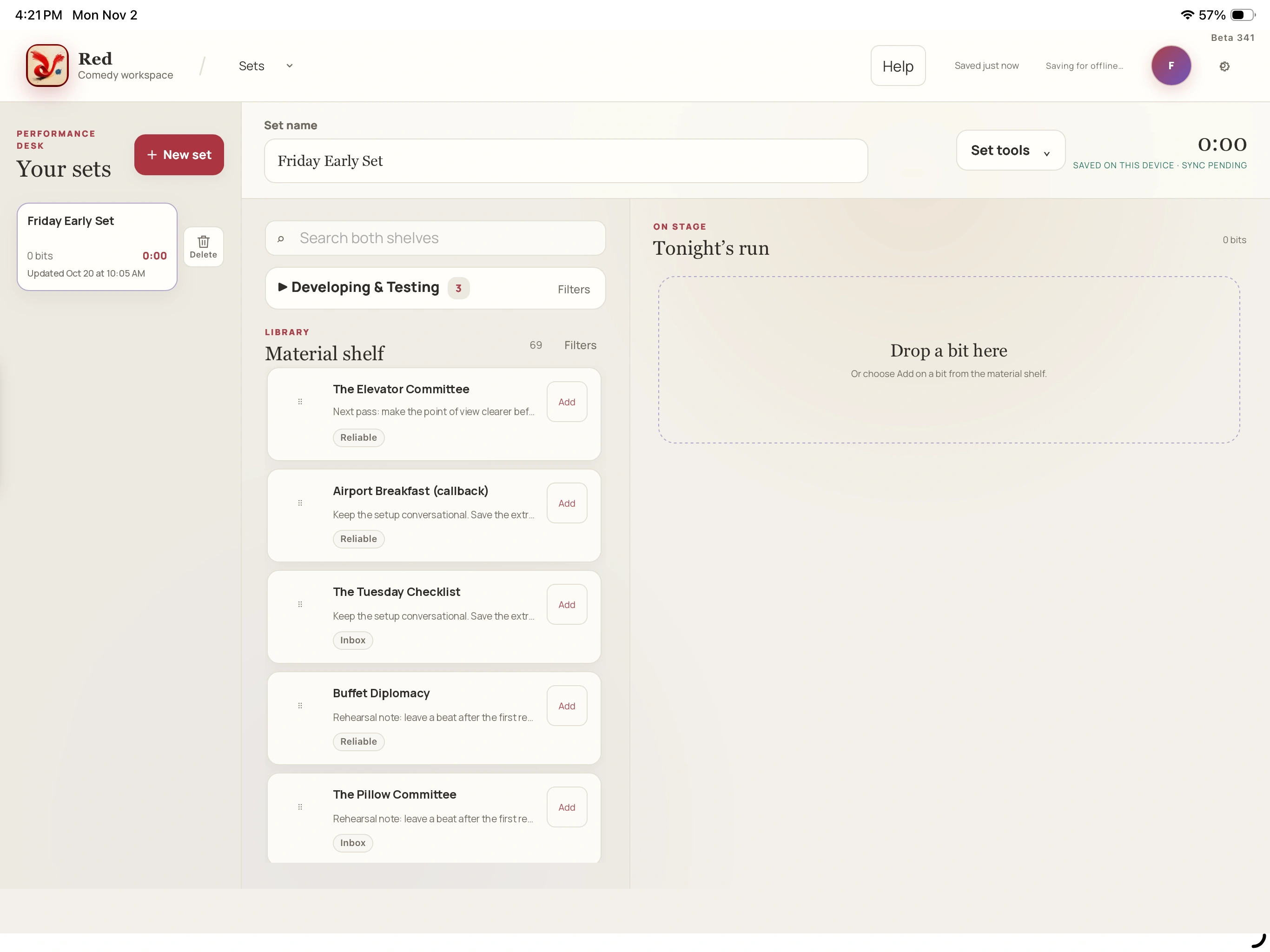
Choose bits from your material, put them in order and add their estimated lengths. Keep the run and its cues ready for the show.
Watch the set-building demonstrationMore from set preparationTry a bit out loud.5 seconds
An earlier desktop view of the Rehearsal Studio timer, with recording off.
Send a bit to Sets.14 seconds
An earlier desktop view: review a bit and send it to the Material shelf.
04 / BRING SOMETHING BACK
Bring the show back to the writing table.
The recording. The saved bit. The line you didn’t plan. Show analysis puts them in the same conversation, so a review can become useful work on the next draft.
Explore the real screens below. Each one answers a different question about the show.
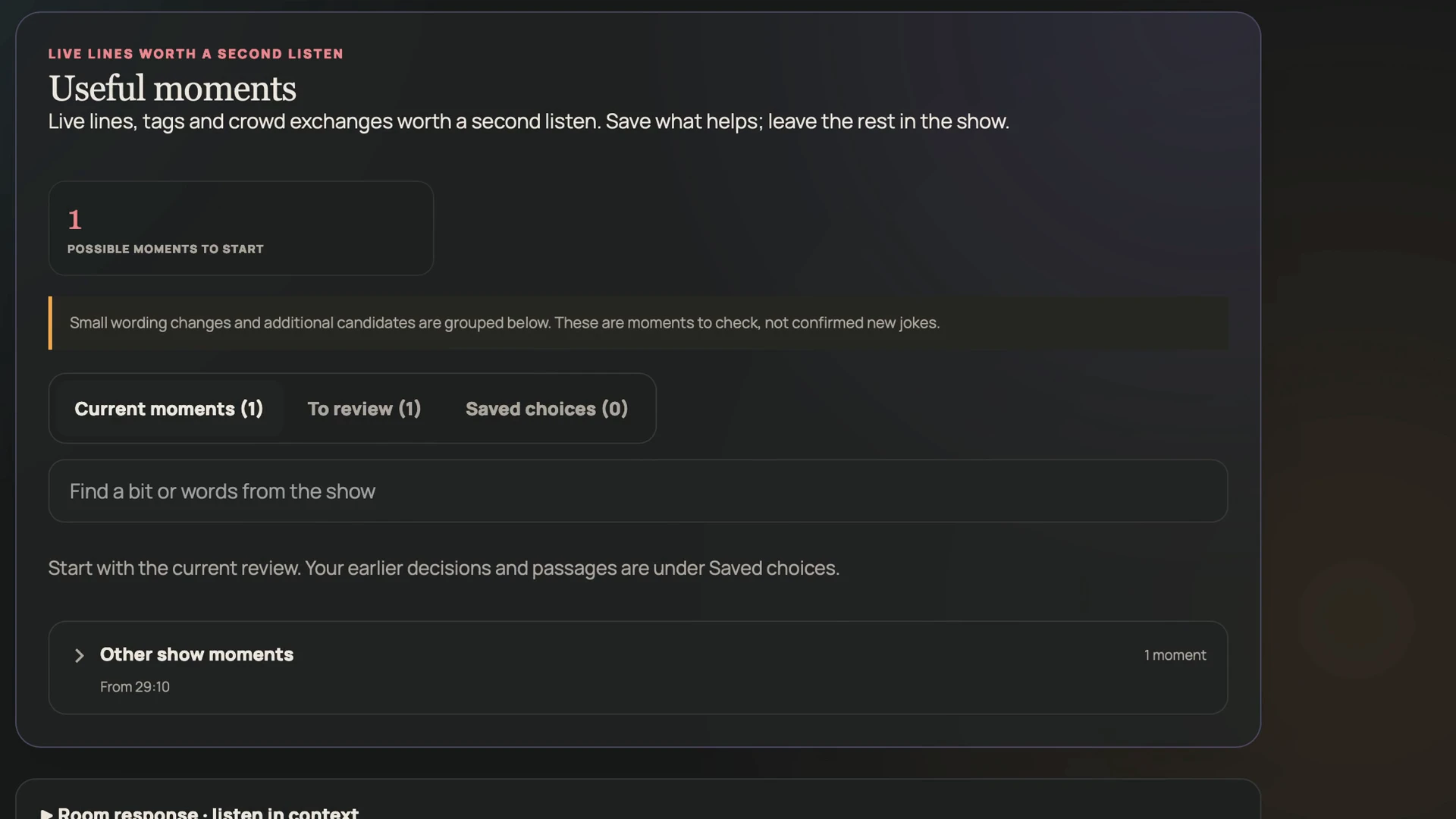
A live line, a tag or a crowd exchange can disappear from memory before you get home. Useful moments gives you candidates to revisit, with the source passage close by.
Current moments, To review and Saved choices keep the work of reviewing separate from the decisions you have already made. Small wording changes are grouped rather than presented as a pile of new jokes.
Keep a useful line with its matched bit, bank a fresh idea in Inbox, or leave it as context. A suggestion does not rewrite your material for you.
This screen shows a candidate to check, not a saved or proven new joke.
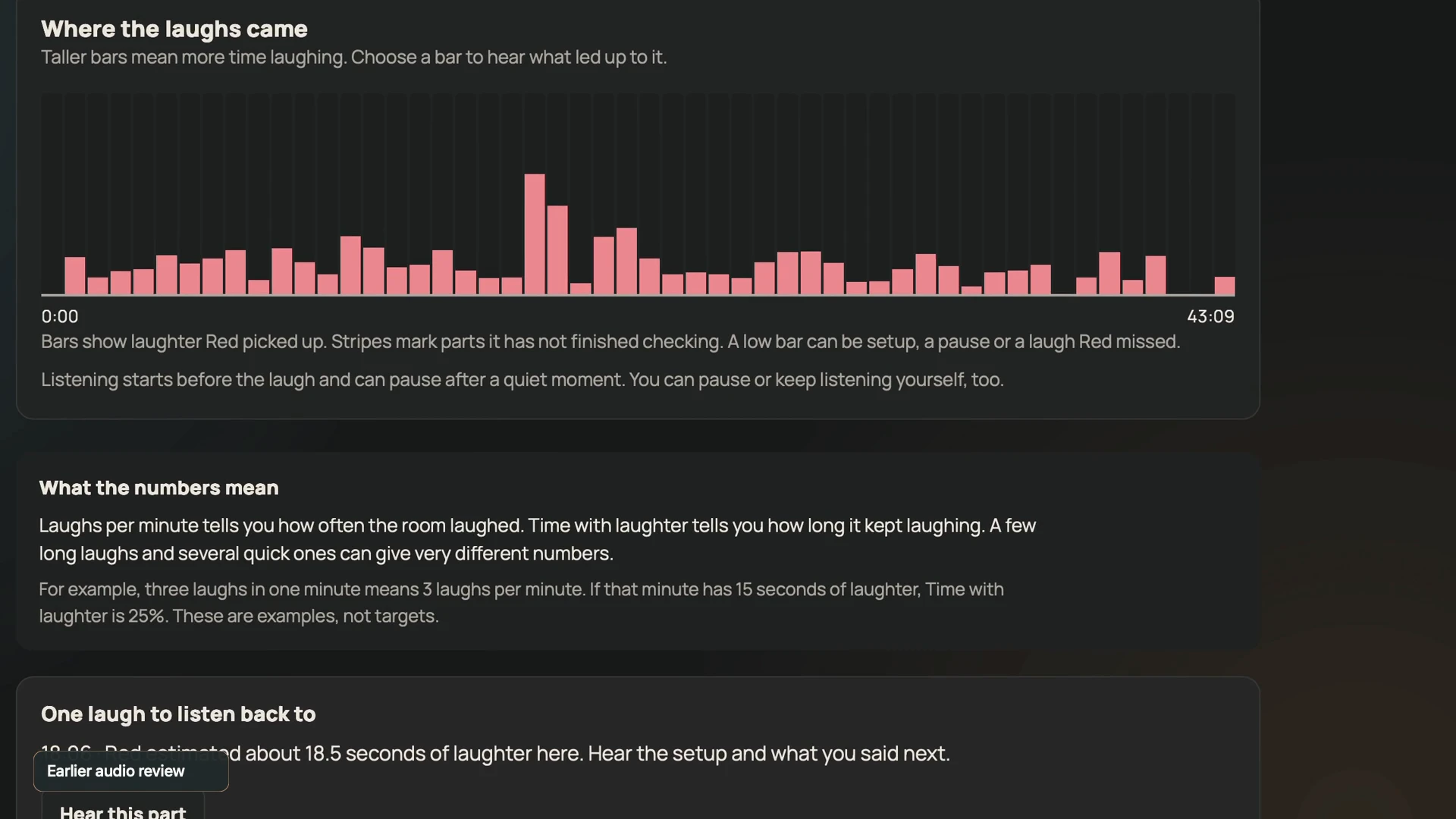
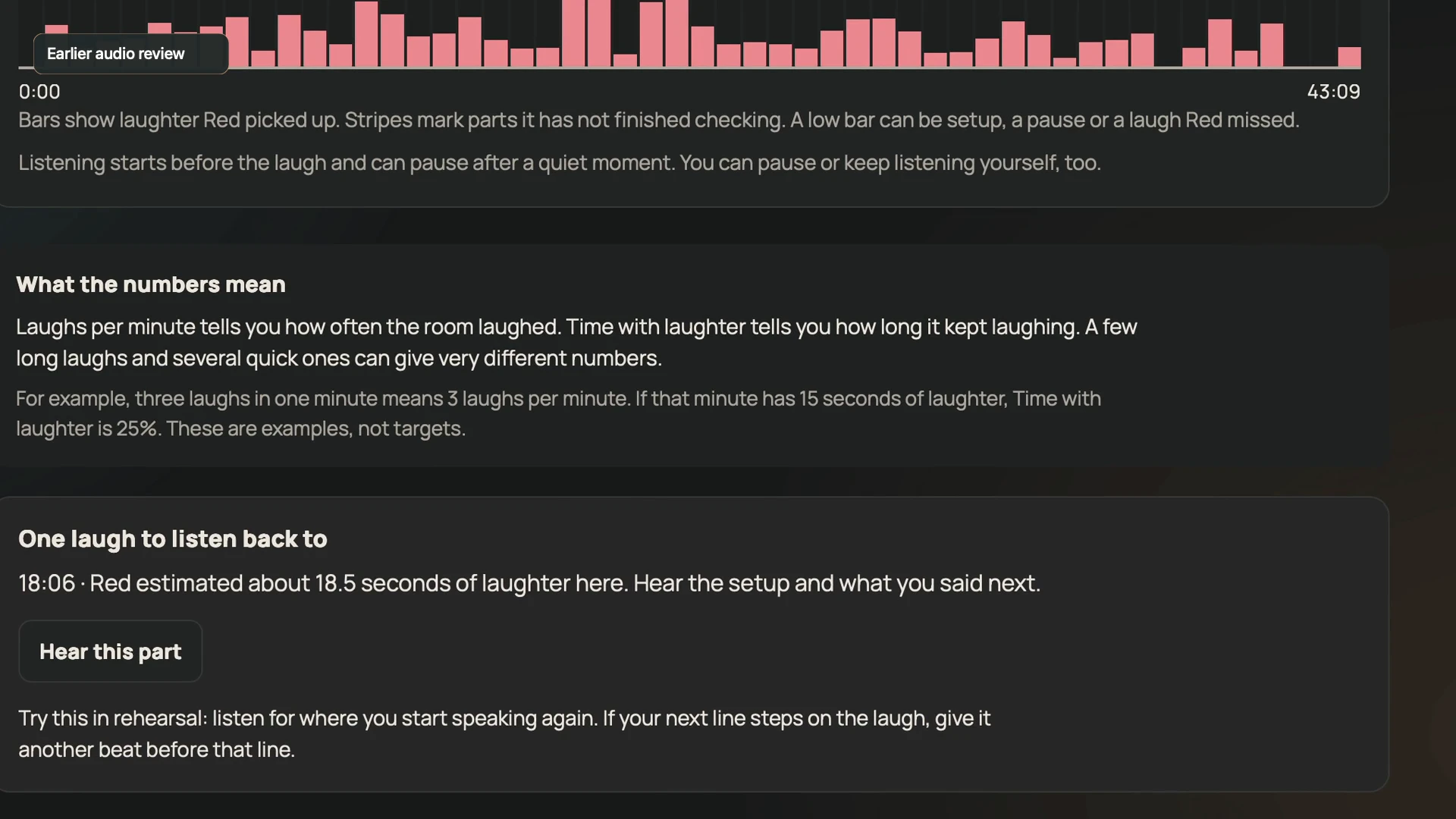
The response timeline gives you places to revisit across the recording. Listen around a marker to hear what happened before and after it.
Audio estimates can miss quiet laughs or confuse room noise. A low bar does not tell you why a passage felt quiet, and a high bar does not explain what caused it.
Use the chart as a way back into the show. Your ears and judgment finish the review.
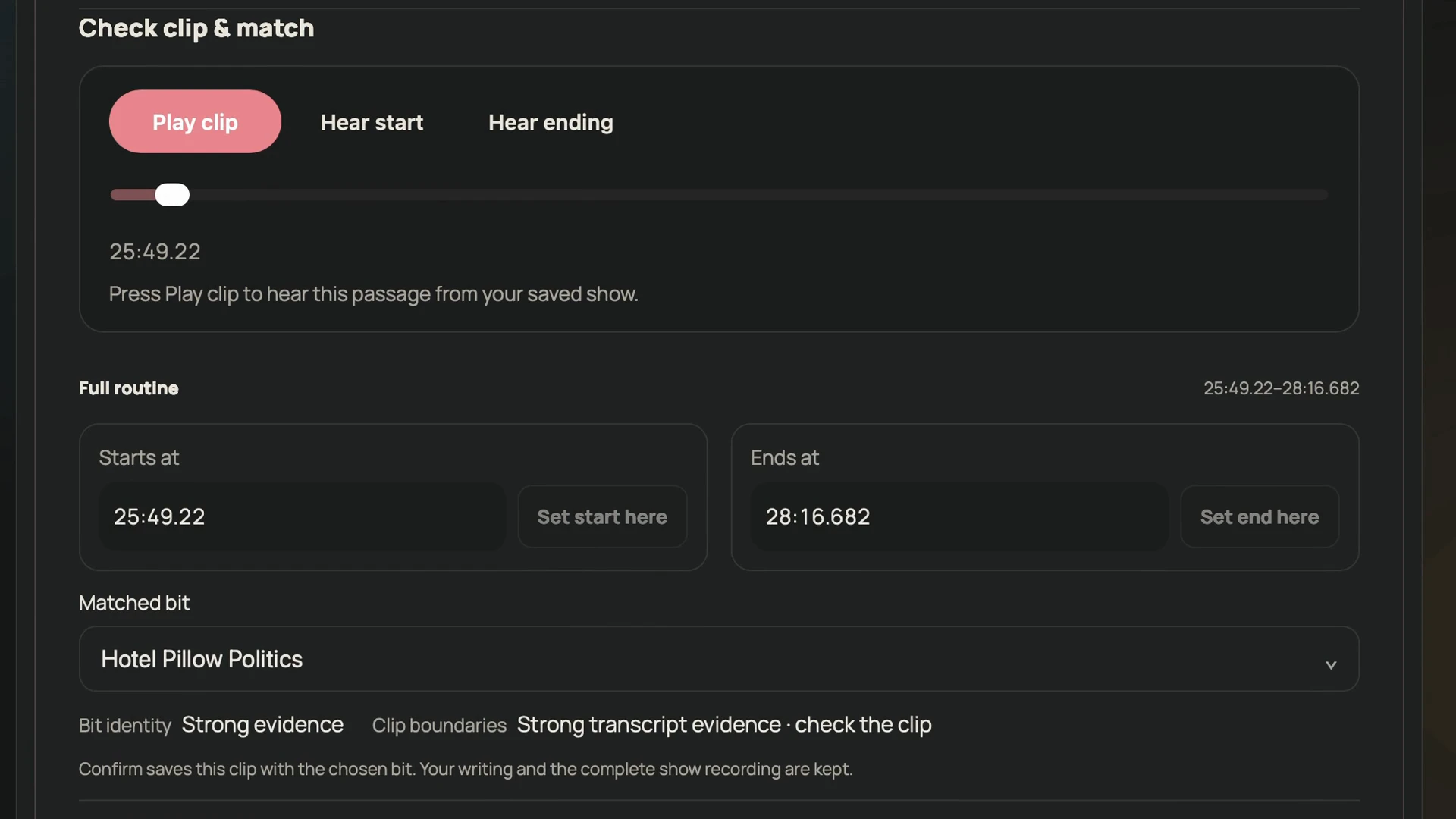
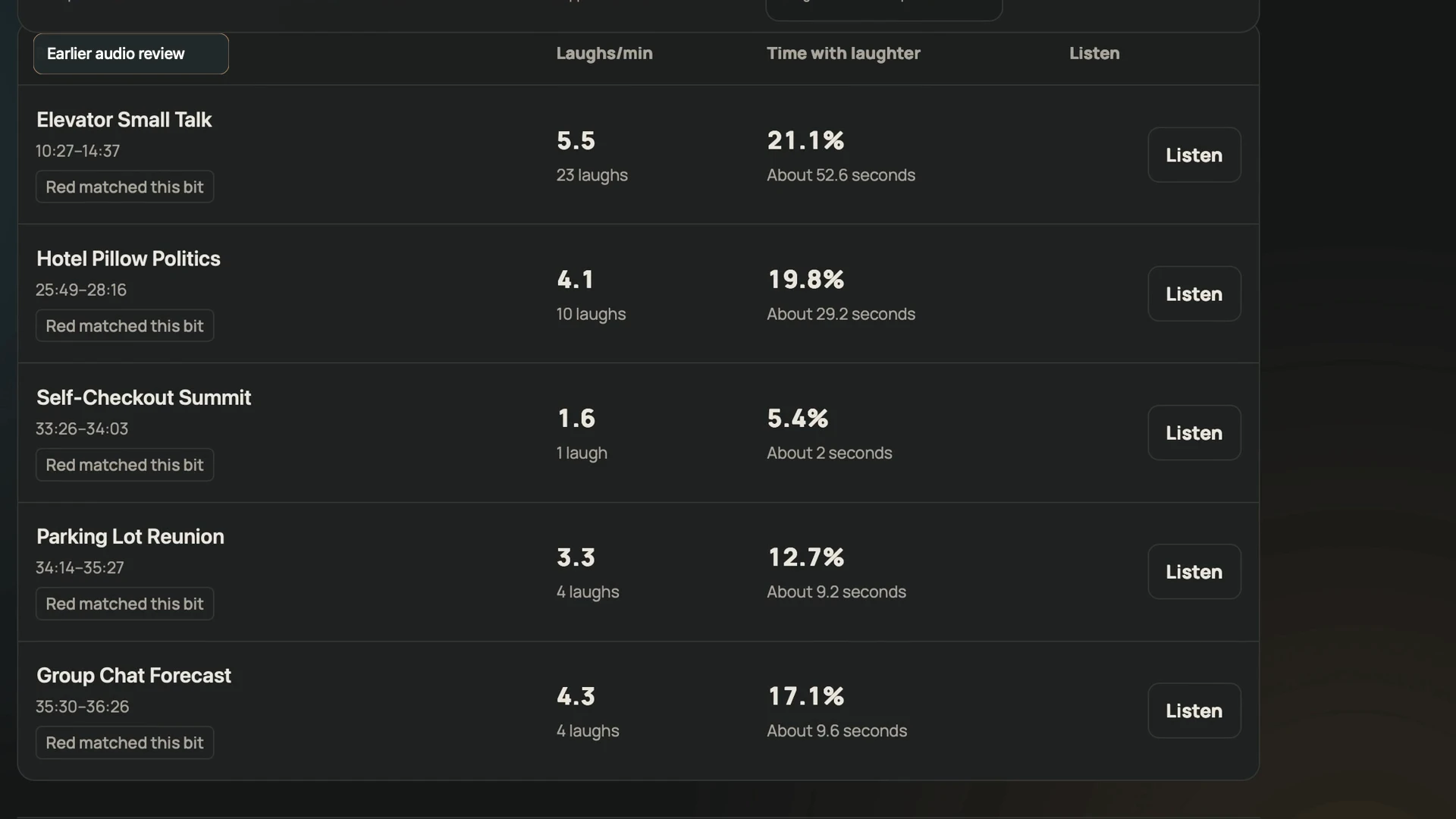
Instead of scrubbing through the whole recording, return to the section matched to a saved bit. The time range and Listen action put the passage within reach.
Estimated laughs per minute and time with laughter are different ways to inspect the same recorded section. They are prompts for listening, rather than a ranking of your writing.
These figures are labeled “Earlier audio review” in the real screen. They do not represent the newer unfinished review or a comparison across shows.
A useful note should lead somewhere. Red can suggest a concrete thing to try, with the passage behind the suggestion available to hear again.
That might mean testing a pause, tightening an explanation or revisiting a change from the saved draft. Listen first, consider the room and choose the experiment that fits your act.
Keep the show evidence linked to the bit so you can find the recording and your observations when you return to the writing.
The next draft is still yours. So is the decision to leave a line alone.
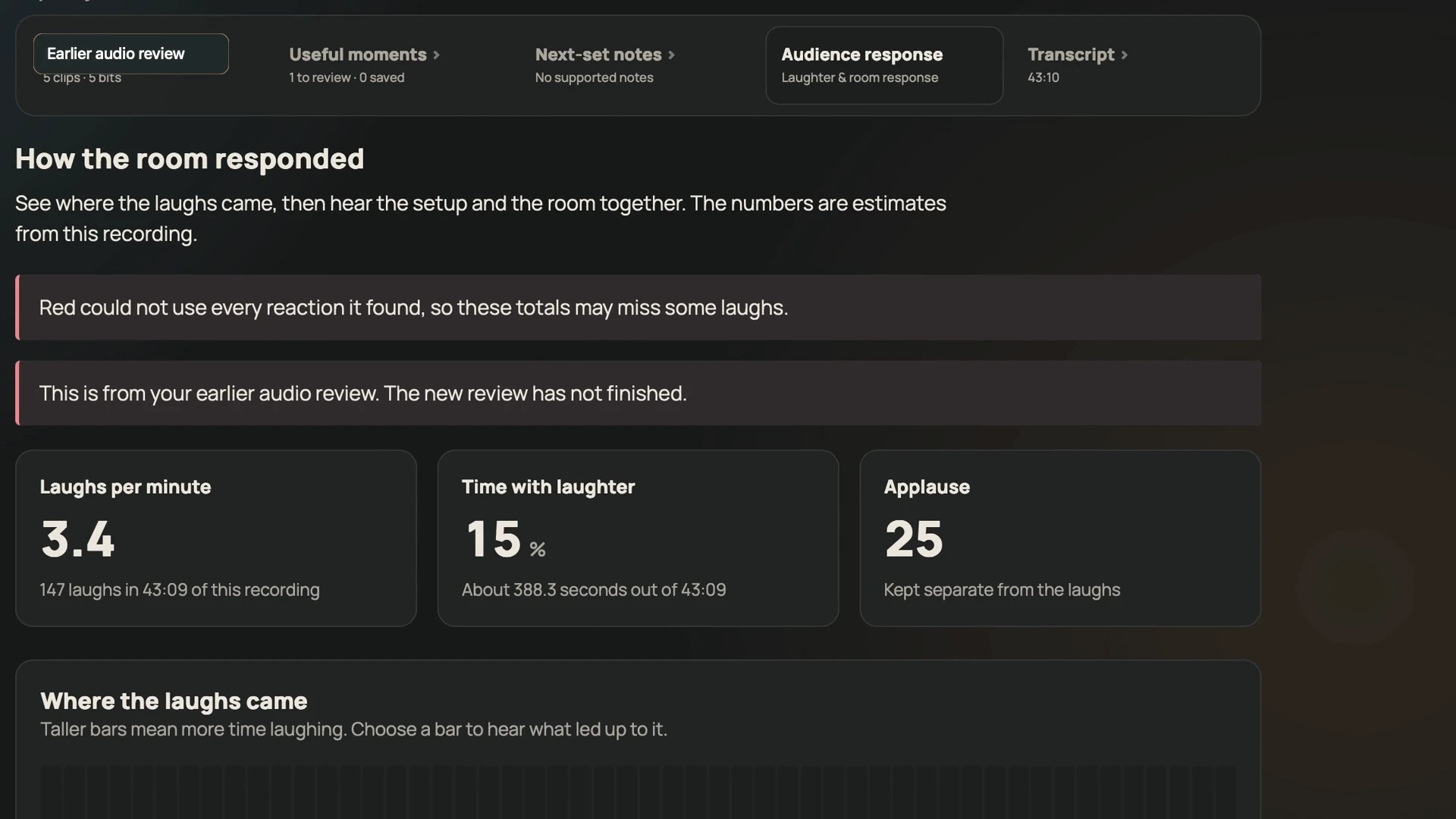
The overview separates estimated laughter from applause and shows how much of the recording was marked with laughter. These are different signals, not interchangeable measures of a good set.
Recording quality, overlapping voices and where the microphone sits can change the estimates. Return to the audio before treating a number as evidence about the writing.
This example retains the app’s earlier-review warning. It is a view of one recording, not a promise about your results.
↺
Back to the bit, with something useful.
Keep a line with its material. Bank a new idea in Inbox. Return to Writing Room or the Board to develop it, then choose what belongs in your next set. That’s the loop.
Prefer a walkthrough? Watch the show-review video.
A silent walkthrough of the real review screens, edited for reading. Fictional titles replace private material. The estimates and earlier-review disclosures remain visible.
Recording, transcription & review choices
Bring your recording.
Start your usual recorder before the show. Upload the file to Show Intake, then save it for later or choose cloud transcription. Check the transcript and suggested bit matches before relying on them.
Approximate timestamps and speaker labels help you find a passage. Noise, overlapping voices and microphone quality can affect the result.
You choose the next step.
Saving a recording and choosing cloud transcription are separate actions. Transcription asks permission to send the recording to OpenAI and uses transcription minutes. New AI review also needs a connection; available options and balances are shown in Red.
Keep dates, venues, contacts and travel with your gigs. Business Desk keeps the money side close by, so “great set” doesn’t become your entire payment record.
01
Know what’s still owed.
Record gig payments, money owed and expected payment dates.
02
Give the receipts a home.
Keep receipts and review expenses with the gig. Upload JPG, PNG, WebP or PDF receipts, up to 10 MB each.
03
See the numbers together.
Review income and expenses by period or gig, and download CSV reports. Different currencies stay separate.
HEIC receipts aren’t supported yet. Business Desk helps organize your records; tax and accounting decisions stay with you.
OPTIONAL AI HELP
Want a hand with a bit?
Ask Red what’s working in a bit, where it’s getting stuck or what else you could try.
You’re the writer. Red can help you get more specific, try another ending or find a useful line. You decide what to develop and what to keep.
Use the whole manual workspace yourself. Buy writing, live voice or show-transcription packages when they’re useful to you.
Use your purchased balance when you need it. Any unused balance stays on your account for your return.
An active workspace is required to use AI balances. Canceling keeps unused purchased balances for your return.
Writing between devices, offline work & recovery
WRITING ON MORE THAN ONE DEVICE
The connection can drop. The writing can keep going.
Write on your phone, then open the saved work in Red on your computer after it has synced. Sign in to the same account on each device and prepare each one for offline use.
01
Get this device ready.
Open Red online. Your account’s supported saved work downloads automatically. Give it time and device space, and check Device status before you head offline.
02
Keep the writing moving.
Supported writing and manual Board edits save on this device before upload. Work with downloaded material, keep your original ink, and catch new ideas in Capture.
03
Reconnect. Pick it up elsewhere.
When Red reconnects to the same account, supported edits waiting on this device can sync. Device status shows downloads that haven’t finished, edits waiting to upload and changes that need review.
What needs a connection?
New AI work, audio transcription, connected services and account actions need internet. Some organization changes, including Library collection management, also need a connection. A file must finish downloading before it is available offline.
What stays local, and what does sync mean?
Downloaded writing, supported saved Board content, original ink and saved files can stay in this browser or app’s device storage. Capture also keeps unfinished ideas and its send queue here. A local save means this device has the work; another device sees the saved change after it syncs.
If versions conflict, Red flags them for review. Device status lets you compare the saved version and download your device copy before choosing a recovery action. It does not silently merge every edit.
Offline search covers supported downloaded writing, saved Writing Room text and Board content. It is narrower than the full online search. Prepare each device while connected and return to the same account; storage limits or interrupted downloads can leave work unavailable offline.
Sync is not a separate backup. Keep your own exports and recovery copies. Clearing browser or app storage can remove unsynced work from that device; don’t treat a local-only edit as already included in a server backup.
THE PLANNED WORKSPACE SUBSCRIPTION
The tools for your next draft.
Writing, handwriting, the Board, your Library, sets, show notes and gig records. All part of the core workspace. Creative AI is a separate choice.
PLANNED LAUNCH OFFER
$4.99/ month4 US dollars and 99 cents per month.
For your first three monthly periods, then $6.99/month. Cancel anytime.
For new subscribers joining in the first 60 days of the paid launch. Plus applicable tax.
Private preview now. Public subscriptions are not open yet.
MAKE YOURSELF AT HOME
Good tools. A clear way in.
Meet the real controls, open a screen at full size and try one small task. The private-beta field guide connects the writing, the show and the working life.
No. Capture ideas, write, handwrite, organize your Library, move cards on the Board, build sets and manage gigs yourself. Creative AI is an optional purchase, separate from the workspace subscription.
Do my purchased AI balances expire?
No. Under the planned offer, unused purchased balances never expire or reset each month. They remain through workspace cancellation for your return. An active workspace is needed to use them; refunds, reversals and deliberate account deletion are separate events.
Will Red replace my voice?
You choose what stays. When you ask Red for help, your profile gives it context about your voice and the boundaries you’ve set.
Can I join today?
Red is in private preview. Existing accounts can sign in; public signup and purchases will open later. You can get a launch notification. The offer shown here describes our planned paid launch.
 Red