The writing is only part of the job. Keep the booking, the money and the trip close at hand, then know where your latest work is saved when you move between devices.
Guide checked against Beta 342Real iPad captures from Beta 341
Gigs, contacts & travel
Keep the gig together
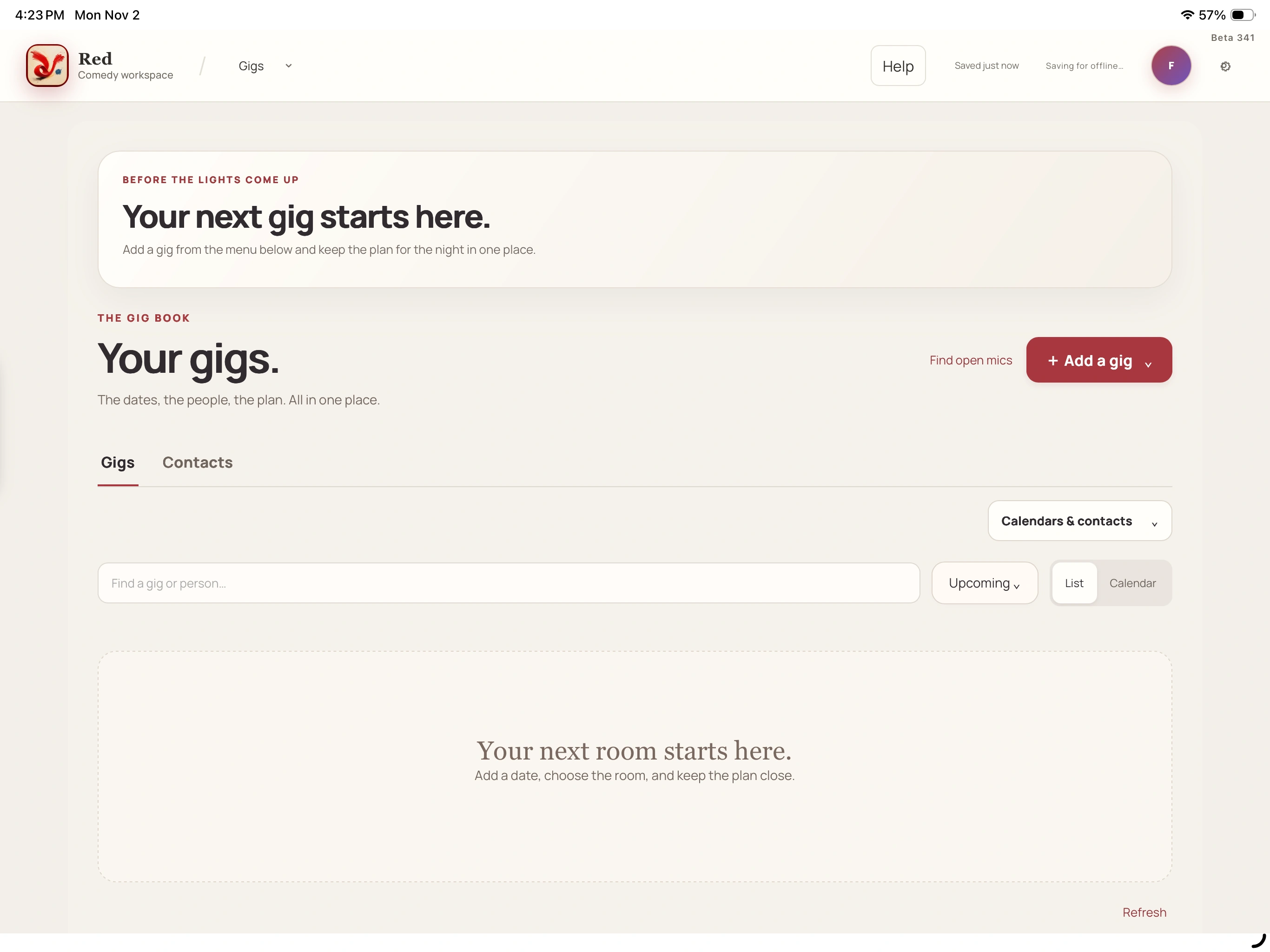
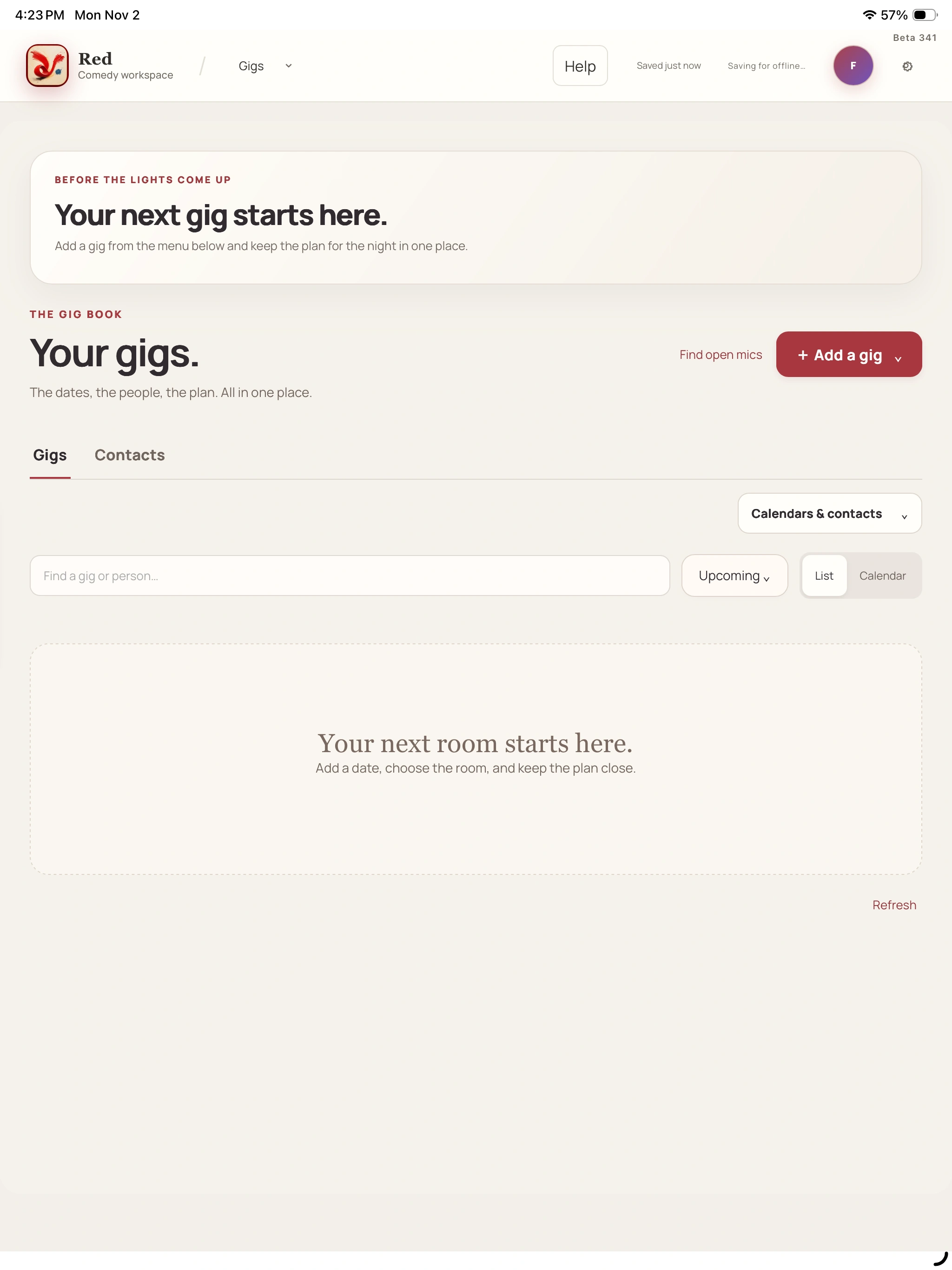
Give each booking a home for its date, venue, people and travel. When the night is over, its show notes and recording can bring you back to the writing.
Open Gigs and choose Add a gig. Enter the booking details, then choose a saved Contact when you want to link that person to this gig.
02
Put the practical details beside it
Add the agreed fee and payment dates where useful. Open Travel & lodging for transport, lodging and the instructions you will want on the road.
03
Save, then check the record
Choose Save gig and read its save status. Use List or Calendar and the available filters to find it again; Gig details opens the booking you saved.
04
Carry the night into the next draft
Open Show notes & recording from the gig when you want to record what happened. Open setlist is offered when a saved set is linked. A planned set records your intention, rather than proving what you performed.
A closer look Hover, focus or tap a control name.
Save contact keeps the person in Contacts. Choose them in a gig and Save gig to attach them to that booking.
Calendars & contacts offers connection and import choices. Review the dates and selected items before Import selected; the available options depend on the connection.
Travel tools can suggest a route or a dated fuel estimate. Review the result before Use this route; an estimate is not a confirmed itinerary or a local pump price.
Show notes & recording opens the performance record. Your notes are your observations, and adding them does not rewrite the bit.
Read every control tip
A contact needs a link
Save contact keeps the person in Contacts. Choose them in a gig and Save gig to attach them to that booking.
Import the dates you choose
Calendars & contacts offers connection and import choices. Review the dates and selected items before Import selected; the available options depend on the connection.
Read a route before using it
Travel tools can suggest a route or a dated fuel estimate. Review the result before Use this route; an estimate is not a confirmed itinerary or a local pump price.
Keep your read on the night
Show notes & recording opens the performance record. Your notes are your observations, and adding them does not rewrite the bit.
When you want the details
Create a contact or bring in selected people
Gigs → Contacts → Create contact keeps a person you work with. Name is the starting point; add Role, Venue / organization, Email, Phone and Good to remember when useful.
Calendars & contacts also offers Google & iCloud contacts when available. This is a selection import, not a two-way mirror of your address book. Disconnecting a provider does not remove people already imported into Red.
For a manual contact, enter the details and choose Save contact. Open their named card to edit later.
For an available connection, choose Connect Google Contacts or Connect iCloud Contacts. A connected account offers Choose Google contacts or Choose iCloud contacts.
Search in Choose contacts to add, select the people you want and choose Import selected. Existing matches are skipped.
Open the gig, choose the person in Contact and Save gig to keep that association.
Bring dates in, or link a Google calendar
Open Calendars & contacts for the connection options available to you. Google calendar import and linked sync are different from bringing in a calendar file. Gmail travel reading is a separate choice from Calendar or Contacts permission.
Review the destination calendar and the selected events. A calendar permission can cover more than the items you choose to import into Red.
For Google, choose the calendar you own, then Bring from Google, select events and Import selected.
Send from Red and Send & link gig are the outgoing Google actions when offered. Sync now checks linked changes.
For iCloud or Outlook import, review the date preview before Import selected. A calendar-file import is a separate route.
Check linked changes before relying on them. Google sync covers the supported title, date, showtime, timezone and booking status; location after the first copy stays in its own app. Guest events are excluded and archived gig sync pauses.
Keep the travel readable
In Travel & lodging, choose How are you traveling? and fill in the details that matter for this booking. Keep connections, return journeys, lodging, ground transport and arrival instructions together. Edit original notes lets you return to the notes behind the trip.
Find travel in Gmail, Calculate road mileage, Use national gas price and Plan the whole run are separate tools. Read their result before applying it. The national gas price is a dated U.S. estimate, and a proposed route still needs your judgment.
Open the gig and Travel & lodging.
Add or review the journey and lodging details, then Save gig.
If you use a travel tool, check its source, dates and assumptions before choosing an apply action such as Use this route.
↳ Try a small task
Use a short piece of sample material and follow the save messages.
Find a saved gig in List and Calendar, then check its venue, time and contact.
Open one saved contact and confirm which gig, if any, you deliberately linked them to.
Read a gig’s travel notes and open Show notes & recording so you know the route back after the show.
Business Desk
Know what came in and what is still owed
Keep received payments, expenses and their originals close to the gig. An agreed fee, an uploaded receipt and a saved ledger entry each mean something different.
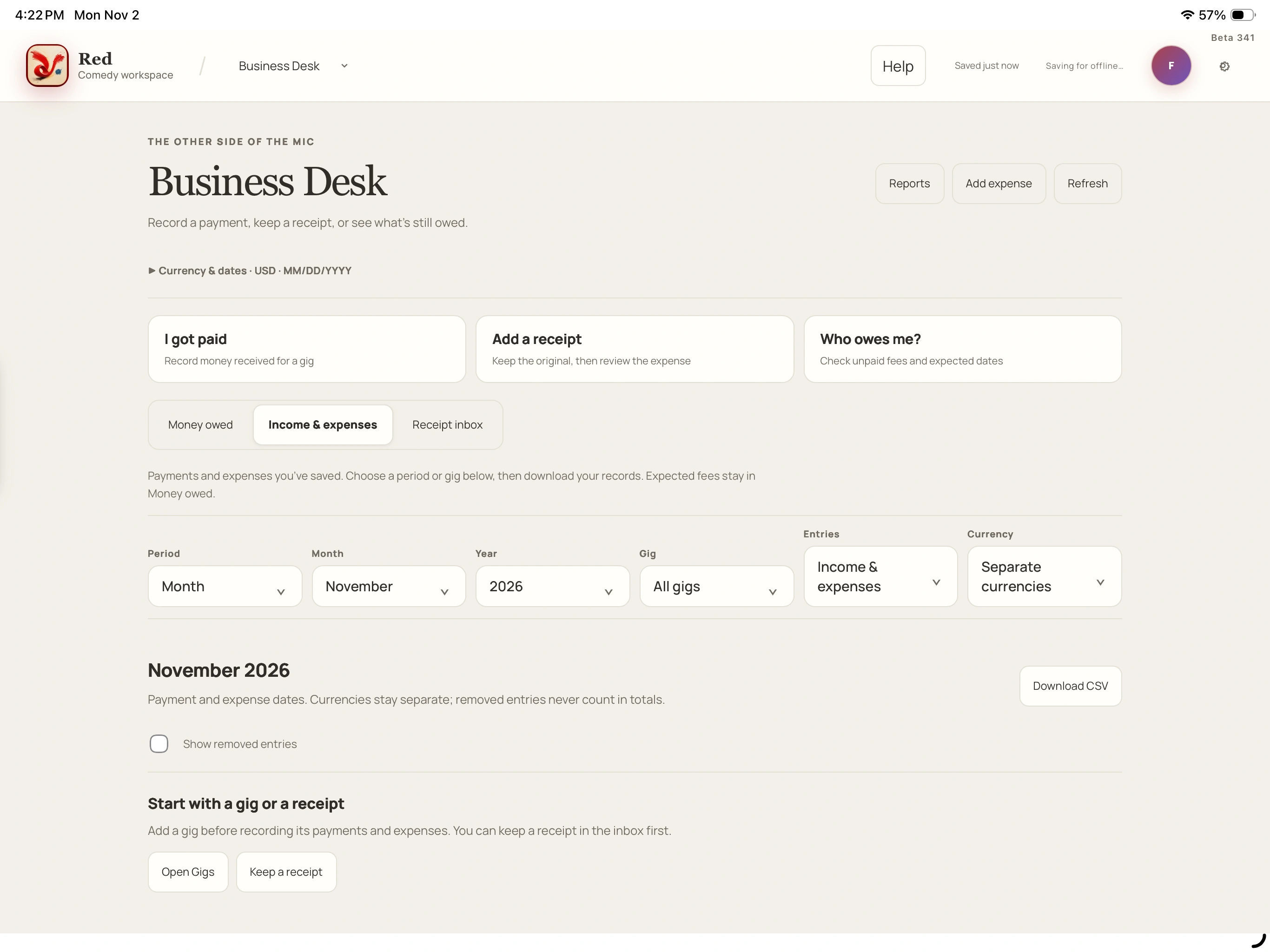
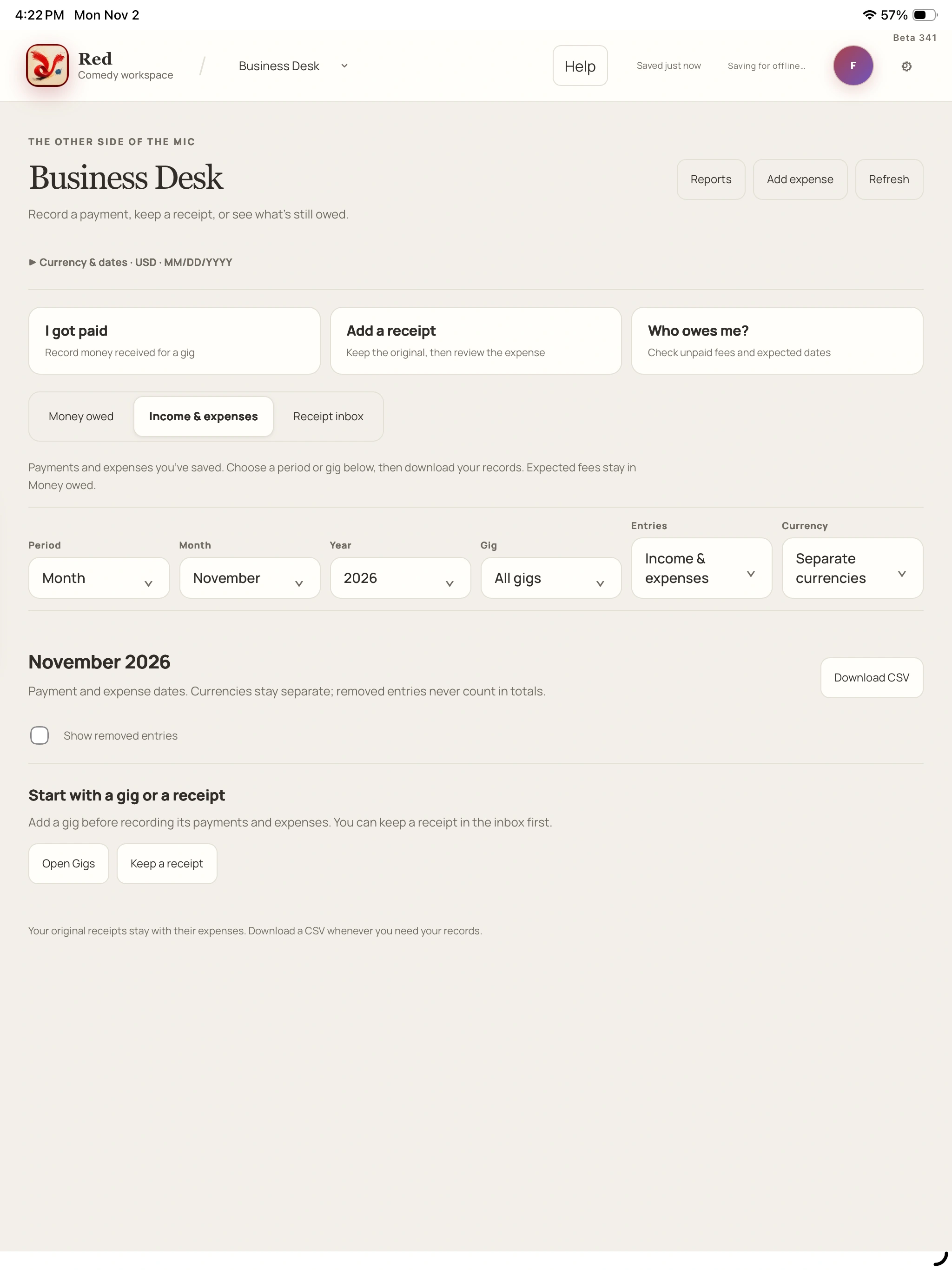
Open Business Desk. I got paid records money actually received; Who owes me? helps you review unpaid fees and expected payment dates. Add expense and Add receipt start their own records.
02
Check the details against the original
Choose the gig and review amounts, currency and dates. For a receipt, wait for its original to upload, then Review receipt and compare the fields with View original or View email.
03
Save the entry you intend
Choose Save income or Save expense and read the result. Uploading a receipt alone does not file an expense. If a save is uncertain, use Check saved entry before Retry save.
04
Read the right report
Income & expenses lets you choose a period or gig and Download CSV. Cash reports follow payment and expense dates; the agreed-fee summary follows show dates. Currency & dates sets defaults for new entries.
A closer look Hover, focus or tap a control name.
Use I got paid for an actual payment. Who owes me? keeps unpaid fees and expected dates separate from cash received.
An uploaded receipt stays separate from the expense ledger. Review it and choose Save expense when you want an entry filed.
Check saved entry helps establish whether the first save arrived. Read that result before Retry save so you do not treat an unclear reply as a missing entry.
Keep draft and close keeps an unfinished income or expense entry on this device. Resume kept entry returns to it; it is not a saved ledger entry yet.
Read every control tip
Expected is not received
Use I got paid for an actual payment. Who owes me? keeps unpaid fees and expected dates separate from cash received.
A receipt is an original
An uploaded receipt stays separate from the expense ledger. Review it and choose Save expense when you want an entry filed.
Check an uncertain save first
Check saved entry helps establish whether the first save arrived. Read that result before Retry save so you do not treat an unclear reply as a missing entry.
Keep draft is local
Keep draft and close keeps an unfinished income or expense entry on this device. Resume kept entry returns to it; it is not a saved ledger entry yet.
When you want the details
Record income or enter an expense yourself
I got paid starts with the gig and money actually received. Review the amount, currency and payment date before Save income.
Add expense accepts the Gig, Amount, Currency and Date paid, with Merchant or expense name, Category and an optional Note. A receipt can sit beside that entry. Use Keep draft and close when you need to stop before saving.
Choose I got paid or Add expense for the record you want.
Select the gig and check the money and date fields.
Choose Save income or Save expense, then read the confirmation.
For an uncertain reply, Check saved entry before deciding whether Retry save is needed.
Review a receipt and keep its source
Add receipt accepts a photo or PDF. Keep the page open while its original uploads. Review receipt can start Red’s reader; you can also enter the details yourself. Fields marked Needs your check still need your review.
The original and the expense are separate records. Show receipts already filed to expenses helps you find filed originals; Receipt trash lets you restore hidden receipts.
Choose Add receipt and select the original.
Wait for upload, then choose Review receipt.
Compare the suggested details with View original or View email and choose the right gig.
Correct the fields as needed, then Save expense and check the result.
Return to an unfinished or uncertain entry
Keep draft and close leaves the unfinished entry on this device. Resume kept entry lets you continue it. That draft is separate from a confirmed account save.
When a save could not be confirmed, use Check saved entry before Retry save. A delayed reply is not proof that nothing was saved. Keep the current page and any recovery copy until the state is clear.
Read dates and export a useful report
In Income & expenses, select the period or gig you mean before Download CSV. A cash report follows when money was paid or received. An agreed-fee summary follows the show dates instead, so the two answer different questions.
Currency & dates changes defaults used in new entries. Check the currency and dates on each record rather than assuming a default corrected an older entry.
↳ Try a small task
Use a short piece of sample material and follow the save messages.
Review one saved payment and compare it with the gig’s agreed fee and remaining balance.
Open a saved receipt and locate its original and its filed expense, if one exists.
Choose a period in Income & expenses and check which dates the report uses before downloading a copy.
Saving, devices & recovery
Know where your latest work is
A copy on this device, a change waiting to upload and a confirmed account save are different states. Read the save message before moving to another device, especially when the connection has dropped.
01
Prepare each device while connected
Open Red online on every device you plan to use. Give its supported work and files time and space to download, then open Device status to check readiness. A file is not available offline until its download finishes.
02
Read the save message
Saved on this device · sync pending means the account upload is still to come. Saved securely is a separate confirmation. An early Saved just now can describe a local session copy, so use Device status when you need to know whether another device has the latest work.
03
Keep a recovery copy when something needs attention
Keep the current window open. Device status can offer Download device copy or, for Writing kept before New, Download kept writing. These preserve a local recovery file; they do not confirm that a Library draft or full account backup was saved.
04
Reconnect and review the choice
Choose Check for updates, then follow the item’s Compare versions, Choose another title, Compare settings or storage guidance. Read both copies before choosing one. Do not clear app or browser storage to make a warning disappear.
A closer look Hover, focus or tap a control name.
Open Red online and check Device status on each device. Incomplete downloads, limited space or interrupted access can leave work unavailable offline.
A device save can still be waiting to sync. Check the current status before expecting the change on another device.
Retry device storage checks whether Red can reach its device stores. It does not itself replay a save or choose a conflict copy.
Keep recovery downloads and account backups deliberately. A full account backup covers saved account work, rather than every unsynced device draft.
Read every control tip
Prepare before leaving
Open Red online and check Device status on each device. Incomplete downloads, limited space or interrupted access can leave work unavailable offline.
Local is not uploaded
A device save can still be waiting to sync. Check the current status before expecting the change on another device.
A retry does not choose your writing
Retry device storage checks whether Red can reach its device stores. It does not itself replay a save or choose a conflict copy.
Sync is not a separate backup
Keep recovery downloads and account backups deliberately. A full account backup covers saved account work, rather than every unsynced device draft.
When you want the details
What can keep working offline?
Supported writing, manual Board work, sets and existing gig or preference edits can be kept on this device before upload. The downloaded material and files you need must already be here. Not every advanced action joins the offline queue.
New AI work, transcription, connected services and account actions need a connection. Some exports and organization actions also need one. The action and status shown by Red tell you whether that particular job can continue.
Use Device status to inspect a waiting edit
The top Device status button may instead read Sync needs review, Saved here · sync pending, Device download incomplete or Retry device storage. Those labels point to different problems; a storage read failure is not an empty Library.
Download device copy keeps a recovery file for the selected work. Reconnect and Check for updates, then use the guide for that item. A comparison needs a connection, and a newer saved version may require another look before you choose.
Open the current status button and read the item that needs attention.
Keep a device recovery copy when offered.
Check for updates after reconnecting.
Compare the versions, title or settings involved and make the specific choice Red offers.
Preserve work before signing out or starting over
Save needs attention · keep this window open means you should keep the page and copy your latest words somewhere safe while resolving the save. Signing out or clearing storage is not a repair for an unresolved local edit.
Writing kept before New offers Download kept writing for an earlier local recovery copy. It does not create a Library item or confirm the old upload. Keep that file until you have checked where the writing belongs and what actually saved.
Choose a conflict copy deliberately
A comparison is a decision about which saved or device version to use. Read the words and the action’s explanation before confirming; replacing one copy is not automatically a merge or a keep-both operation.
A recovery download gives you another file to inspect. An account backup is a different, broader copy of saved account work. Keep both kinds of file private and use the one that matches the recovery job.
↳ Try a small task
Use a short piece of sample material and follow the save messages.
Open Device status and check whether the work you need has finished downloading, without clearing anything.
Read the save message after a small edit you intended to make and distinguish device-pending from account-confirmed.
Find the recovery action offered for a waiting item and read what it preserves before choosing it.
Account & continuity
Make the workspace yours
Use the initials button to open Account. Your voice preferences, sharing choices, signed-in devices and backups each have their own controls, so you can make one decision at a time.
01
Tell Red what sounds like you
Open Your voice and add the style, audience and boundaries you want considered. A writing sample is optional. Review my voice lets you check the profile before Remember this saves it; Use this voice profile controls whether it accompanies writing requests.
02
Review sharing before asking for AI help
Open AI sharing and read What goes into a writing request?. Allow writing requests remembers that choice for this account on this device; Ask me next time leaves the decision open. Live voice, recordings and full show review have separate sharing choices.
03
Give your devices useful names
In Devices, choose Rename, enter Device name and Save name. If you need to remove a sign-in, read the note before Sign out and Confirm sign out. Resolve unsynced work on its original device first.
04
Keep a portable copy of saved work
Open Backup & recovery, choose Create backup and let current work finish saving. Download backup when ready and keep it privately. Choosing a backup for review does not itself restore it; Restore this backup replaces saved account work.
A closer look Hover, focus or tap a control name.
Review my voice comes before Remember this. Use this voice profile controls whether the saved preferences go with your writing requests.
Writing permission belongs to this account on this device. Live voice, recordings and complete show reviews ask separately; manual typing, handwriting, spelling and saving do not need writing-request permission.
Saved account writing remains. Previously downloaded or unsynced work can remain on the original device, so settle its latest changes before signing it out.
Read Now beside In this backup before Restore this backup. The restore replaces saved account work; downloading a backup is a separate action.
Read every control tip
Your profile is a choice
Review my voice comes before Remember this. Use this voice profile controls whether the saved preferences go with your writing requests.
Sharing has a scope
Writing permission belongs to this account on this device. Live voice, recordings and complete show reviews ask separately; manual typing, handwriting, spelling and saving do not need writing-request permission.
A sign-out is not a remote erase
Saved account writing remains. Previously downloaded or unsynced work can remain on the original device, so settle its latest changes before signing it out.
Review before restoring
Read Now beside In this backup before Restore this backup. The restore replaces saved account work; downloading a backup is a separate action.
When you want the details
Save a profile you recognize
Your voice gives Red explicit context about your style, audience and boundaries. Add what helps, review the proposed profile and choose Remember this when it reflects your intent. You can return and change it later.
Use this voice profile controls inclusion in writing requests. This is saved context, rather than a promise of automatic voice learning. Changed preferences apply to the next reply; a connected voice conversation ends so a new session can use them.
Understand the sharing choices
AI sharing explains relevant writing and profile details that can accompany an authorized writing request. Allow writing requests remembers the choice for this Red account on this device. Ask me next time asks again when needed.
You can type, handwrite, check spelling and save without turning writing requests on. Read each separate live-voice, recording or complete-show-review choice for its own material scope. Opening saved evidence or a guide is not permission to start a new AI request.
Manage sign-ins without losing track of device work
Devices lets you rename a sign-in or deliberately sign it out. A separate browser or private window can count as another device. If sign-in asks you to make room, choose the device you mean or Cancel sign-in.
Signing out leaves saved account writing in the account and ends an active conversation. It does not remotely erase downloaded or unsynced copies from another device. Use Device status and preserve any unresolved writing on that device before removing its sign-in.
Create a backup, or inspect one before restore
Create backup asks current work to finish saving, then Download backup keeps a portable copy of saved account work and history. Device-only notes must first be saved to the account if you want them included. Downloaded backups are not password-protected, so store them somewhere private.
Choose backup checks an existing file. Read Now beside In this backup, the explanation and any Your voice choice before deciding. Restore this backup replaces saved account work; it makes a safety copy first, keeps sign-in and spending limits, signs other sessions out and does not restart conversations or paid processing.
For a new copy, choose Create backup and wait for readiness.
Choose Download backup and keep the file privately.
To inspect an existing copy, choose Choose backup and let Red check it.
Review the comparison before any restore decision. Do not restore merely to dismiss a save warning.
↳ Try a small task
Use a short piece of sample material and follow the save messages.
Review Your voice and its inclusion switch without saving a change you do not want.
Read AI sharing and check which choices apply to this device and which ask separately.
Check the names in Devices and read the Backup & recovery explanation before changing a sign-in or restoring anything.
Help & feedback
Give a problem useful context
A clear account of what you clicked and what happened is useful. Red can prepare a diagnostic report or feedback draft for you to review; you decide what to share and when to send it.
01
Start with the guide or support checks
Open Account → Help & support. Learn Red opens the guides. If writing has not finished saving, keep its window open while you investigate.
02
Describe the moment
For feedback, choose What’s the feedback about? and describe What happened?. Include the screen, control, expected result, actual message, approximate time and device or browser. Leave private writing, sign-in links, passphrases and payment details out.
03
Read what is prepared
Prepare support report builds a report for Review support report. Wait for Ready to review. For a beta note, open See what you’ll share and check the note and basic device details before sharing.
04
Choose how to keep or share it
Copy report, Download report and Copy feedback keep copies; none sends a message. Open email draft, when available, opens your email app. Review that draft and choose Send there only when you want to send it.
A closer look Hover, focus or tap a control name.
Ready to review means the report is ready for you to read. Preparing, copying or downloading it does not send it to anyone.
Open email draft opens your email app when a contact is available. You review it and choose Send in that app yourself.
The diagnostic report leaves out private material. The words you type into feedback are your own input, so inspect See what you’ll share before sending.
Closing a help dialog does not resolve a pending save. Preserve the writing window and use Device status or the offered recovery action until the save is clear.
Read every control tip
Prepared is not sent
Ready to review means the report is ready for you to read. Preparing, copying or downloading it does not send it to anyone.
An email draft is still a draft
Open email draft opens your email app when a contact is available. You review it and choose Send in that app yourself.
Your note is separate from diagnostics
The diagnostic report leaves out private material. The words you type into feedback are your own input, so inspect See what you’ll share before sending.
Keep unsaved work open
Closing a help dialog does not resolve a pending save. Preserve the writing window and use Device status or the offered recovery action until the save is clear.
When you want the details
Prepare a support report without sending it
Prepare support report gathers diagnostic states and counts, browser details and recent input-check results when available. It excludes handwriting shapes, private writing, recordings, messages, names, email addresses and credentials.
Wait for Ready to review, then read Review support report. Copy report and Download report keep a copy for you. If clipboard access is unavailable, use the device’s copy command on the selected report. Done closes the dialog; nothing is sent automatically.
Choose Prepare support report.
Read the report when Ready to review appears.
Copy report or Download report if you want a copy.
Choose Done, keeping any unsaved writing window open.
Review a beta note before sharing
Where Share beta feedback is available, choose What’s the feedback about? and describe What happened?. A short, specific account is enough: which screen, which action, what you expected and what Red showed instead.
See what you’ll share lets you inspect the note and basic device details. Copy feedback keeps the text. Open email draft opens an available email draft but does not send it. If contact details fail to load, Retry contact details can check again; copied feedback remains a separate way to keep the note.
Write the short feedback note without private material.
Open See what you’ll share and read it.
Choose Copy feedback or, when offered, Open email draft.
Review the email draft before choosing Send in your email app.
Report a saving or playback problem precisely
Include the last action you took, the exact status or error message, whether the reply was uncertain and roughly when it happened. State whether you were online and which device or browser was involved. You do not need to paste the private bit or attach the whole show to explain the control that failed.
For a save problem, keep the original window and use the offered device-copy or kept-writing download before signing out or clearing anything. For an unclear review request, inspect its latest status before submitting again. These steps preserve useful evidence while you describe the problem.
↳ Try a small task
Use a short piece of sample material and follow the save messages.
Open Help & support and find the guide for a task you use often.
Prepare a support report, read its contents and close it without sharing if you only want to inspect it.
Draft a brief feedback note, inspect See what you’ll share and distinguish Copy feedback from opening an email draft or sending it.
Nothing quite matches that yet.
Try a shorter control name, or clear the search to see every chapter.
HELP US MAKE THE NEXT PASS BETTER
Where did you get stuck?
Tell us the screen, your device, what you expected and the message you saw. Keep private writing out of the example.
 Red