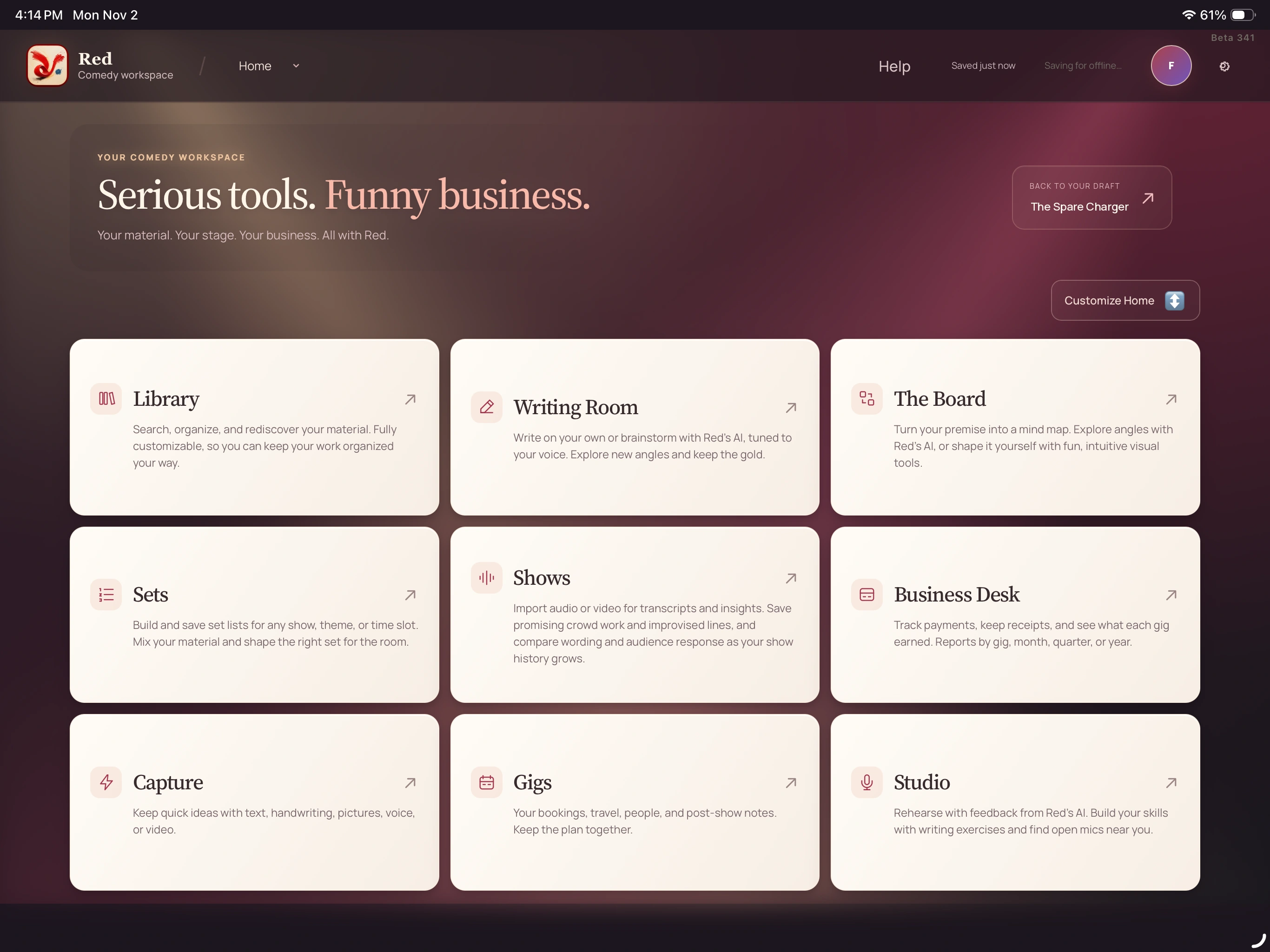
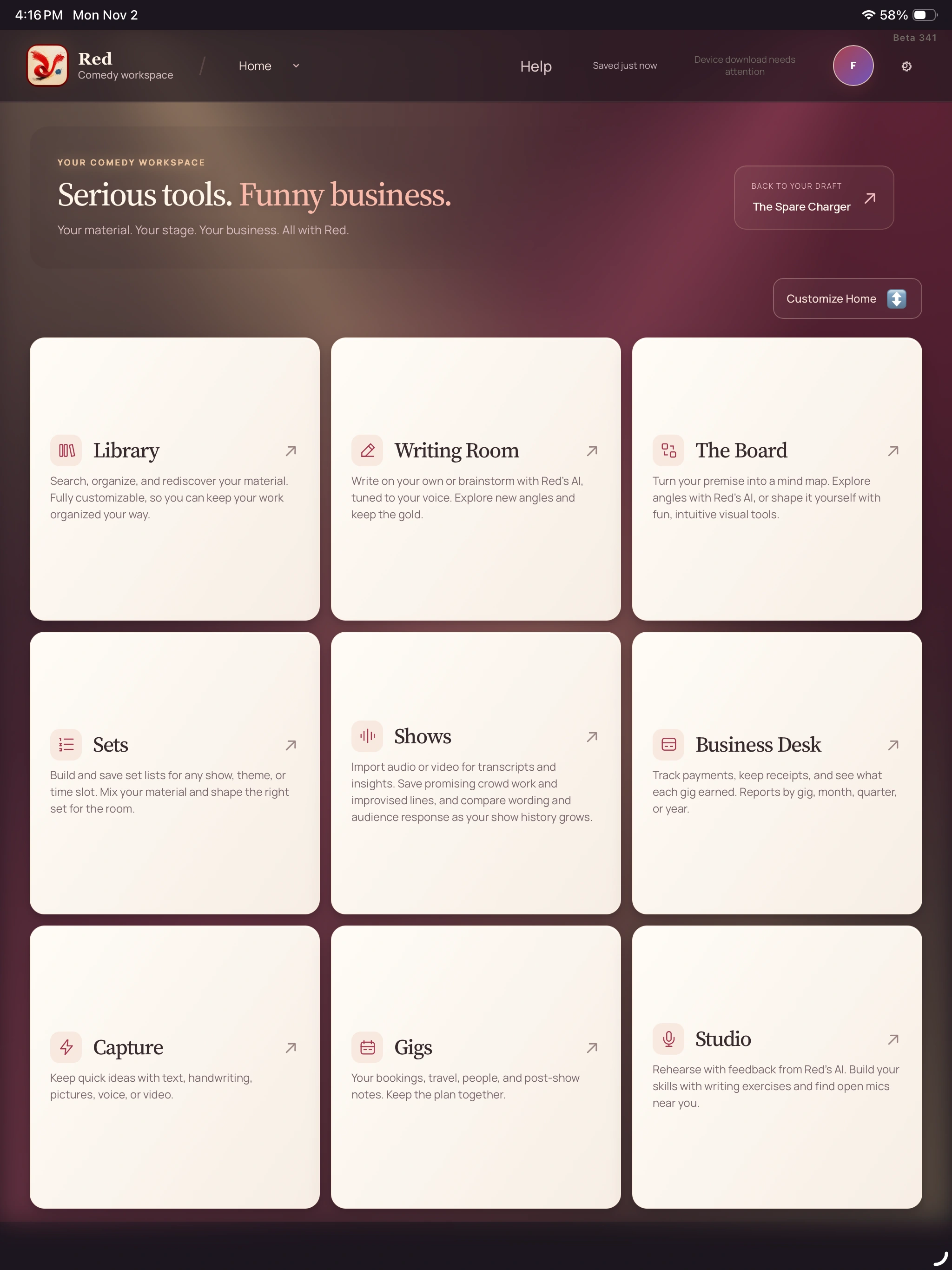
Open the page-name menu beside Red, then choose Library, Writing Room, The Board, Sets, Studio, Gigs, Shows or Business Desk. The Red logo takes you Home.
02
Use the phone shortcuts.
Capture, Library, Write and Sets sit in the phone’s bottom navigation. More opens the workspace menu. Phones normally open in Capture; Studio stays in the menu.
03
Make Home yours.
Choose Customize Home. Drag a card, or select one and use the earlier/later arrows. With a keyboard, arrow keys move a focused card; Home and End move it to an end.
04
Keep the order deliberately.
Done keeps the new order. Cancel leaves the saved order alone. Reset previews the default order; choose Done to keep that reset. Read any save or sync notice before expecting the order elsewhere.
A closer look Hover, focus or tap a control name.
The current page name beside Red opens the workspace menu. The Red logo returns Home.
Use Capture, Library, Write or Sets at the bottom. More opens the other tools.
After arranging Home, choose Done. Reset is a preview until you keep it.
A pending-sync notice means another device may not have your new order yet.
Read every control tip
Find the menu
The current page name beside Red opens the workspace menu. The Red logo returns Home.
Phone shortcuts
Use Capture, Library, Write or Sets at the bottom. More opens the other tools.
Done keeps it
After arranging Home, choose Done. Reset is a preview until you keep it.
Read the save notice
A pending-sync notice means another device may not have your new order yet.
When you want the details
A useful default, with room for your order.
Desktop and iPad defaults begin Library, Writing Room, The Board and Sets. A saved custom order also arranges the feature menu. Phone defaults put Capture first; the Studio Home card is hidden on phones while the menu route remains.
Use the controls by name. Your saved order, device layout and available features can change where an action appears.
Continue the bit you already have.
Write opens the typed Writing Room. On phones, Draft, Board and Red are different surfaces for the same bit. Back to your draft appears when there is an active piece to return to.
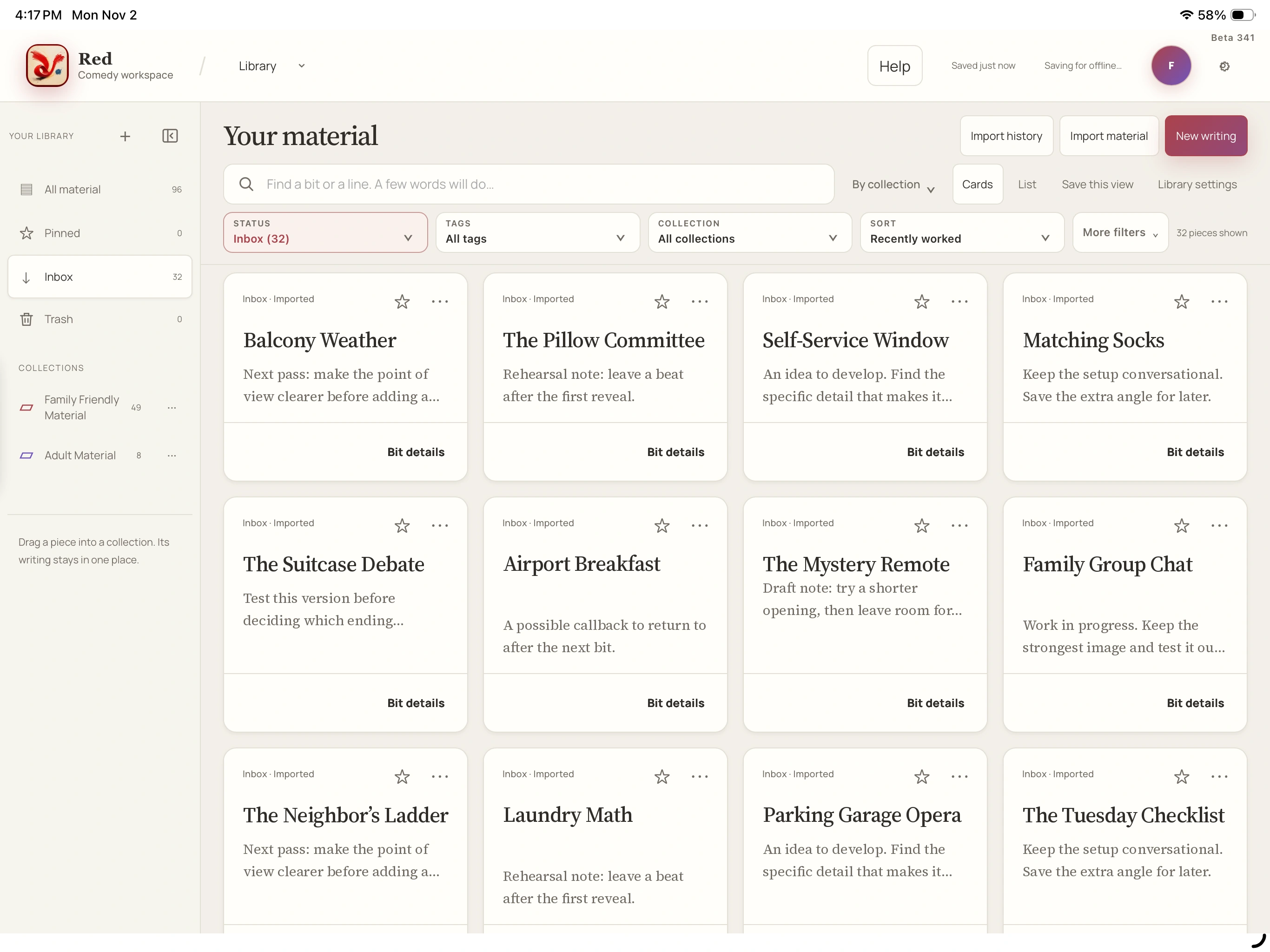
New writing is the deliberate way to start a fresh piece. Follow any request to finish saving or clear an unsent message before changing bits.
↳ Try a small task
Use a short piece of sample material and follow the save messages.
Open a tool from the page-name menu, then return with the Red logo.
Move one Home card, choose Cancel and check that the saved order remains.
Arrange Home again, choose Done and read its save result.
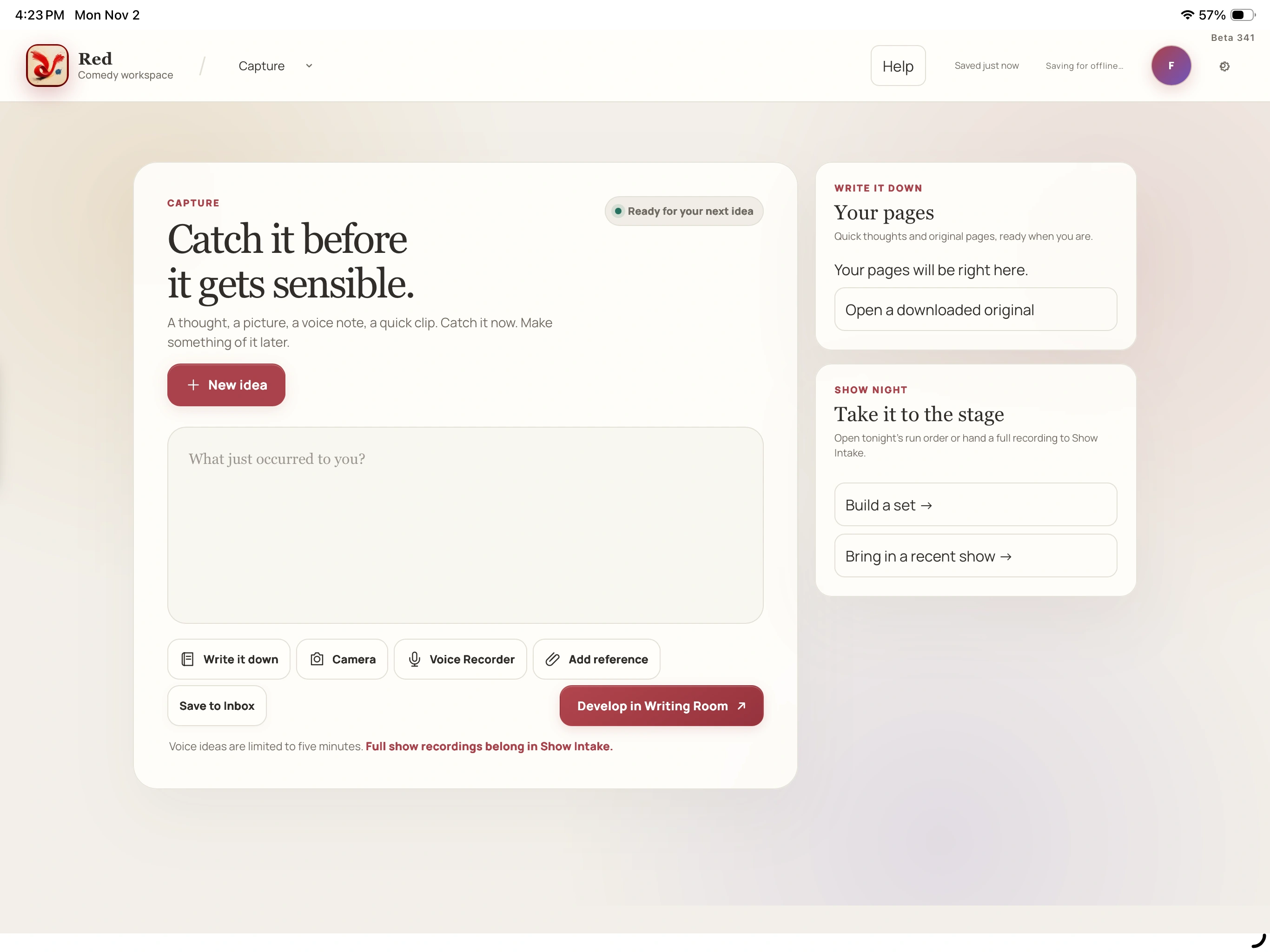
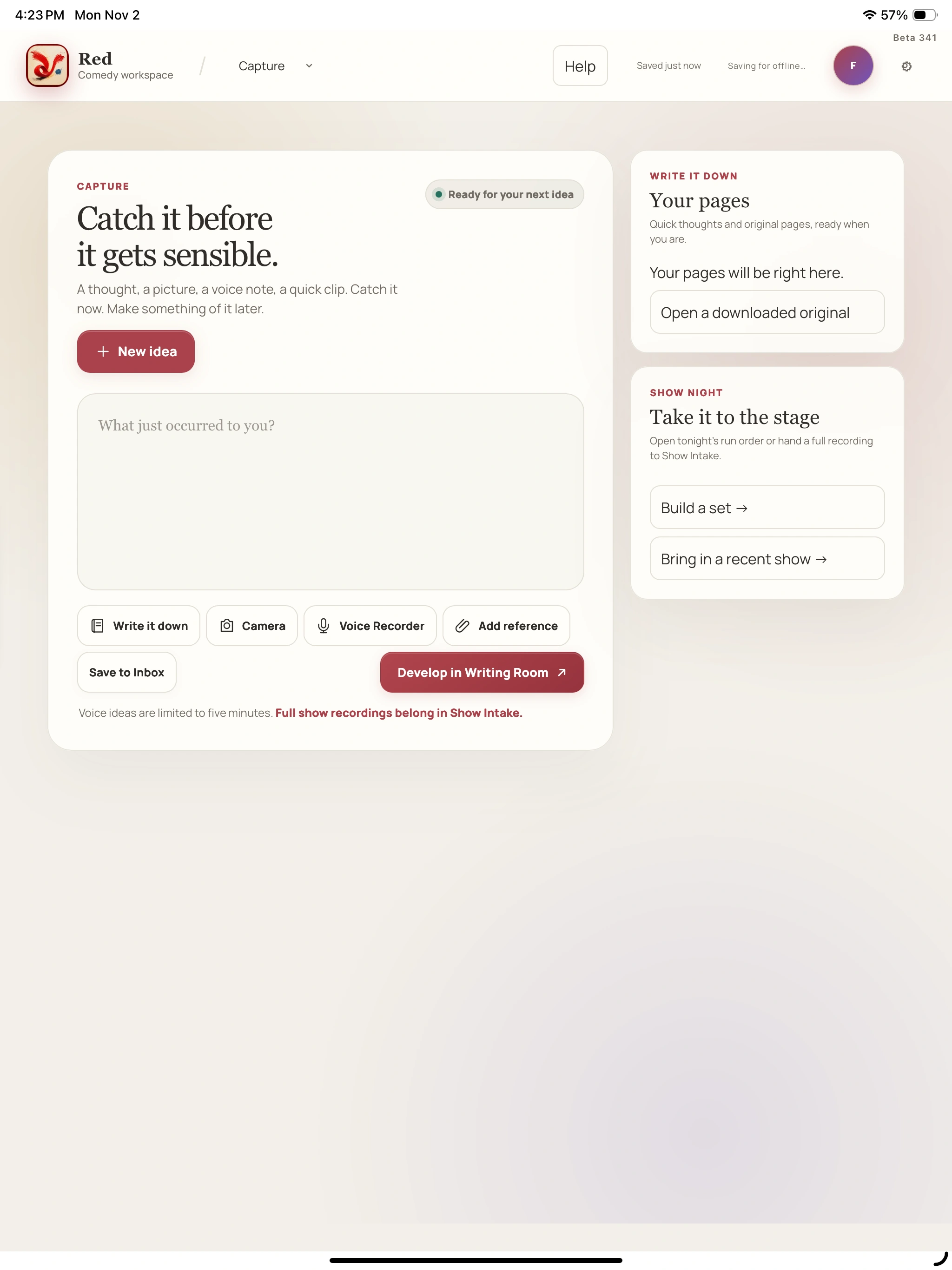
CAPTURE
Catch it before the moment goes.
A line, an image, a voice note or a page of scribbles can start here. Keep the original thought, then choose when it deserves a proper writing session.
Type in What just occurred to you?, choose Write it down for a page, or use Camera, Voice Recorder or Add reference. Camera offers Snap a picture and Start filming.
02
Keep the idea.
Choose Save to Inbox and read the result. Saved on this device describes a local copy; Saved in Inbox confirms the filed idea. Read a separate recording-send permission when offered.
03
Give it a page.
Write it down offers Type or Write and an optional Page title. Save for later files the thought; Develop in Writing Room continues after the saved receipt is confirmed.
04
Check anything waiting.
Waiting to save offers View idea and Retry. Reconnect before retrying. If the item says Opened in Writing Room · filing still needed, choose Finish filing. New idea starts the next thought.
A closer look Hover, focus or tap a control name.
Choose Save to Inbox, then read whether the idea is filed or still waiting.
Saved on this device and Saved in Inbox mean different things.
Open View idea to inspect the original. Reconnect, then use Retry or the offered Finish filing action.
Voice ideas stop at five minutes. Full performances belong in Shows.
Read every control tip
Save to Inbox
Choose Save to Inbox, then read whether the idea is filed or still waiting.
Local is a separate state
Saved on this device and Saved in Inbox mean different things.
Finish a waiting idea
Open View idea to inspect the original. Reconnect, then use Retry or the offered Finish filing action.
Keep the recording short
Voice ideas stop at five minutes. Full performances belong in Shows.
When you want the details
A voice idea is a recording, not a conversation with Red.
Voice Recorder asks for microphone access. Stop recording, listen back and optionally name it. Add to idea attaches it; Save to Inbox still files the idea and its references. If recording is unavailable, Choose an audio file may be offered.
Download original keeps the source. Download MP3 can send audio to Red’s server for conversion while online; that action does not request transcription or AI review. A live Talk with Red session is a separate optional AI feature.
A quick page keeps its own original.
Capture’s Type/Write pages are different entry points from a Writing Room notebook. The page has its own pen, paper and save notices. In Write, Pen, Eraser, Lasso and Highlight help you keep the thought as ink.
If Not saved · download your original appears, choose Download original before another save attempt. Retry device storage means Red could not read the store; it does not mean the shelf is empty.
Move the thought forward when you are ready.
Develop in Writing Room continues from the saved receipt. A queued idea is still waiting for its account save; an idea opened in writing but needing filing uses the separate Finish filing route.
Add to idea alone is not account-save confirmation. Keep a recovery copy when Red offers one, and follow the current notice rather than repeatedly creating another copy.
↳ Try a small task
Use a short piece of sample material and follow the save messages.
Capture a short fictional thought and check the result after Save to Inbox.
Open Write it down, then compare a local save notice with a filed result.
Find a saved idea and use Develop in Writing Room to continue it.
YOUR LIBRARY
Find the line. Keep its context.
Your Library holds the material and the paths back into it: writing, saved drafts, Boards, resources and linked performance history. Organize it around the way you actually work.
Search a few remembered words; quote an exact phrase if useful. Choose a source such as Drafts, The Board or Session notes, then use Filters. Open a result; ← Search results brings you back.
02
Choose your working view.
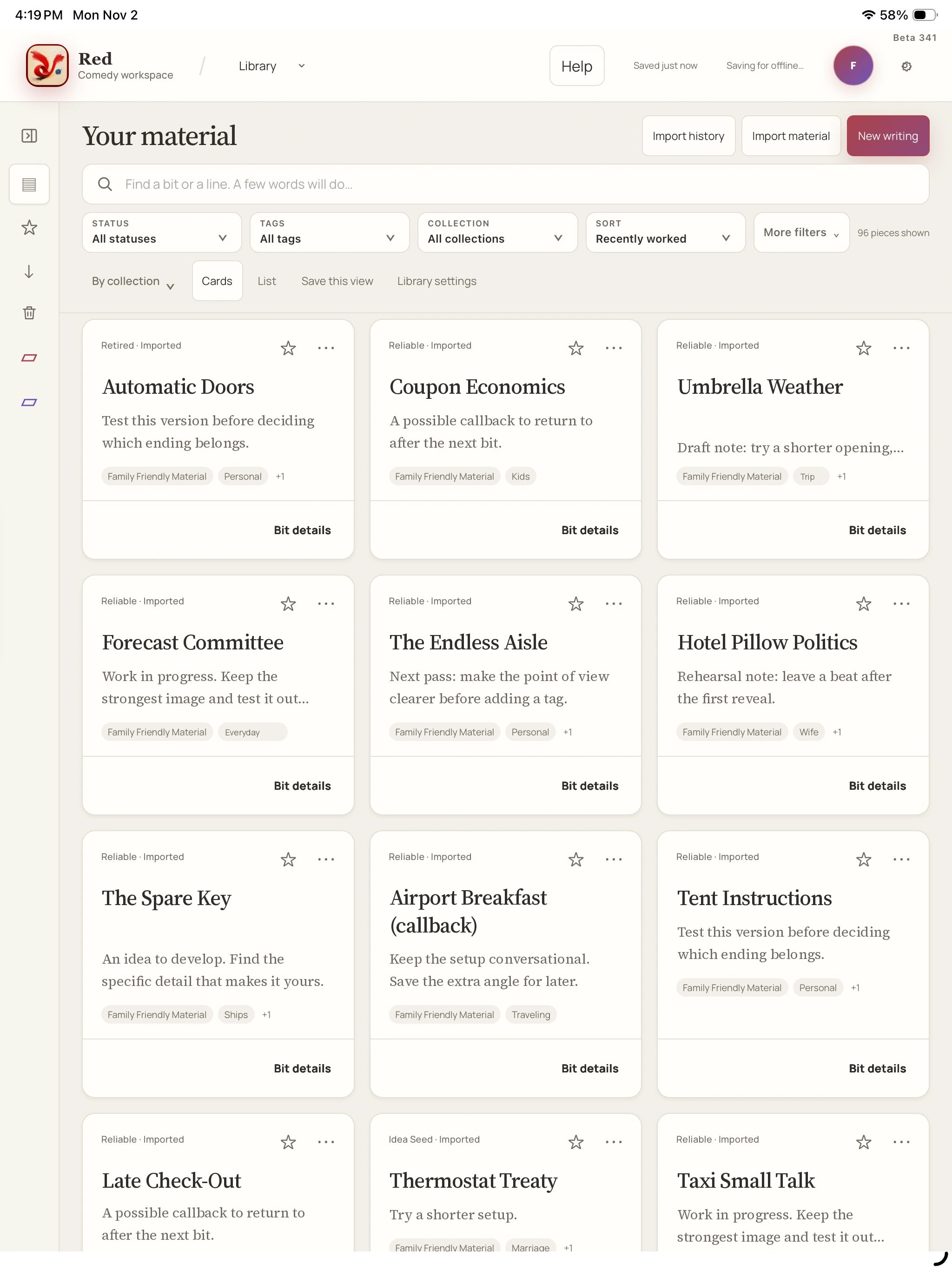
Use Cards or List, Status, Tags, Collection and Group Library. Save this view names a combination to return to from Collections. On roomy layouts, Collapse Library sidebar turns the shelf into an icon rail; Expand brings it back.
03
File the bit, then apply.
Open the card’s three-dot menu → Organize, or use Organize in Bit details. Choose collections, status and tags, then Apply changes. Cancel leaves unapplied choices alone. Read the saved result.
04
Bring existing writing in.
Import material opens a review of local files. Check the pieces you want and choose Keep my organization, Customize it or Start fresh. Add selected to Inbox commits the selection; Import history keeps the receipt.
A closer look Hover, focus or tap a control name.
Choosing a status or tag prepares the change. Apply changes commits it; Cancel leaves unapplied choices alone.
Handwriting and recordings need saved text to be searchable. A file existing in Red does not make every word searchable.
The three-dot Organize menu is the touch and keyboard filing route. Normal Library cards are not a universal bulk-selection tool.
Compare versions before choosing Keep saved version or Use uploaded version. Ambiguous matches need resolving in Library.
Read every control tip
Apply is the save
Choosing a status or tag prepares the change. Apply changes commits it; Cancel leaves unapplied choices alone.
Search needs saved text
Handwriting and recordings need saved text to be searchable. A file existing in Red does not make every word searchable.
Use the card menu
The three-dot Organize menu is the touch and keyboard filing route. Normal Library cards are not a universal bulk-selection tool.
Check matching imports
Compare versions before choosing Keep saved version or Use uploaded version. Ambiguous matches need resolving in Library.
When you want the details
Organize: labels that fit your process.
Quick add offers eligible known tags used at least three times. Typing can offer selectable saved-tag matches. Adding a chip or choosing a match prepares the choice; Apply changes still saves it. Removing a chip can offer Undo before you apply.
Under Status, Reorder statuses reveals earlier/later arrows. Done reordering closes those controls; outer Apply changes saves the order. Reordering does not change the bit’s selected status. Cancel discards unapplied order changes. Library settings can offer an eligible, order-only Undo.
The active-Library tag filter keeps the global tag list and its bit/family-card counts even in an untagged Inbox. Trash keeps contextual tag names without presenting those active-Library counts.
Import: compare before replacing.
When an entry matches saved writing, Compare versions opens the words side by side. Keep saved version is the default. Use uploaded version explicitly updates the matched bit while retaining earlier saved versions in history; using an uploaded match in Trash restores that bit. Several possible saved matches disable replacement until the copies are resolved.
Start fresh imports without the recognized old tags and collections; it does not delete existing Library work. File acceptance does not guarantee every word, attachment, layout or source relationship was extracted. Check warnings and retain your source export.
A repeat upload after permanent deletion can be imported again. If Red reports the saved source or filing changed during review, refresh the review rather than treating the earlier choice as permission to overwrite.
Bit details, collections and saved views.
Bit details is the bit’s home base. Overview previews writing and filing; Open writing continues the full piece. Board reads a saved map; Open Board edits it. Performances, Versions, Resources and History hold their respective records. A saved preview can be behind device changes waiting to sync.
Library settings creates or manages collections, custom statuses and tags. Collections can nest, move or combine without deleting the writing. Save this view creates a shortcut to filters and grouping, not another writing copy. A global tag rename/delete affects its labels across material, including Trash.
Trash and recovery deserve a deliberate choice.
Collections → Trash offers Restore. Select supports Restore selected or Delete selected there. Review names and warnings before permanent deletion; Keep in Trash cancels. Review updated Trash means the selection needs another look.
Permanent deletion removes writing, Boards, handwritten pages and references; saved set/show copies remain. Recent organization offers Undo only where newer work can be preserved. Newer work kept means that operation has no Undo available.
↳ Try a small task
Use a short piece of sample material and follow the save messages.
Search a fictional sample, open its source and return to results.
Change a sample’s filing, choose Apply changes and reopen Bit details.
Review an import comparison without replacing a saved draft until you have checked both versions.
WRITING ROOM · TYPE
Make room for the next draft.
Write on your own first, or bring Red into the conversation when another angle would help. The page, the parked ideas and the earlier drafts stay part of the same working bit.
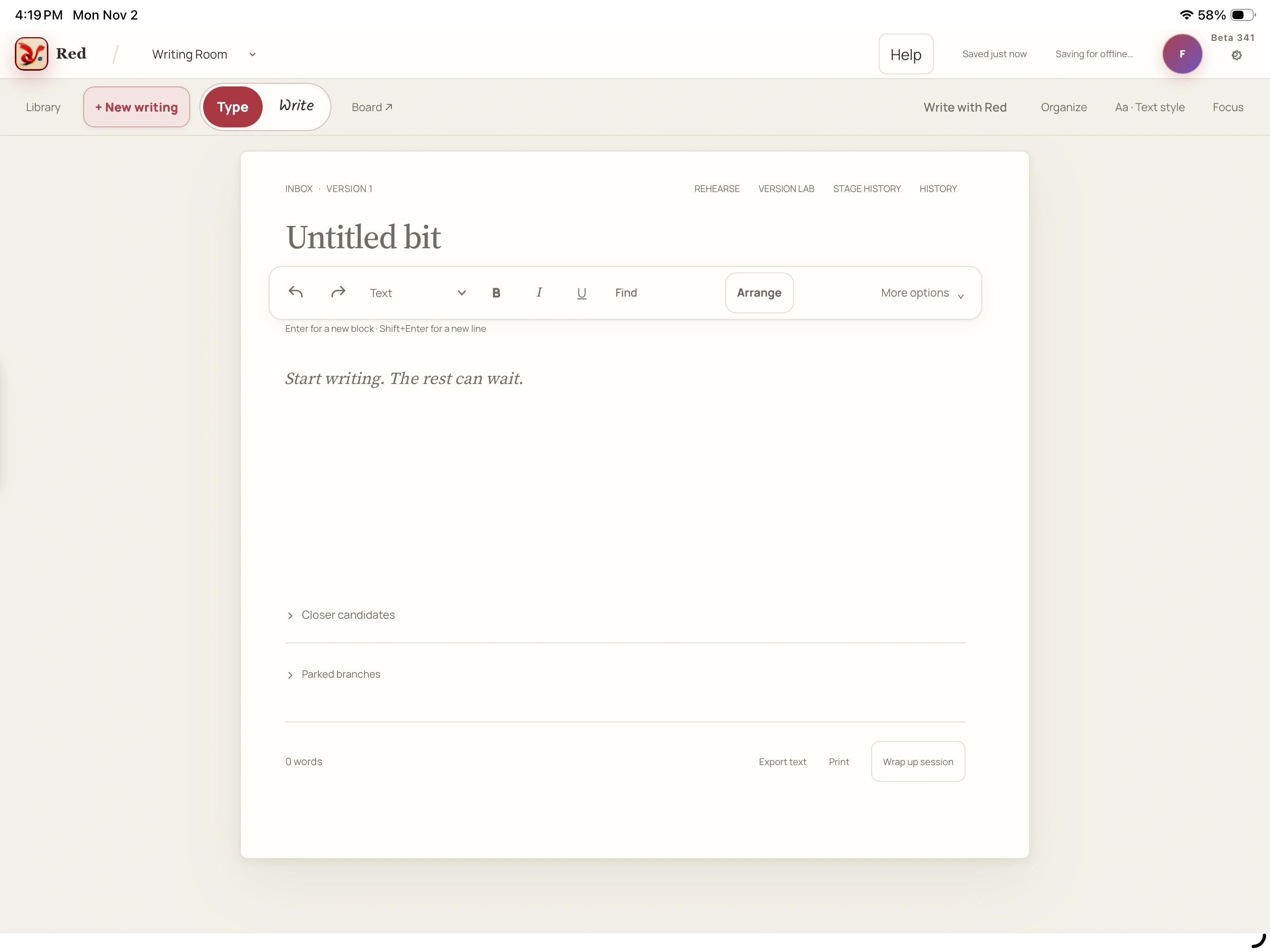
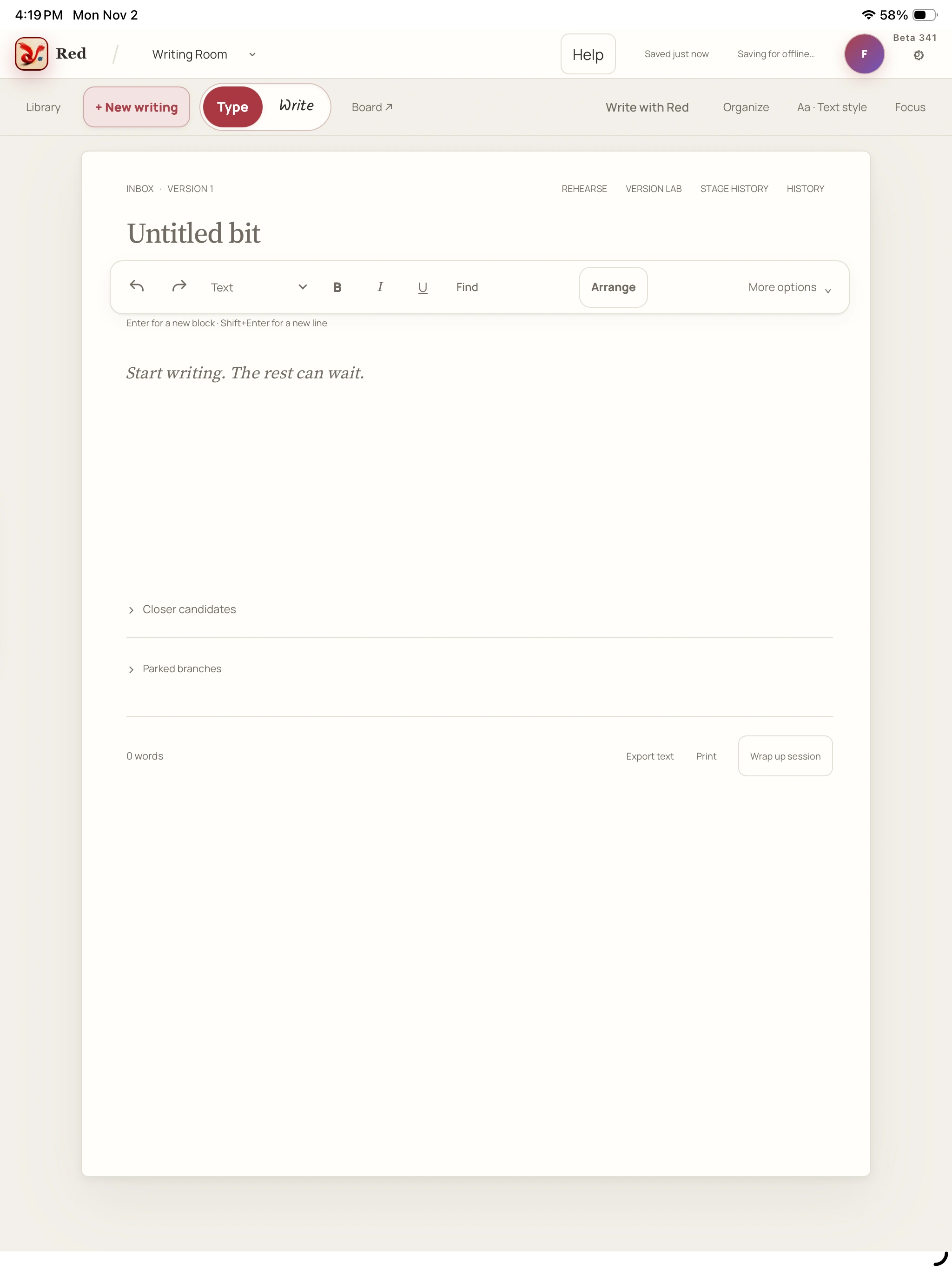
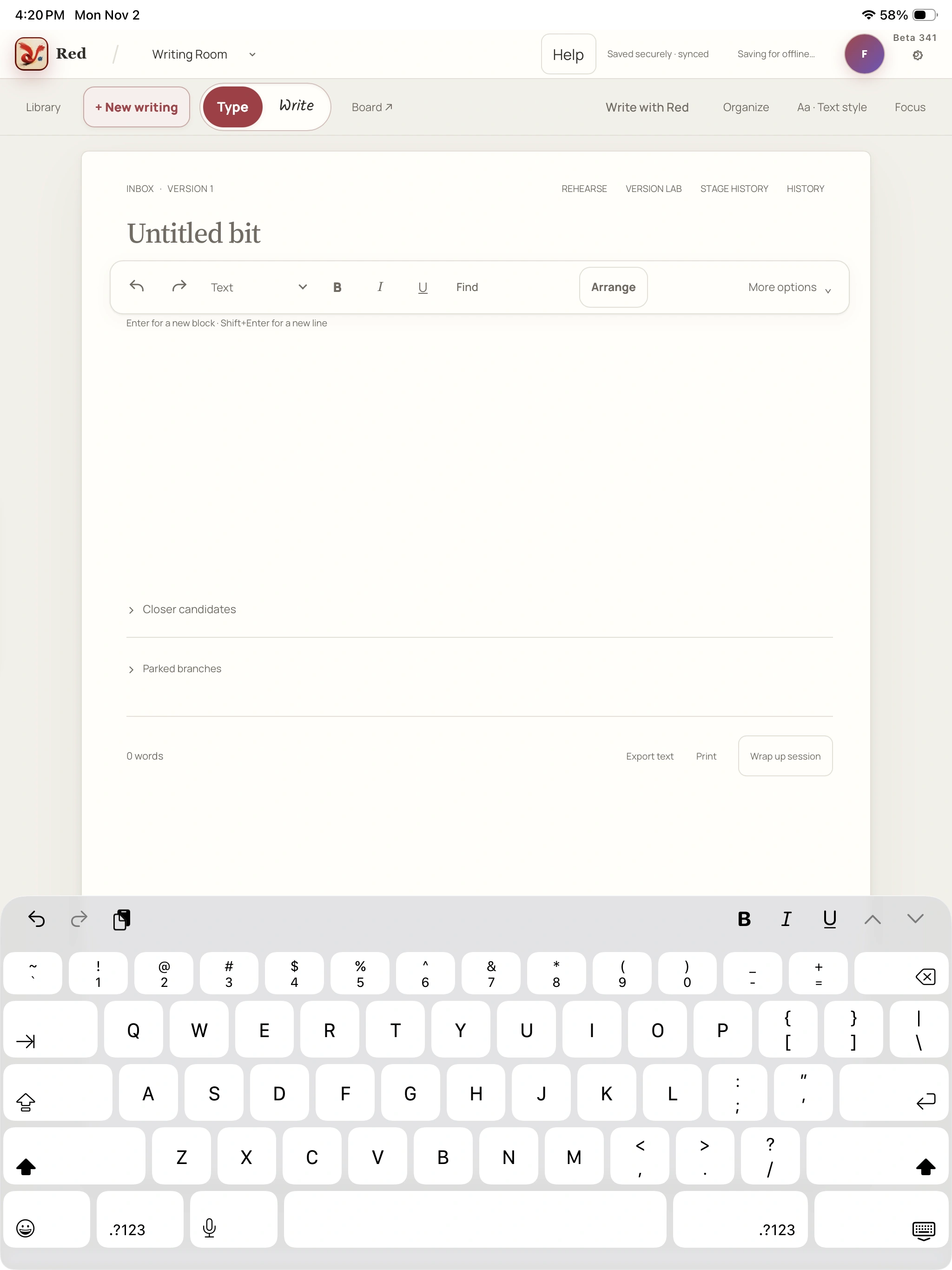
Choose New writing for a fresh piece, or open a Library bit. Name it and type in Working draft. On phones, Aa · Writing tools reveals the formatting tools.
02
Shape the page.
Use Paragraph style, formatting, Find and paragraph controls. Drag a paragraph or use Arrange → Move up / Move down. Split block at cursor needs words on both sides in the same paragraph.
03
Keep alternatives within reach.
Closer candidates and Parked branches hold endings or angles beside the draft. History previews earlier words. Restoring a version is an explicit action that makes a new saved version.
04
Choose the next tool.
Board continues the map; Organize files the bit. Write with Red opens the optional conversation. Wrap up session at the foot of the page can save your place or request a separate Red recap.
A closer look Hover, focus or tap a control name.
Open an existing Library bit to keep working on it. New writing starts a fresh piece.
Arrange → Move up / Move down changes paragraph order with buttons.
History lets you read first. Restore this version changes active writing by making a new version.
Write with Red opens optional AI. Hide Red returns to solo writing.
Read every control tip
New writing is deliberate
Open an existing Library bit to keep working on it. New writing starts a fresh piece.
Arrange without dragging
Arrange → Move up / Move down changes paragraph order with buttons.
Preview is not restore
History lets you read first. Restore this version changes active writing by making a new version.
Solo writing stays available
Write with Red opens optional AI. Hide Red returns to solo writing.
Earlier recorded Red example with sample material. Current controls can differ; use the steps above for this beta. Playback starts when you choose it.
See the iPad keyboard viewReal iPad screen · Beta 341 captureEnlarge screenshot ↗
When you want the details
Formatting, finding and direct editing.
Formatting changes the draft. Text style changes how the writing desk looks: typeface, text size, line spacing, width and appearance. They are separate choices. Find searches this draft; Previous/Next match moves between results, Replace changes one and Replace all changes every matching passage. Check the count before replacing.
Add paragraph below inserts a paragraph; Delete block removes that paragraph, not the Library bit. Select words inside one paragraph → Add to Board copies the reviewed words as New Idea or Gold Line. The draft stays in place; the card is not a live mirror.
Export text at the foot of Type downloads title and draft paragraphs. Print uses the device flow. Neither is a complete backup of ink, Boards, resources or account history.
History, Versions and Version Lab do different jobs.
Draft history previews earlier words. Restore this version makes a new version and keeps earlier history. Saved Versions in Bit details reads related saved drafts; opening a source takes you to its latest saved writing.
Version Lab creates a separate variation for a purpose. New variation offers Short, Long, Clean, Club or Saved draft. Saved draft → Save named draft keeps an exact copy without AI. Other types use Create variation and the account’s allowance after the sharing choice.
Edit this version opens its independent writing. Read version, Compare and Changes are viewing modes. The variation’s Draft/Ready to try/Tested on stage/Parked review label is separate from Library status. Use in a set previews a same-family replacement or a new cue before saving.
Bring Red in, then make the editorial call.
Write with Red opens Message Red. Return sends, Shift+Return adds a line and Send message also sends. Attach photo or file adds a pending tray; removing a pending file leaves the device original alone. Review sharing before sending. Full-show recordings belong in Shows.
Wait for the reply or error. A retry is another explicit send; check restored words and attachments first. Finish or clear an unsent message if it blocks changing bits. End an active voice exchange before continuing in writing.
Talk with Red is the separate live-voice option. Opening it does not start the microphone. Read the setup, then Start conversation only when you intend to connect. Minimizing a live session does not pause it.
Leave yourself a useful way back.
Wrap up session offers Just save my place for your own next-step note, or Wrap up with Red for a new AI recap. Review the notes and choose Save my wrap-up. Reopening saved notes does not request another recap.
Pick up here returns to writing with the kept next move. Original writing, ink and conversations remain in their own places. Read the save result before relying on another device’s copy.
↳ Try a small task
Use a short piece of sample material and follow the save messages.
Arrange two fictional paragraphs using the button controls.
Preview an earlier save and close History without restoring.
Save a next-step note with Just save my place, then reopen it.
WRITING ROOM · WRITE
Keep the ink. Work with the words.
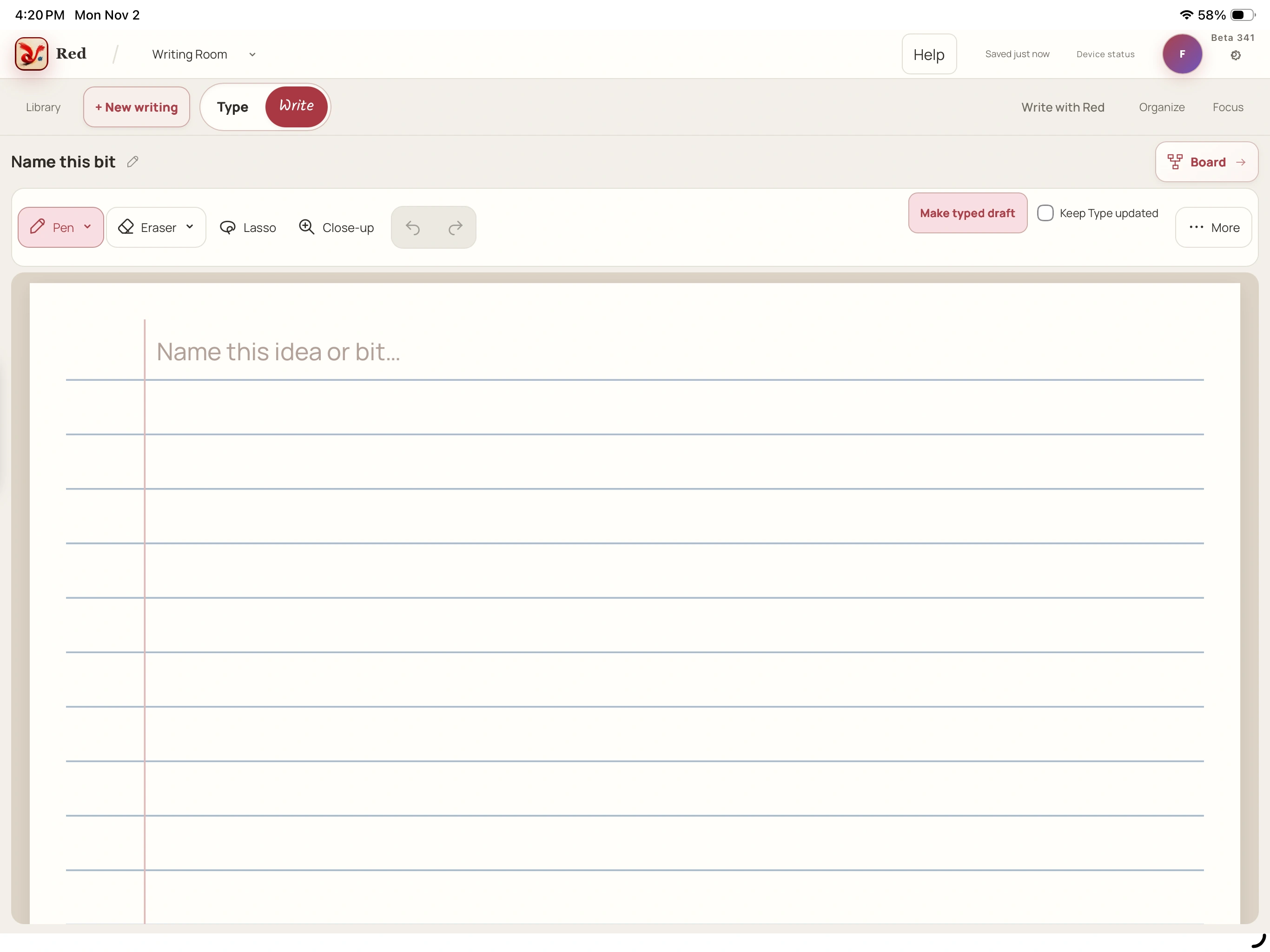
Write by hand on a supported device, keep the original pages, and review any reading before making it part of the typed draft. Your notebook does not have to disappear when the words become editable.
Handwriting controls and reading routes depend on the device and installation. Follow the capability and privacy wording Red shows.
01
Choose the surface Red offers.
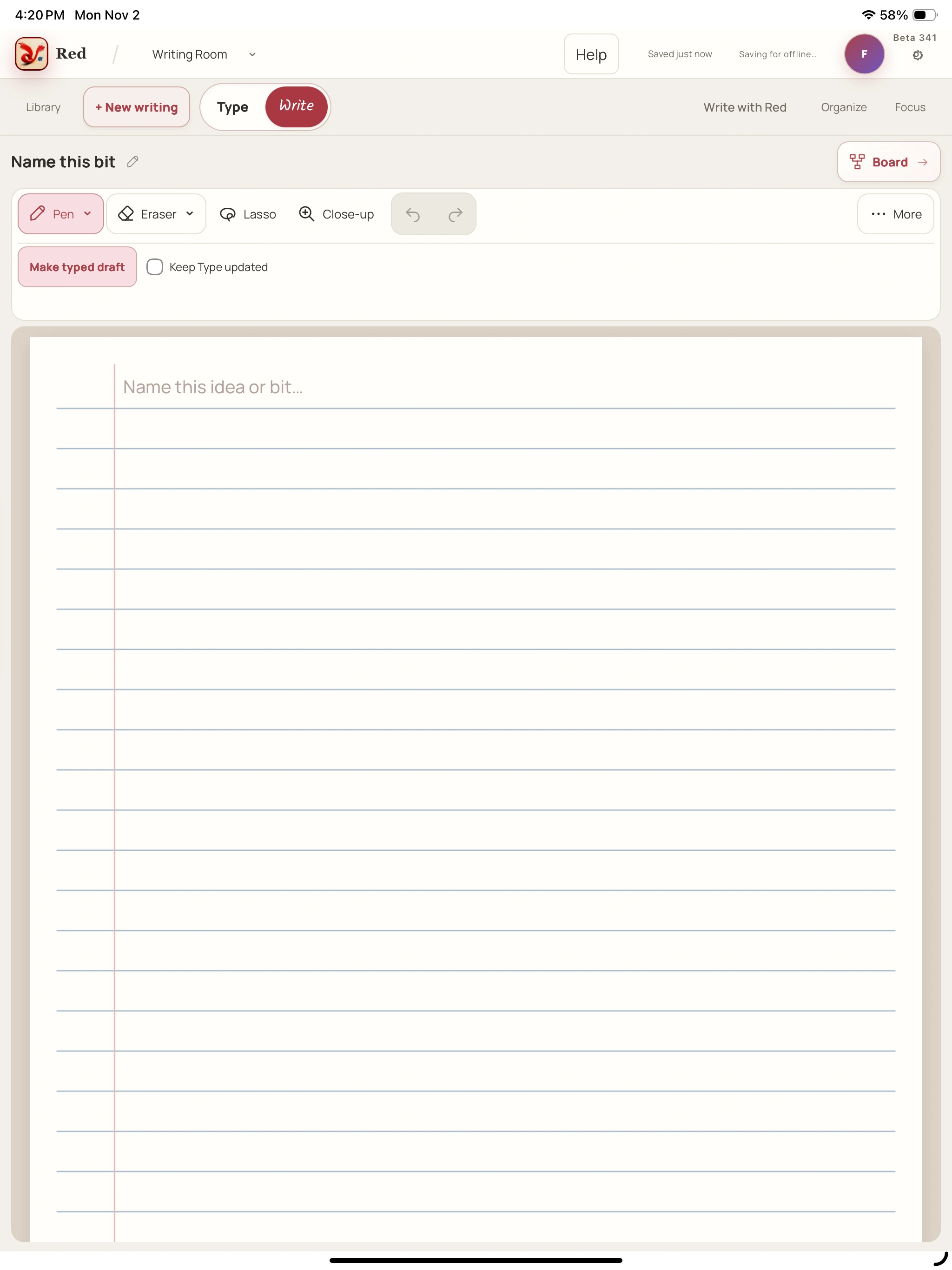
Open Writing Room → Write when available. Pen writes, Eraser removes ink and Lasso selects a passage. Tap Pen or Eraser again for its options.
02
Set up your page.
More holds paper, pages, Read page and zoom. With Draw with a finger off, one finger moves the page; turn it on for finger or basic-stylus drawing.
03
Review a typed copy.
Choose Make typed draft or Update typed draft. Compare the reading with the pages, correct words and check any First handwritten line · bit title. Then choose the final Make/Update typed draft action.
04
Keep a useful passage on the Board.
Lasso the words, choose New Idea or Gold and check Idea heading, The rest of the idea and Send as. Send to Board makes the reviewed copy; the original ink and typed draft stay.
A closer look Hover, focus or tap a control name.
Check names, deliberate wording and any title reading before the final Make/Update typed draft action.
Making a typed draft or sending a passage to the Board keeps the original handwriting.
With Draw with a finger off, a finger moves the page. Turn it on to draw with a finger.
Use the controls shown on this device. New handwriting is not offered on every device.
Read every control tip
Review the reading
Check names, deliberate wording and any title reading before the final Make/Update typed draft action.
Keep original ink
Making a typed draft or sending a passage to the Board keeps the original handwriting.
Finger input is a choice
With Draw with a finger off, a finger moves the page. Turn it on to draw with a finger.
Follow device capability
Use the controls shown on this device. New handwriting is not offered on every device.
Earlier recorded Red example with sample material. Current controls can differ; use the steps above for this beta. Playback starts when you choose it.
When you want the details
The notebook and the typed draft stay distinct.
The reading route depends on capability. The review tells you whether it happens on the iPad or goes to Red’s document reader. Correct uncertain words instead of treating recognition as a verbatim record. Check spelling and Review grammar offer local English suggestions; deliberate comedy wording can stay.
Keep Type updated is optional in the installed iPad app. Approved linked handwriting can update Type after quiet pauses; flagged changes and typed corrections still need review. Type is not a universal two-way mirror of ink.
A passage can become a Board idea or Gold.
Lasso the passage and review its heading/body before Send to Board. The reviewed copy joins the map; your notebook and typed draft remain. Open Board continues after saving.
If Review Board update appears, compare the offered copies. Back to handwriting keeps the review; resolve the Board choice, then retry the explicit transfer.
Some devices read saved ink without adding new ink.
iPhone/iPod input policy hides new handwriting controls. Saved handwriting can still have page, zoom and Download original ink controls. Back to text returns to the typed surface when offered.
Use the current save and recovery notice. A saved preview can be older than unsynced work on a device. Download an available original when Red asks, rather than clearing storage to make the warning disappear.
↳ Try a small task
Use a short piece of sample material and follow the save messages.
Open Pen options and check how one finger behaves on your device.
Review a sample typed-draft reading before applying it.
Send a reviewed fictional passage to the Board and check that the original page remains.
CLOSE-UP WRITING
Write larger. Keep your place.
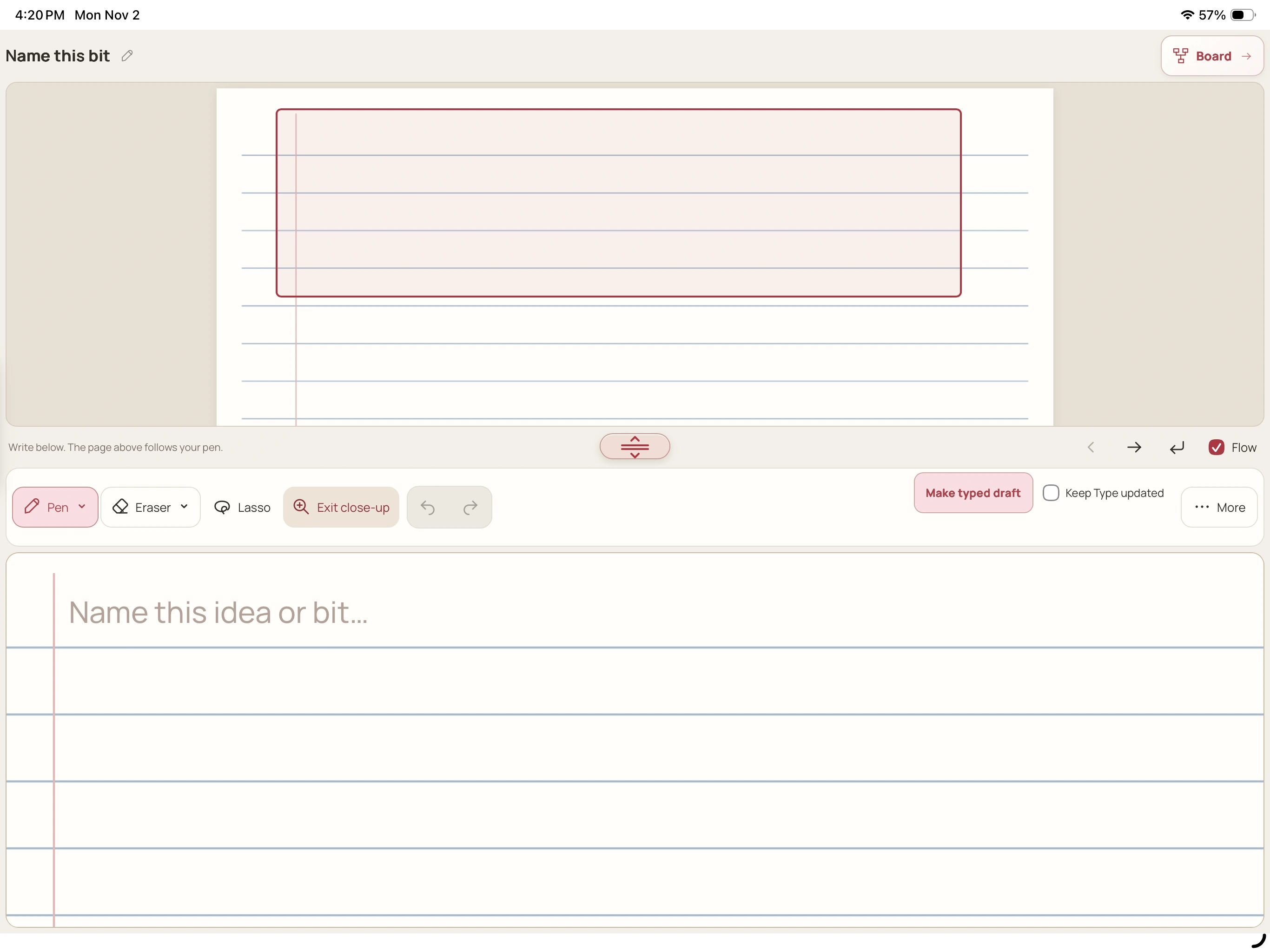
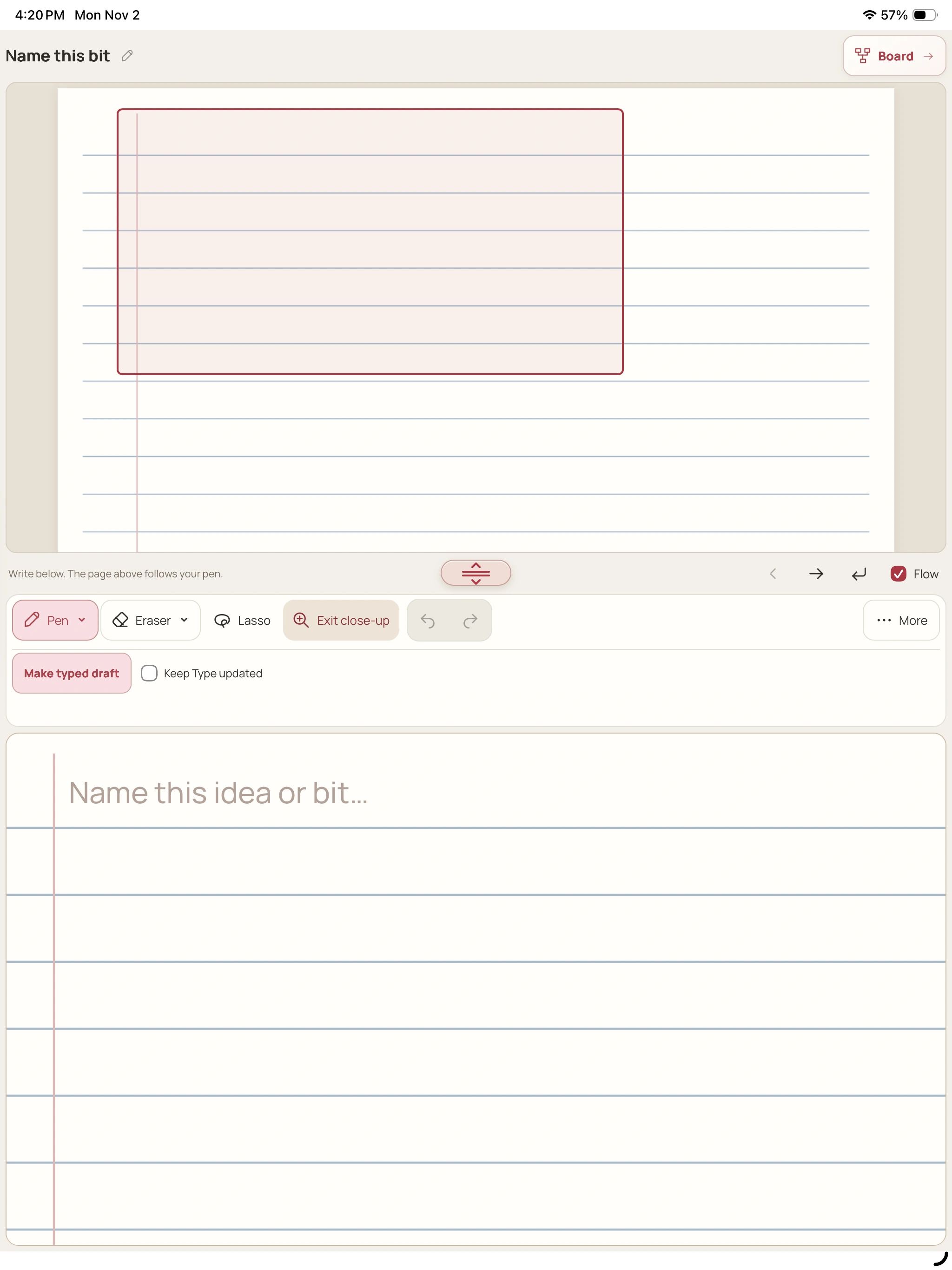
Close-up gives your hand more room while the page overview keeps the whole notebook in view. It changes the view, not the original page.
In Writing Room → Write, choose Close-up. Page overview shows the writing window on the page.
02
Place the window.
Tap or drag in Page overview to move the magnified area to the part you want. Write in the larger area below.
03
Continue at your pace.
Continue writing to the right and Next writing line move the window. Flow offers automatic continuation near the margin; turn it off if you prefer to move manually.
04
Return to the page.
Choose Exit close-up to return to the usual page view. The handwriting remains on its original page.
A closer look Hover, focus or tap a control name.
Use the magnified area below; Page overview shows where that writing sits.
Tap or drag in Page overview to position the writing window.
Use the right/next-line controls, or leave Flow on for automatic continuation near the margin.
Exit close-up returns to the usual view without making another page.
Read every control tip
Write below
Use the magnified area below; Page overview shows where that writing sits.
Place it first
Tap or drag in Page overview to position the writing window.
Choose your continuation
Use the right/next-line controls, or leave Flow on for automatic continuation near the margin.
Exit keeps the page
Exit close-up returns to the usual view without making another page.
When you want the details
The overview is a navigation tool.
The outlined writing window shows the current magnified area. Tap or drag it into place before continuing a line. The original page remains the same notebook surface.
The divider between overview and writing area can be resized; its control also supports arrow keys. The split changes the available viewing room.
Flow and manual movement.
Flow offers automatic continuation near the margin while writing with Pen. Turn it off when you want to position every move yourself. Previous writing position, Continue writing to the right and Next writing line are the manual continuation controls.
Choose the movement that suits the page. Close-up is a view aid; it is not a promise of identical Pencil behavior on every device.
↳ Try a small task
Use a short piece of sample material and follow the save messages.
Move the writing window using Page overview.
Try a line with Flow off and move it using the continuation controls.
Choose Exit close-up and find the same ink on the page.
THE BOARD
Give the idea somewhere to go.
Spread out a premise, follow another angle and keep the words worth carrying back to the draft. The map belongs to the bit, so a good line has a route home.
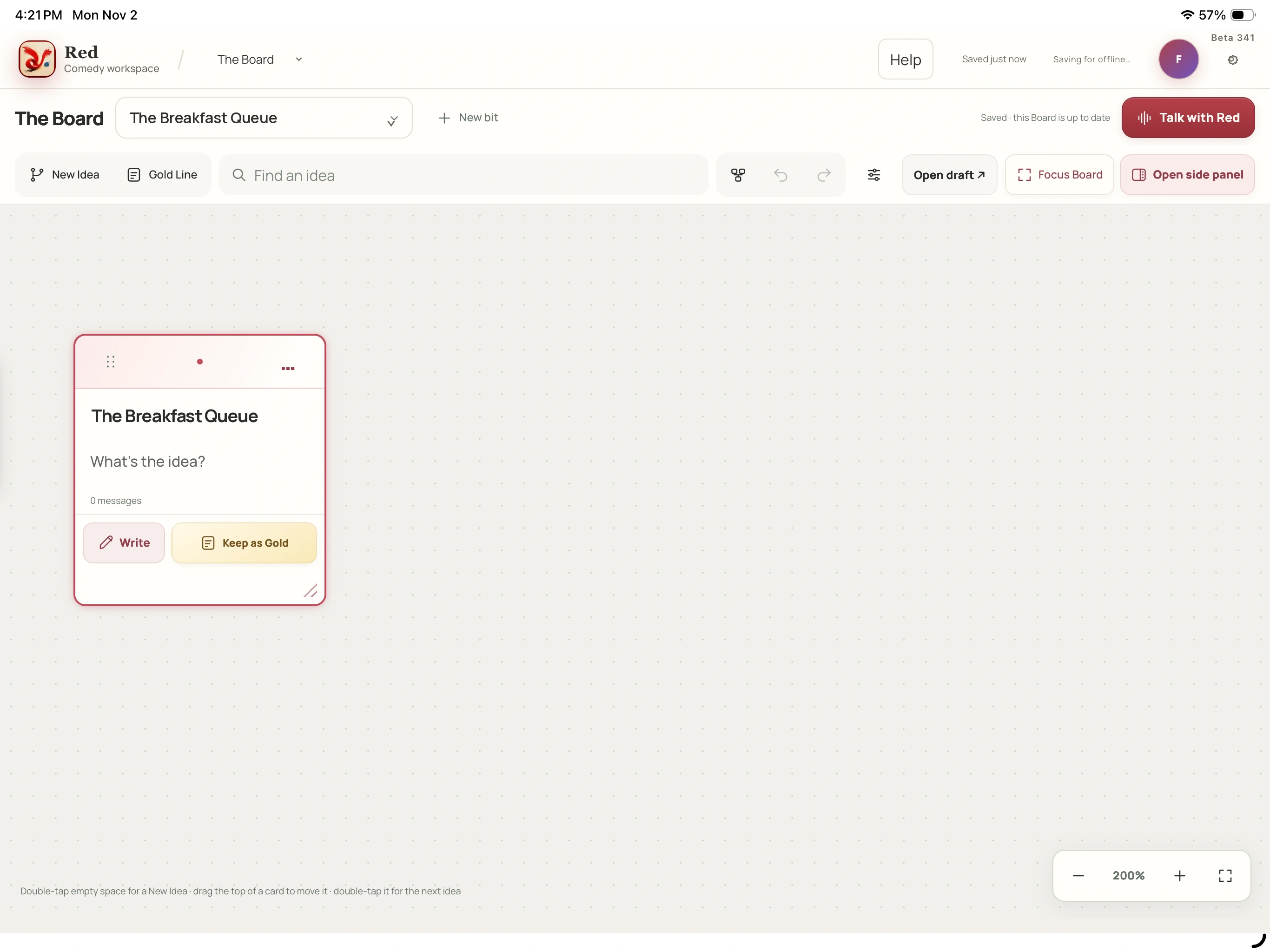
Open The Board and choose material, or enter from Writing Room → Board. New Idea explores a direction; Gold Line keeps words you want to use. Tap card words to edit.
02
Label and connect the thought.
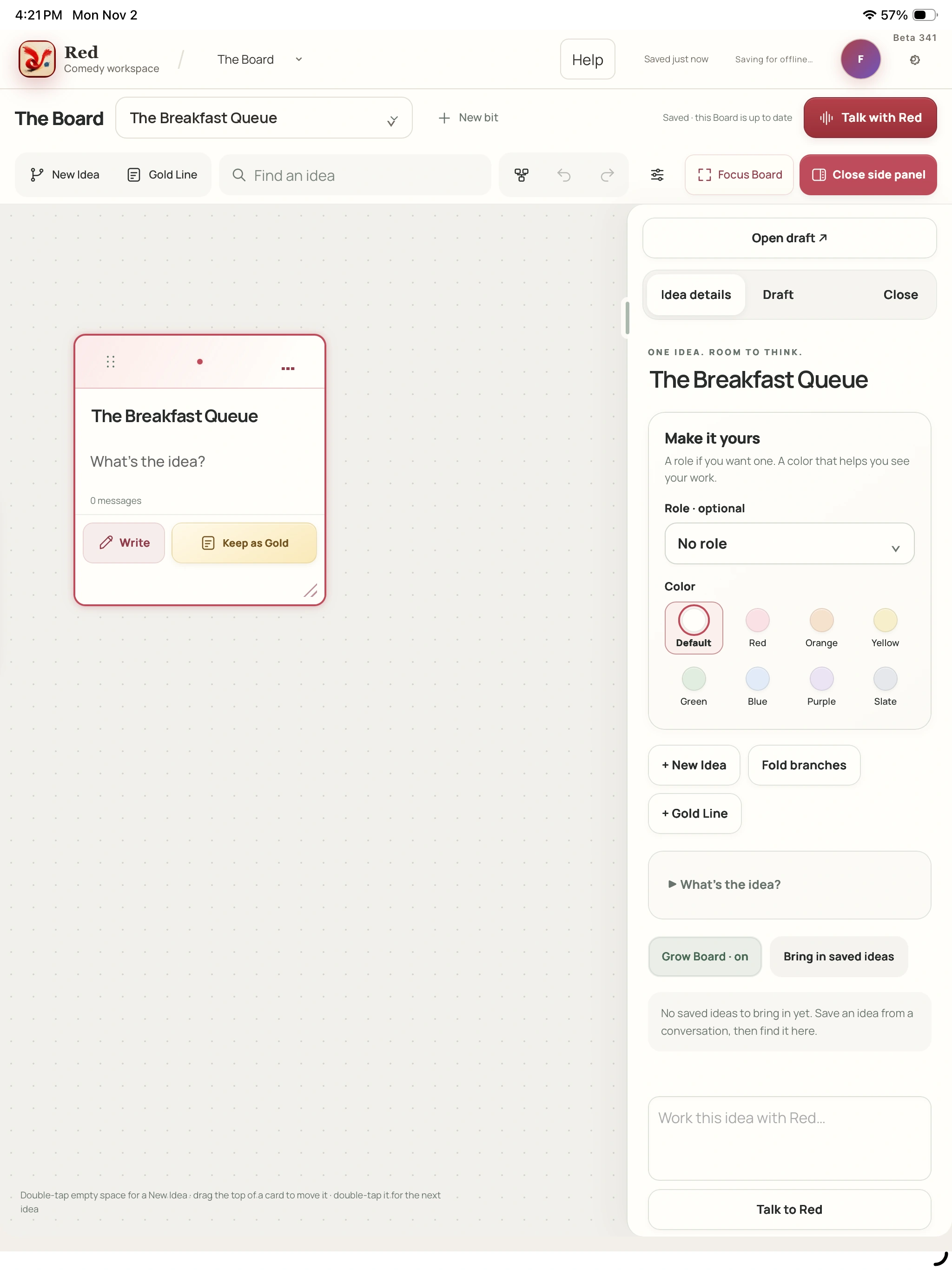
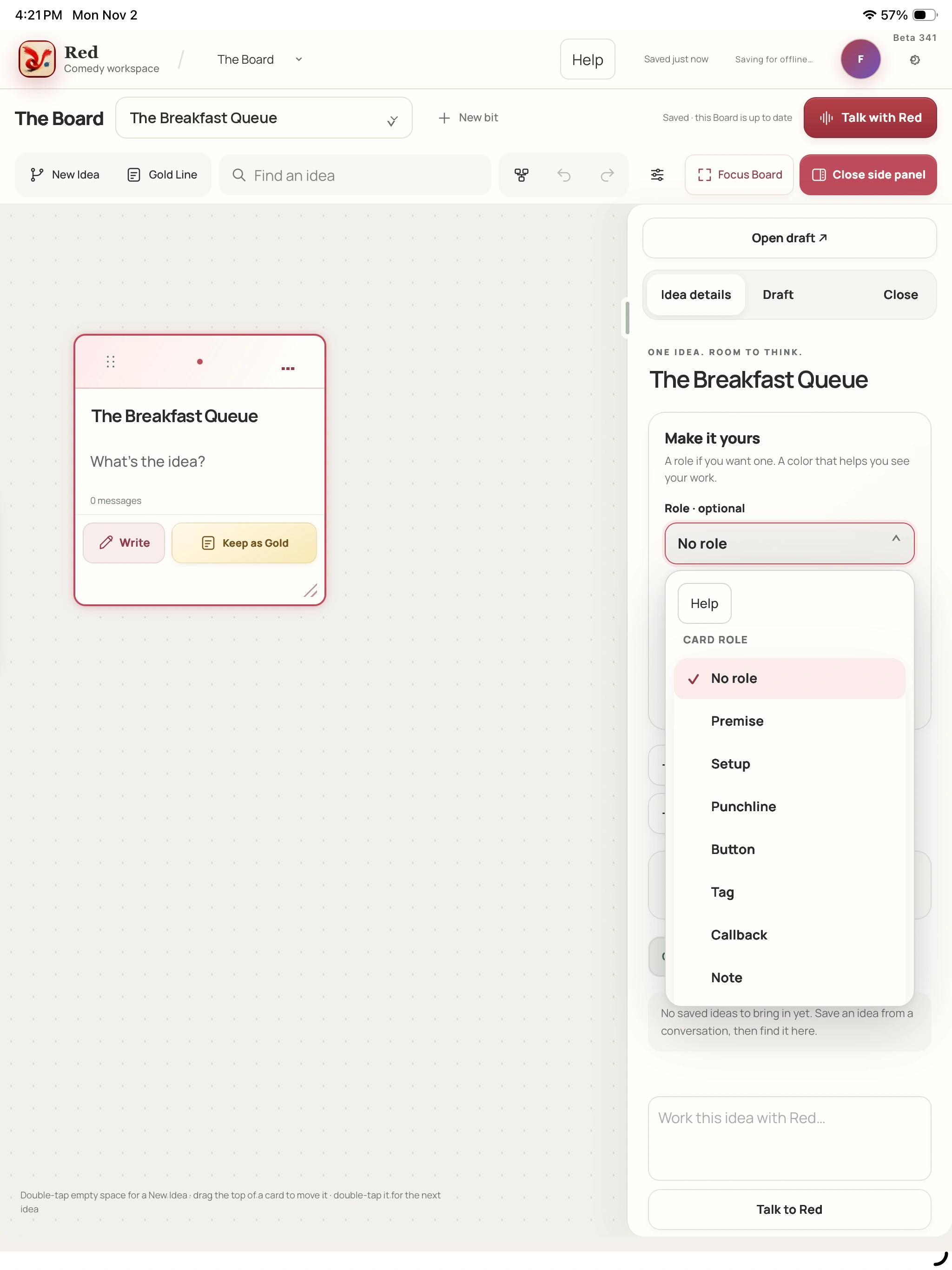
Card options holds Role · optional, Color and Fit card to text. Open side panel brings up Idea details and Draft. Use the connection controls offered for that card.
03
Put Gold to work.
Open a Gold Line’s Idea details and choose Add to draft, Save as a closer or Save for later. Library Inbox makes a separate piece. The original Gold remains on the map.
04
Read the save state.
Pan blank space, zoom, use Whole bit or Tidy as needed. Focus Board expands the map. View & recovery holds display choices, history, downloads and any current recovery route.
A closer look Hover, focus or tap a control name.
Role and color describe a card. Gold remains a keeper independently of its optional role.
Add to draft, closer or later copies the words. The original Gold stays on the Board.
Idea details and Draft are in Open side panel. Card options is the separate role/color menu.
Compare offered Board copies and keep a download before explicitly choosing a replacement.
Read every control tip
Gold is a keeper
Role and color describe a card. Gold remains a keeper independently of its optional role.
Delivery makes a copy
Add to draft, closer or later copies the words. The original Gold stays on the Board.
Open the side panel
Idea details and Draft are in Open side panel. Card options is the separate role/color menu.
Read before recovering
Compare offered Board copies and keep a download before explicitly choosing a replacement.
See the optional card rolesReal iPad screen · Beta 341 capture · Fictional titleEnlarge screenshot ↗
When you want the details
Roles, colors and connections have separate jobs.
Roles include Premise, Setup, Punchline, Button, Tag, Callback and Note; No role removes one. Custom label accepts a short valid line. Color and Fit card to text change its presentation; the Board save message reports progress.
Callback as a role is a label. Link callback adds a manual relationship through Connections & merge. Callback finder is a separate optional AI tool. Disconnect keeps both cards; merging is a separate explicit action whose destination deserves a check.
A note can keep its handwriting.
Card Write or Idea details → Write this note opens ink/text. Depending on capability, new ink can be read after a pause or through Transcribe handwriting. View transcription reuses text already updated; Check transcription can request/check a reading.
Checking is optional before returning to the Board. If reviewing, Save this transcription can replace the card’s complete note text, so read the full preview. Keep my note as it is or Keep handwriting only preserves the offered alternative. Original ink stays with the card.
The draft and map are connected, not mirrored.
Gold destinations make explicit copies. Repeating the same card to the same destination is guarded against a second delivery. Edit delivered words in their destination; later card edits do not silently rewrite them.
Board History restores an earlier map as a new Board version. It does not undo material already delivered to writing or Library. Bit details can show a read-only saved Board; use Open Board for editing.
When two copies need a decision.
Compare Board copies or Review saved version opens the offered copies. Download my current Board keeps a file. Keep working on this device leaves sync paused; Open Board saved in Red chooses the saved version.
Use this device’s Board and sync explicitly replaces the saved Board after recovery copies are kept. If the saved source changes again, review it again. Follow Retry this Board’s save or Device status when an unconfirmed earlier upload prevents a choice.
↳ Try a small task
Use a short piece of sample material and follow the save messages.
Create a fictional Idea, choose a role and read the Board’s save notice.
Send a Gold Line to a draft and inspect the destination copy.
Open a saved Board in Bit details, then use Open Board to edit.
SETS & GLANCE MODE
Build the run you want to take onstage.
Choose the bits, decide the order and keep the words you intended to try. An estimate helps shape the run; a fixed cue keeps a chosen version from moving underneath it.
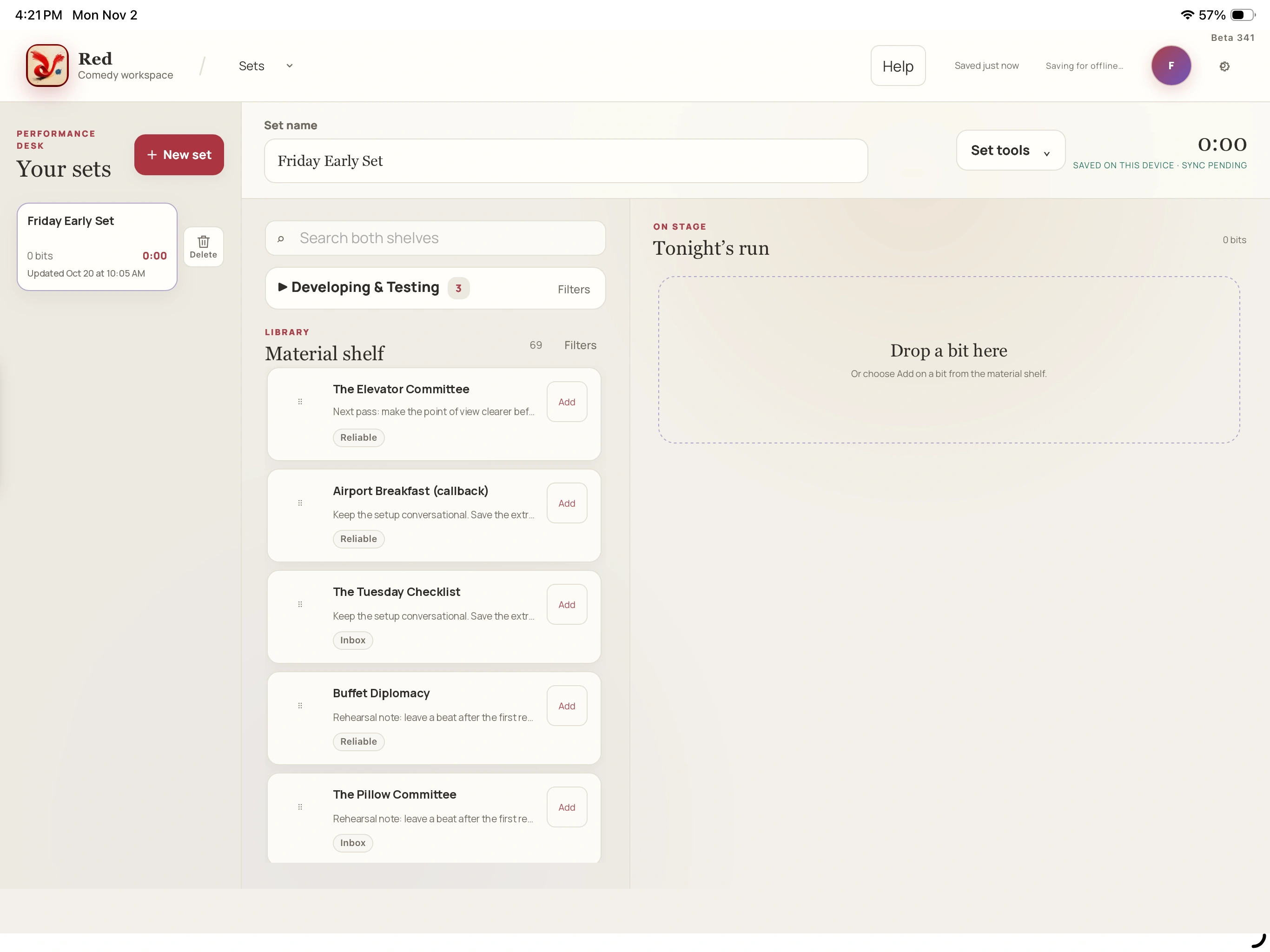
Open Sets → New set and give it a name. Search both shelves or use Filters for Status, Tag, Collection, Source and Sort by.
02
Add the intended draft.
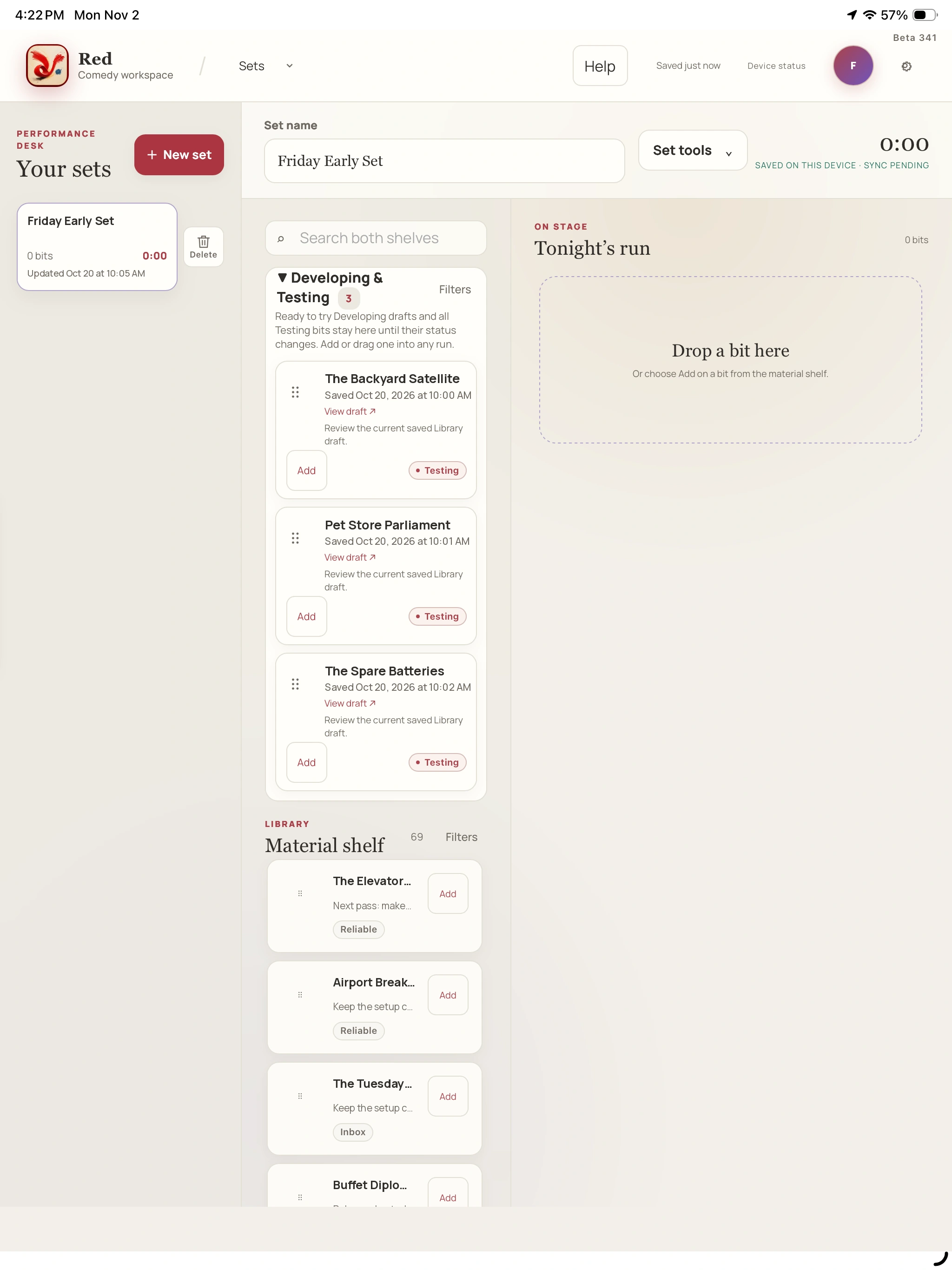
Developing & Testing keeps ready Developing drafts and Testing bits; Material shelf holds the other available material. View draft checks the words. Choose Add for the selected run.
03
Shape the order and estimate.
Move earlier / Move later reorders cues. Bit length opens a minutes-and-seconds pad: enter 130 for 1:30, then Done. Read the total as an estimate.
04
Confirm before taking it along.
Read the save status. Set tools opens Rehearse this set, Glance Mode and Export this set. Some tools wait for a confirmed saved run; a device-local save can still be waiting to upload.
A closer look Hover, focus or tap a control name.
Ready to try makes a Developing draft available on the shelf. Choose a run and Add to place it there.
Review this draft distinguishes a fixed chosen version from the current Library draft.
Bit length and the total help plan the run. They are not measured performance time.
Start your usual recorder separately. Glance Mode is the cue view.
Read every control tip
Ready is not added
Ready to try makes a Developing draft available on the shelf. Choose a run and Add to place it there.
Check the cue’s words
Review this draft distinguishes a fixed chosen version from the current Library draft.
Estimates are estimates
Bit length and the total help plan the run. They are not measured performance time.
Glance does not record
Start your usual recorder separately. Glance Mode is the cue view.
Earlier recorded Red example with sample material. Current controls can differ; use the steps above for this beta. Playback starts when you choose it.
When you want the details
Fixed wording and the current Library draft.
Review this draft shows the cue’s context. Fixed in this run keeps a chosen version. Current Library draft · follows your Library draft uses current saved wording. Editing Library words does not replace a fixed run version.
Edit current draft opens Writing Room; Done · Back to Sets or preview returns. Use saved draft replaces kept device edits rather than preserving both. Read a recovery notice before choosing it. A card already in the run appears under In this run.
Save states and a changed run.
Saving… is unfinished. Saved on this device · sync pending means the device has changes and upload is pending. Save needs attention is not always a conflict. Keep the run open and read the message.
If This set changed elsewhere appears, Keep mine as a new set preserves this screen separately. Use saved version loads the saved set without making another copy of unsaved changes. Finish saving my copy continues the same pending copy; check that result before a different change.
Glance Mode: prepare the actual view.
Set tools → Glance Mode → Options offers Full set or Current & next. Check text size and light before Take the stage. Full set is a steady cue sheet without advance buttons. Current & next offers Back, Next, Find my place and swipes; Guard on requires a deliberate pointer hold.
Count-up Current bit/Total set timers are optional. Pause/Resume timers is separate from the planned duration. Finish show & make notes carries the fixed plan into Shows; Back to sets simply leaves Glance.
Glance does not record. Screen wake, fullscreen, orientation, brightness and optional pedal keys depend on browser/device settings. An active snapshot stays fixed instead of following later set edits. Check the displayed offline readiness rather than assuming a local snapshot guarantees reopening.
Export or remove a run deliberately.
Export this set offers PDF, Word or Text cue sheets; it does not export every bit’s full working draft. Check the device’s download/file handoff.
Delete beside a set reviews its name/date. Keep set cancels; Delete set removes the run without deleting Library bits. There is no promised Undo or restore-set action. Remove saved show in Glance only removes that device snapshot.
↳ Try a small task
Use a short piece of sample material and follow the save messages.
Build a short fictional run, reorder it and enter two estimated lengths.
Inspect one cue’s draft context before editing or choosing a version.
Open Glance Options, compare Full set with Current & next and check its readiness notice.
STUDIO
Hear it. Try something. Bring it back.
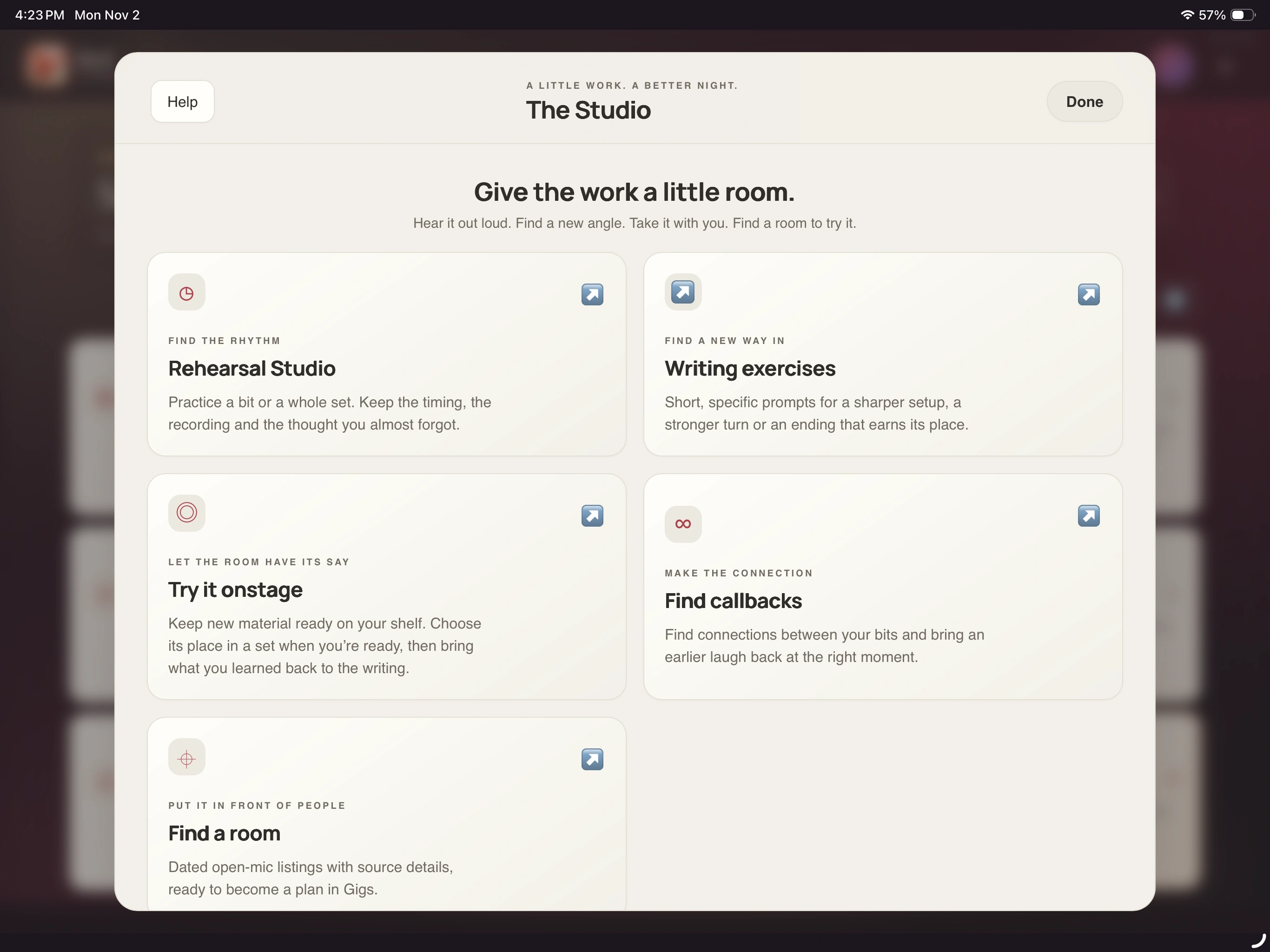
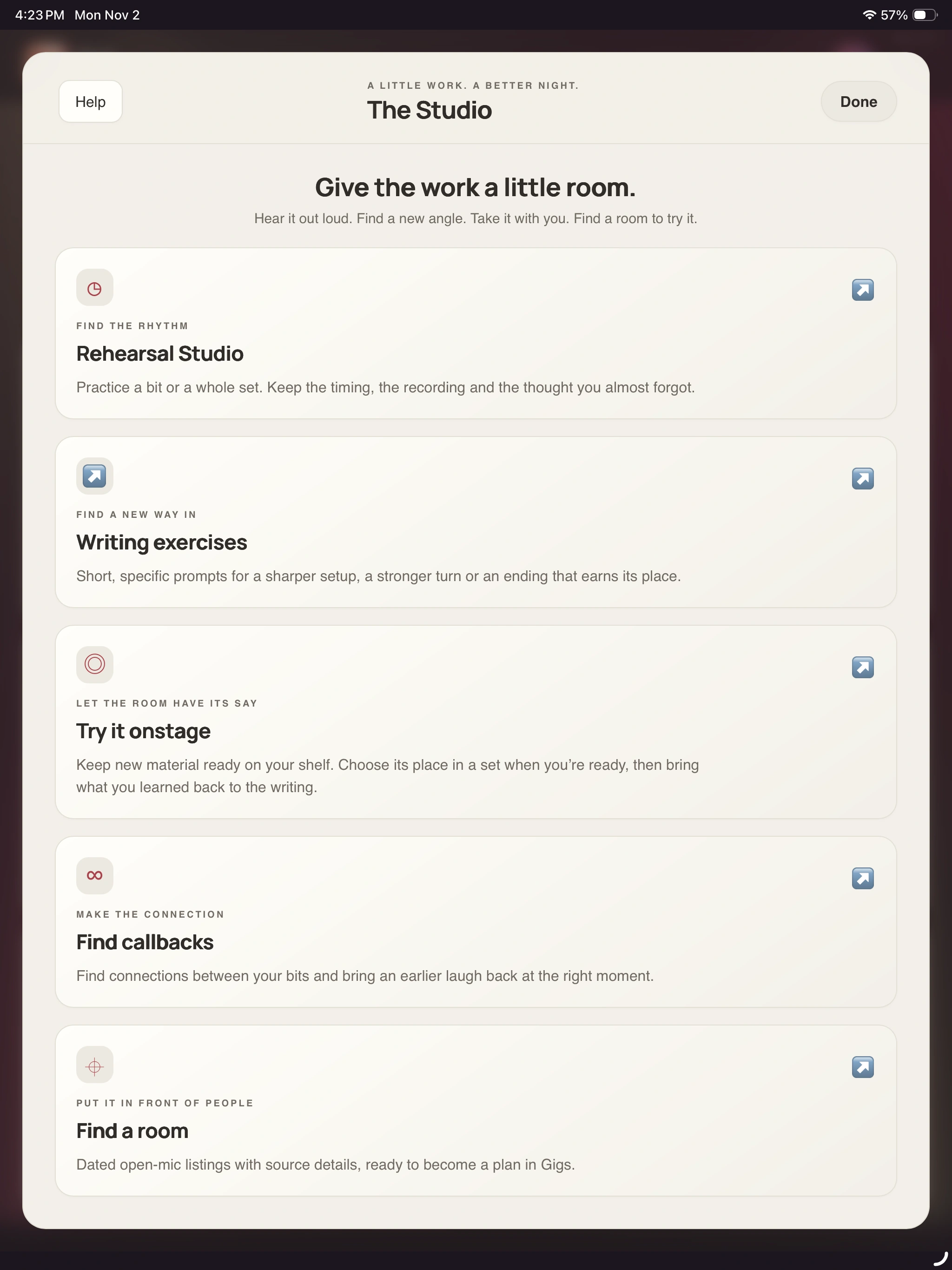
Studio gives the work a few different tests: rehearse it, try an exercise, plan a stage test, find a callback or find a room. Choose the tool that fits the question you actually have.
Talk with Red is the live-voice feature. Open its setup to read sharing and choose a voice, pace and time limit; Start conversation explicitly connects. Pause or End stops the exchange. Minimizing does not. Saved conversations keeps written history rather than an audio recording.
01
Rehearse the words.
Rehearsal Studio opens a saved bit or set. Practice options offers optional Record my voice and Gentle scroll. Start / resume, mark moments, Finish run, write observations and Save notes.
02
Give one idea an exercise.
Writing exercises opens a focused prompt with optional timer and Type/Write notebook. Keep a discovery saves separate Library writing while the exercise’s original page remains.
03
Plan a stage test.
Try it onstage lets you choose and review a draft. Ready to try keeps Developing words on the shelf; Open Sets and Add still place them in a chosen run. Review the night afterward.
04
Look for a return between bits.
Find callbacks lets you choose bits or use a set. Find connections requests optional AI; Saved passes reads an earlier result. Keep marks a connection; Add line separately places chosen words.
05
Find a place to try it.
Find a room searches City and State / province. Check the listing’s source, date, listed start, time zone and signup notes before Save opportunity. Saving a hold does not book a lineup spot.
A closer look Hover, focus or tap a control name.
Save or sync new writing before rehearsing. The run keeps the exact draft it used.
In callbacks, Keep saves your judgment. Choose a destination and Add line to copy words into writing.
Stage reviews and Compare nights keep performer observations. They do not automatically prove a draft reliable.
Saved passes, saved transcripts and saved comparisons are for reading. Find connections and Ask Red to review are separate explicit requests.
Read every control tip
Practice uses saved words
Save or sync new writing before rehearsing. The run keeps the exact draft it used.
Keep is not apply
In callbacks, Keep saves your judgment. Choose a destination and Add line to copy words into writing.
An observation is your read
Stage reviews and Compare nights keep performer observations. They do not automatically prove a draft reliable.
Viewing need not request AI
Saved passes, saved transcripts and saved comparisons are for reading. Find connections and Ask Red to review are separate explicit requests.
When you want the details
Rehearsal, checked words and Before & after.
Choose a saved bit/set. Record my voice is optional; Gentle scroll can be turned off. Start / resume, Pause and Mark a moment support practice. Finish run → observations → Save notes. Local notes, uploaded audio and an account-confirmed save are separate states.
For a finished recorded rehearsal, Review with Red can offer Read my rehearsal when its reader is available. Check the words: timestamps seek, corrections fix the transcript and Include leaves chosen sections out. Save words and Download transcript do not request the separate AI review.
Ask Red to review sends included checked words, saved draft and rehearsal notes for optional AI review. Read sharing/allowance text first. Before & after compares Original and Experiment recordings; Save comparison keeps your observations. Keeping preferred wording saves separate writing, not a proven audience result.
Practice the saved draft, then Finish run and Save notes.
If reviewing a recording, check and save the transcript before asking Red.
Listen to Original/Experiment ranges, record what feels better and save the comparison.
Exercises: keep the useful part.
Select a prompt and write. Give me [minutes] minutes starts its optional timer; Pause timer takes a break, and the page stays available when time ends. In Type, select lines to keep only those or leave unselected for the whole page.
In Write, read/review Words to keep — review and edit before Keep this discovery. The privacy wording explains iPad reading or private reader transfer; typing the passage remains an option. Download is text; Download handwriting is original .redink data.
Open the writing opens the kept Library piece. Develop this with Red prepares an editable conversation direction; it does not send automatically. Studio history reopens the original exercise. Confirmed deletion removes that Studio page while kept Library discoveries remain.
Choose a prompt and write without worrying about a finished bit.
Review selected words or the handwriting reading, then keep the discovery.
Open the Library copy and return to the original Studio session.
Stage tests: a plan, a night and your observation.
After the show in Shows groups To review, Planned and Reviewed. A set position is a plan, not proof of performed words. Open a night and choose Used the planned words, Changed it onstage, Didn’t get to it or Not reviewed yet. Add What’s next? and What happened in the room?, then Save stage review.
Stage history / Compare nights shows the planned drafts and your reviews. Choose eligible nights as evidence for Your recurring observation, then Save observation. A changed-onstage performance can support an observation about that night; it does not prove the planned wording landed.
Keep as my next draft requires an exact-confirmed draft and saves separate working writing. Work on it with Red or Work through these nights with Red prepares an editable message; you decide whether to send. Download unfinished notes before choosing a saved replacement in a conflict.
Review the planned words and record what you actually performed.
Save your night’s observation before comparing it with another night.
Choose evidence deliberately; save or download unfinished work before changing observations.
Callbacks and a room to test the work.
Find callbacks offers Choose bits or Use a set. Individual selection needs two to thirty bits. Find connections is an optional AI pass; Saved passes returns without a new pass. Review plant, payoff, source context and Watch for. Keep / Try aloud / Pass does not add words.
Adjust the wording edits the suggestion. Choose The Board, Working draft, Closer or Park for later for each line, then Add line. Added ✓ marks the copied destination. A stale pass or Pass choice disables delivery. Make a fresh pass is another explicit AI request.
Find a room offers listings, not guaranteed slots. Enter City and State / province, check the source and choose Add to Gigs. Review Date, Listed start, time zone and signup notes, confirm you reviewed the details, then Save opportunity. Open Gigs continues the plan.
Read a saved callback pass and choose the connection you want to consider.
Review wording and destination before Add line; inspect the copied words.
Verify an open-mic listing with its source before keeping an opportunity.
↳ Try a small task
Use a short piece of sample material and follow the save messages.
Rehearse a short fictional draft, mark a moment and save your own notes.
Keep a selected exercise discovery and inspect its separate Library writing.
Open a saved callback pass or stage review and read it without starting a fresh AI request.
Nothing quite matches that yet.
Try a shorter control name, or clear the search to see every chapter.
HELP US MAKE THE NEXT PASS BETTER
Where did you get stuck?
Tell us the screen, your device, what you expected and the message you saw. Keep private writing out of the example.
 Red